A well-planned home office can improve comfort, productivity, and focus while helping beginners avoid unnecessary purchases. A practical home office essentials checklist for beginners makes it easier to build a workspace that supports daily work, online meetings, and long hours at a computer.
Home office essentials include furniture, computer equipment, ergonomic accessories, lighting, and reliable internet. This guide explains which items every beginner should buy first, which upgrades can wait, and how to create an efficient workspace without overspending. If you’re working with a limited budget, start by planning your workspace with budget-friendly setup ideas before purchasing equipment.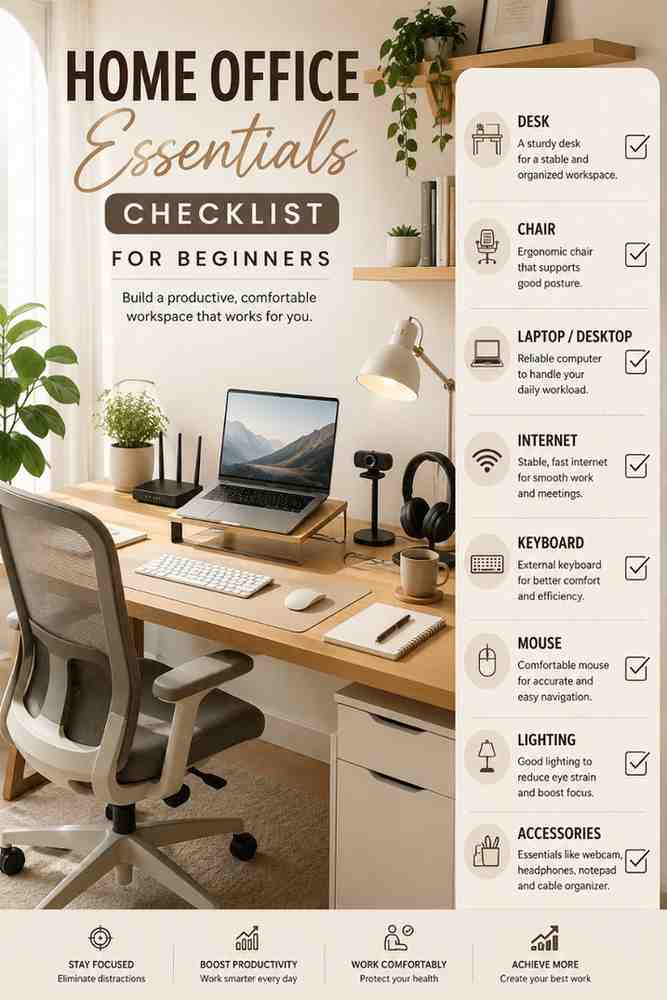
What Do You Need for a Home Office?
A home office essentials checklist for beginners starts with the equipment needed to work comfortably and efficiently. Every beginner should prioritize a sturdy desk, an ergonomic chair, a reliable computer, stable internet, and a few essential accessories before considering premium upgrades.
Building a home office in stages helps control costs while ensuring every purchase adds value. Additionally, choosing quality essentials first often improves productivity more than buying multiple inexpensive accessories that rarely get used.
Must-Have Essentials
A beginner home office should include equipment that supports daily work, communication, and comfort. These essentials create the foundation for a productive workspace regardless of whether you work remotely, study online, or run a small business.
| Essential | Why You Need It | Priority |
|---|---|---|
| Desk | Provides a stable and organized workspace. | Essential |
| Ergonomic Chair | Supports proper posture and reduces back strain. | Essential |
| Laptop or Desktop | Handles your daily workload. | Essential |
| Reliable Internet | Supports video meetings and cloud-based work. | Essential |
| Keyboard and Mouse | Improves typing comfort and navigation. | Essential |
A separate keyboard and mouse often provide better comfort than using a laptop alone. Furthermore, selecting accessories designed for long work sessions can reduce wrist fatigue and improve accuracy. Choosing the right wireless keyboard and a comfortable productivity mouse can make everyday tasks much easier.
Nice-to-Have Upgrades
Nice-to-have upgrades improve convenience and productivity but are not required on the first day. Many beginners add these items after identifying limitations in their current workspace.
| Upgrade | Main Benefit | When to Buy |
|---|---|---|
| Second Monitor | Improves multitasking. | After daily workflow increases. |
| Laptop Stand | Raises screen to eye level. | When using a laptop full-time. |
| Docking Station | Adds extra ports. | When connecting multiple devices. |
| Printer | Prints contracts and documents. | If you regularly handle paperwork. |
| Desk Lamp | Reduces eye strain. | For rooms with poor lighting. |
Many people discover the value of these upgrades after several weeks of working from home. For example, adding a laptop stand improves posture, while a USB-C docking station simplifies connecting monitors, storage devices, and other peripherals.
Essential Furniture for a Comfortable Workspace
Essential furniture creates the physical foundation of every home office. Choosing the right desk, chair, and workspace layout improves comfort, supports better posture, and makes daily work more efficient.
Choosing the Right Desk
A home office desk should provide enough space for your computer, keyboard, documents, and accessories without making the room feel cramped. Most beginners find a desk between 47 and 60 inches wide suitable for everyday work.
Desk stability matters as much as size because wobbling surfaces can become distracting during typing or video calls. Additionally, built-in cable management, storage drawers, or monitor shelves help keep frequently used items organized and within reach.
After setting up a dedicated desk, many beginners notice fewer distractions compared with working from a dining table or couch. According to the Occupational Safety and Health Administration (OSHA), a properly arranged workstation helps reduce physical strain during computer work.

Why an Ergonomic Chair Matters
An ergonomic office chair supports your back, neck, and shoulders during long work sessions. Good lumbar support encourages a neutral sitting position and helps reduce discomfort caused by extended periods of sitting.
Adjustable seat height, armrests, and reclining functions allow the chair to fit different body types. Furthermore, breathable mesh materials often provide better comfort than thick cushions in warm environments.
Many beginners underestimate the importance of seating until they spend several hours working every day. Replacing a dining chair with an ergonomic office chair usually provides one of the biggest improvements in overall comfort and productivity.
Lighting and Desk Placement
Good lighting reduces eye strain and improves concentration throughout the workday. Placing the home office desk near natural light often creates a more comfortable environment while reducing glare on the monitor.
Computer screens should sit perpendicular to windows whenever possible to minimize reflections. Additionally, a quality desk lamp provides consistent lighting during evening work or cloudy days.
After adjusting desk placement and lighting, video calls often look clearer while reading documents becomes less tiring. Proper lighting also helps webcams produce a sharper image during virtual meetings.
Keeping Your Workspace Organized
An organized home office saves time by keeping frequently used items within easy reach. Simple storage solutions such as shelves, drawers, cable clips, and document organizers reduce clutter and improve efficiency.
Cable management is often overlooked, yet neatly routing power and data cables makes cleaning easier and prevents accidental disconnections. Consequently, the workspace remains safer and more professional during online meetings.
Organization becomes even more important as additional equipment is added over time. Avoiding common setup mistakes from the beginning makes future upgrades easier, especially when following practical advice on avoiding workspace mistakes.
Computer Equipment Every Beginner Needs
Computer equipment determines how efficiently a home office handles everyday tasks such as email, video meetings, document editing, and multitasking. A home office essentials checklist for beginners should focus on choosing reliable equipment that matches your workload instead of paying for features you may never use.
Most beginners need a dependable computer, a comfortable display, quality input devices, and clear audio for virtual meetings. Additionally, selecting compatible equipment from the beginning makes future upgrades easier and reduces unnecessary expenses.
Laptop vs Desktop
A laptop is the best choice for most beginners because it combines portability with enough performance for remote work, online learning, and business tasks. A desktop computer becomes a better option if your work involves video editing, software development, engineering, or other demanding applications.
Laptops require less space and consume less power, making them ideal for apartments or shared workspaces. However, desktop computers usually provide better upgrade options, improved cooling, and higher performance for the same budget.
Many remote workers discover that mobility becomes valuable when working from different rooms or traveling. Choosing the right computer depends more on your daily workflow than on the latest hardware specifications. If you’re unsure where to begin, comparing different configurations in a remote work laptop guide can simplify the decision.
Budget also plays an important role when selecting a computer. Beginners handling office applications, web browsing, and video conferencing rarely need premium hardware, and many affordable models deliver excellent performance. If you’re shopping within a budget, these laptops under $800 provide strong value for remote work.
External Monitor Benefits
An external monitor increases screen space and reduces the need to constantly switch between applications. A home office setup with a larger display often improves productivity when managing spreadsheets, documents, research, and video meetings simultaneously.
Most beginners benefit from a 24-inch or 27-inch Full HD or Quad HD monitor because these sizes provide comfortable viewing without overwhelming smaller desks. IPS panels also offer wider viewing angles and more accurate colors than many basic display technologies.
After adding an external monitor, arranging multiple windows becomes significantly easier during everyday work. Consequently, many remote workers spend less time minimizing applications and more time focusing on important tasks.
Monitor positioning also affects comfort. The top of the screen should sit approximately at eye level while maintaining a comfortable viewing distance. For users considering larger displays, choosing one of the best curved monitors can create a more immersive workspace for extended work sessions.
Keyboard and Mouse Essentials
A dedicated keyboard and mouse improve comfort, typing accuracy, and wrist positioning compared with relying solely on a laptop keyboard and trackpad. Every home office benefits from accessories designed for extended daily use.
Wireless models reduce cable clutter, while ergonomic designs help minimize hand fatigue during long typing sessions. Mechanical keyboards provide satisfying tactile feedback, whereas membrane keyboards generally produce less noise in shared spaces.
Mouse selection is equally important because daily navigation places constant strain on the wrist and forearm. Vertical mice and ergonomic designs encourage a more natural hand position, especially for people working several hours each day.
After replacing a laptop keyboard with a full-size wireless model, many users notice improved typing comfort almost immediately. Likewise, using a responsive wireless mouse reduces repetitive wrist movement during document editing and web browsing. Selecting a comfortable wireless keyboard together with a reliable wireless mouse creates a better long-term workspace.
Webcam and Audio Equipment
A webcam and quality audio equipment help create clear communication during online meetings. A home office essentials checklist for beginners should include a webcam capable of at least 1080p resolution and a headset or microphone that produces clear voice quality.
Built-in laptop webcams often work adequately for occasional meetings, but external webcams usually deliver sharper video, better low-light performance, and improved framing. Many models also include autofocus and privacy shutters for additional convenience.
Audio quality influences virtual meetings just as much as video quality. Noise-canceling headsets reduce background distractions, while dedicated USB microphones improve voice clarity for presentations, online teaching, and content creation.
During video meetings, proper camera placement often looks more professional than expensive camera equipment alone. Positioning the webcam at eye level, improving room lighting, and using a quiet environment usually produces the biggest improvements. If video conferencing is part of your daily routine, comparing the best webcams for Zoom meetings can help you choose the right model.
Accessories That Improve Productivity
Productivity accessories make a home office more comfortable, organized, and efficient without requiring major changes to your workspace. While these accessories are not essential on the first day, many beginners eventually find them valuable as their workload grows.
Laptop Stand
A laptop stand raises the screen closer to eye level, helping improve posture and reduce neck strain. A home office becomes more ergonomic when the display aligns with your natural viewing angle instead of forcing you to look downward for long periods.
Many adjustable laptop stands also improve airflow underneath the computer, helping maintain lower operating temperatures during extended workloads. Foldable aluminum models provide a good balance between portability and stability.
After using a laptop stand for several weeks, many people notice less shoulder and neck discomfort during long work sessions. Pairing the stand with an external keyboard and mouse creates a workstation that closely resembles a desktop setup. Comparing different laptop stands makes it easier to find one that fits your desk and computer size.
USB-C Docking Station
A USB-C docking station expands a laptop’s connectivity by adding ports for monitors, Ethernet, USB devices, SD cards, and charging through a single cable. A docking station simplifies cable management and makes connecting multiple accessories much faster.
Modern laptops often include only a few USB-C ports, which can quickly become limiting when using external displays, storage drives, webcams, and printers simultaneously. A docking station eliminates the need to repeatedly plug and unplug accessories.
After setting up a docking station, arriving at the desk becomes much simpler because a single cable reconnects the entire workspace. Choosing one of the best USB-C docking stations helps ensure compatibility with your laptop and future accessories.
Printer and Scanner
A printer remains useful for contracts, invoices, shipping labels, study materials, and signed documents even in increasingly paperless workplaces. A home office does not always require a printer, but frequent printing makes owning one far more convenient than visiting a print shop.
All-in-one printers combine printing, scanning, and copying in one device, making them suitable for home offices with limited space. Ink costs, wireless connectivity, and automatic duplex printing should be considered before purchasing.
Many beginners overlook long-term printing costs and focus only on the purchase price. Selecting an efficient model with affordable replacement cartridges often saves more money over time. Comparing the best printers with affordable ink can help reduce ongoing operating costs.
Cable Management and Desk Accessories
Cable management keeps a home office clean, organized, and safer by preventing tangled wires around the desk. Cable clips, sleeves, under-desk trays, and reusable cable ties help organize power and data cables without requiring expensive equipment.
Useful desk accessories also include monitor risers, document holders, pen organizers, desk mats, phone stands, and small storage trays. These accessories reduce clutter while keeping frequently used items within easy reach.
As additional equipment is added over time, maintaining an organized workspace becomes easier when cables and accessories already have designated locations. Choosing computer accessories that match your workflow instead of buying unnecessary gadgets helps create a cleaner, more productive workspace. A practical guide to choosing computer accessories can help you prioritize purchases that genuinely improve your setup.
Internet, Power, and Security Essentials
Reliable internet, dependable power, and basic security are essential parts of every home office essentials checklist for beginners. A fast computer cannot deliver good performance if video calls keep disconnecting, power outages interrupt work, or sensitive information is left unprotected.
Investing in networking equipment and power protection early helps create a more dependable workspace. Additionally, securing your internet connection and backing up important files reduces the risk of losing valuable work.
Choosing a Reliable Wi-Fi Router
A reliable Wi-Fi router provides stable internet for video conferencing, cloud applications, file downloads, and online collaboration. A home office should use a router capable of handling multiple connected devices without frequent slowdowns.
Wi-Fi 6 and Wi-Fi 7 routers generally offer faster speeds, lower latency, and better performance in busy households than older standards. However, even the best router performs poorly if it is hidden inside a cabinet or placed far from your workspace.
Positioning the router in a central, elevated location usually improves signal coverage throughout the home. If several people share the same internet connection, upgrading to one of the best Wi-Fi 7 routers can improve stability for work and video meetings.
Surge Protectors and UPS
A surge protector shields computers and office equipment from voltage spikes, while an Uninterruptible Power Supply (UPS) keeps devices running briefly during power outages. A home office benefits from both forms of protection, especially in areas where electricity is unreliable.
Power interruptions can corrupt files or damage hardware if a computer shuts down unexpectedly. A UPS provides enough time to save documents, finish important tasks, and safely turn off connected devices.
Many beginners purchase expensive equipment but overlook power protection until the first unexpected outage occurs. Adding surge protection and battery backup early is often far less expensive than replacing damaged electronics or recovering lost work.
VPN for Remote Work
A Virtual Private Network (VPN) encrypts internet traffic and helps protect sensitive information when working remotely. A VPN is especially valuable when connecting through public Wi-Fi in cafés, airports, hotels, or coworking spaces.
Businesses often require employees to use VPN connections before accessing company files because encrypted communication reduces the risk of unauthorized access. Even freelancers benefit from additional privacy when managing financial records or client information online.
Using a VPN does not replace strong passwords or multi-factor authentication, but it adds another layer of security. Comparing the best VPN services for remote work helps beginners select a service that balances security, speed, and ease of use.
Backup and Cloud Storage
Regular backups protect important documents from accidental deletion, hardware failure, ransomware, or theft. A home office should always maintain at least one additional copy of valuable files outside the primary computer.
Cloud storage services automatically synchronize files across multiple devices while making collaboration easier. External SSDs and hard drives also provide reliable local backups for large files or projects that require offline access.
Many users only think about backups after losing important work. Creating automatic backup schedules from the beginning helps ensure important documents remain available even if a computer unexpectedly fails.
Common Home Office Setup Mistakes Beginners Should Avoid
Many beginners spend money on unnecessary equipment while overlooking the basics that have the greatest impact on comfort and productivity. Avoiding common mistakes makes it easier to build an efficient workspace without wasting your budget.
Buying Too Much Too Soon
Buying every available accessory immediately is one of the most common beginner mistakes. A home office essentials checklist for beginners should prioritize equipment that directly supports daily work before adding premium upgrades.
Many accessories become useful only after your workload grows or your workspace changes. Starting with essential furniture, reliable computer equipment, and good internet usually provides far better value than filling the desk with gadgets.
Ignoring Ergonomics
Poor ergonomics often lead to neck pain, shoulder discomfort, wrist strain, and lower back fatigue during long workdays. A home office should position the monitor at eye level, keep the keyboard within comfortable reach, and support a neutral sitting posture.
Small adjustments often make a significant difference. Raising the monitor, selecting an ergonomic chair, and using a laptop stand can improve comfort without requiring a complete workspace redesign.
Poor Lighting and Internet
Insufficient lighting and unstable internet reduce productivity more than many beginners expect. Poor lighting increases eye strain, while unreliable internet disrupts meetings, cloud applications, and file transfers.
Natural light combined with a quality desk lamp usually creates a comfortable working environment. Likewise, placing the router correctly and using modern networking equipment helps maintain consistent internet performance throughout the day.
Forgetting Power Protection
Skipping surge protection or battery backup leaves expensive equipment vulnerable to electrical problems. A home office should protect computers, monitors, networking equipment, and external storage from unexpected voltage fluctuations.
Replacing damaged electronics often costs far more than purchasing a quality surge protector or UPS. Therefore, power protection should be considered part of the initial home office setup instead of an optional upgrade. Additional practical advice is available in these home office setup tips that help beginners avoid costly errors.
Frequently Asked Questions
What are the basic home office essentials?
The basic home office essentials include a desk, an ergonomic chair, a laptop or desktop computer, reliable internet, and a keyboard and mouse. These items provide the foundation for productive work, while accessories such as monitors, webcams, and printers can be added later as your needs grow.
Can I work from home with only a laptop?
Yes, many people successfully work from home using only a laptop. However, adding an external keyboard, mouse, and laptop stand improves comfort during long work sessions. An external monitor also increases productivity by providing additional screen space for multitasking.
How much should a beginner spend on a home office?
A beginner can build a functional home office with a modest budget by focusing on essential equipment first. Spending more on an ergonomic chair and reliable computer usually provides greater long-term value than purchasing numerous accessories immediately.
Which home office item is the most important?
An ergonomic chair is often the most valuable investment because it directly affects comfort during daily work. A reliable computer and stable internet connection are equally important since both determine how efficiently you can complete tasks and communicate online.
Do I need two monitors?
No, two monitors are not essential for beginners. A single quality monitor is sufficient for most remote work, writing, and office applications. A second monitor becomes beneficial when regularly managing multiple documents, spreadsheets, programming environments, or creative software.
What accessories improve productivity the most?
The accessories that usually provide the greatest productivity improvements include a laptop stand, external monitor, ergonomic keyboard, wireless mouse, docking station, and quality webcam. Each accessory addresses a specific workflow challenge while making the workspace more comfortable and efficient.
Final Thought
A home office essentials checklist for beginners works best when it focuses on practical needs instead of buying every available accessory. Starting with a comfortable desk, an ergonomic chair, a dependable computer, and reliable internet creates a strong foundation that supports productive work every day.
As your workload grows, adding equipment such as an external monitor, laptop stand, docking station, printer, or better networking hardware can further improve efficiency. Building your home office gradually allows every purchase to solve a real problem while creating a workspace that remains comfortable, organized, and ready for future needs.