
The Samsung Galaxy S26 series has far more useful features than the standard Android settings make obvious. A few changes can improve privacy, battery life, photography, calls, notifications, multitasking, and everyday convenience.
This guide covers the best Galaxy S26 tips and tricks, including hidden settings, Galaxy AI features, camera tools, privacy controls, and features that are particularly useful on the Galaxy S26 Ultra.
Quick Answer: What Should I Change First on the Galaxy S26?
Start by checking Privacy Display, Now Nudge, Call Screening, Photo Assist, camera settings, notification controls, battery settings, and security options. If you own the Galaxy S26 Ultra, configure Privacy Display because it is built into the Ultra’s display.
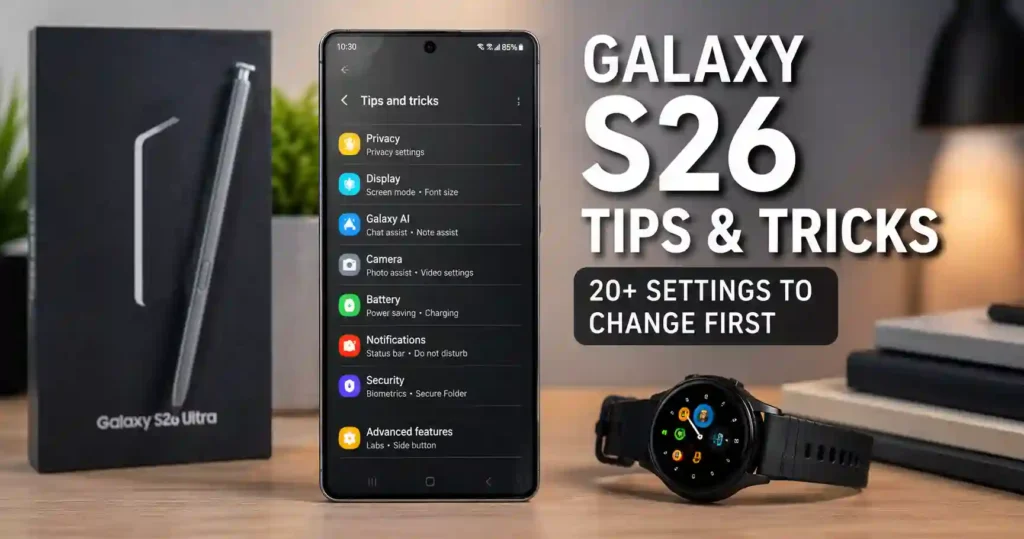 1. Turn On Privacy Display on the Galaxy S26 Ultra
Privacy Display is one of the most useful Galaxy S26 Ultra features for people who regularly use their phone in public. The technology is built into the S26 Ultra’s display and limits what people beside you can see while you continue viewing the screen from the front.
Samsung allows Privacy Display to be activated manually or automatically under certain conditions. You can configure it to activate when opening selected apps, entering a PIN, pattern, or password, or receiving notification pop-ups.
To enable it, open the Quick Panel, touch and hold the Privacy Display icon, and turn it on. You can also find the controls under Settings > Display > Privacy display.
The Maximum Privacy Protection option narrows the viewing angle further and dims the display. Samsung notes that this stronger mode can slightly affect screen appearance.
Privacy Display is particularly useful for banking apps, private messages, passwords, work documents, and other sensitive information.
Important: Privacy Display is a built-in Galaxy S26 Ultra display feature. It should not be confused with a conventional privacy screen protector.
2. Set Privacy Display to Activate Automatically
You do not have to remember to enable Privacy Display every time you enter sensitive information. The S26 Ultra can automatically activate it for selected situations.
Go to Settings > Display > Privacy display > Conditions for turning on. From there, choose supported apps and security-entry situations.
This is more convenient than leaving maximum privacy protection enabled all day because you can use normal screen visibility when privacy is not important.
3. Try Now Nudge
Now Nudge uses information on your screen to suggest useful actions at the right moment. For example, it can recognize a date and suggest creating a calendar event or recognize a location and suggest opening it in a maps app.
Samsung says Now Nudge works on supported Galaxy phones running compatible software, including the Galaxy S26 series. Supported languages, apps, and available actions can vary depending on the device and software version.
To enable it, open Settings > Galaxy AI > Now Nudge and turn it on.
Now Nudge can be particularly useful when messages contain dates, locations, phone numbers, photos, or other information that normally requires copying and switching between apps.
4. Turn On Personal Data Intelligence Carefully
Personal Data Intelligence can make Now Nudge more useful by allowing supported features to use information you choose to store on your phone.
Samsung says supported information can include details such as your name, phone number, email address, pets, and interests. The information can then be used for suggestions such as filling supported forms.
Go to Settings > Galaxy AI > Now Nudge > Personal data intelligence to review the feature and manage stored information.
Samsung says data for this feature is processed on the phone unless you consent to sharing it with Samsung or its partners for improved recommendations.
5. Use Photo Assist to Edit Photos With AI
Photo Assist lets you make AI-powered changes to photos without relying on a separate editing application. You can remove unwanted objects, move elements, combine images, and describe certain edits using natural language.
For a quick test, open Gallery, select a photo, tap the Pencil icon, choose Create, describe the change you want, and select Generate.
This is useful when a photo is almost perfect but contains a distracting object, unwanted person, or other element that you want to change.
Keep in mind that Samsung requires an internet connection and Samsung account login for Photo Assist. Generated or edited images may also include an AI watermark.
6. Use Creative Studio for AI Images and Stickers
Creative Studio gives the Galaxy S26 series another way to create AI-generated content from photos and text prompts. It can generate new images, transform existing images, and create personalized stickers and wallpapers on supported configurations.
Instead of treating Creative Studio as a replacement for every professional editing application, think of it as a fast tool for experimenting with ideas and creating shareable content directly on your phone.
7. Turn On Call Screening
Call Screening can help you deal with unfamiliar callers before deciding whether to answer. Galaxy AI can interact with an unknown caller, ask for the caller’s name and reason for calling, and display a transcription so you can decide what to do.
Samsung also provides options to automatically screen unfamiliar numbers on supported configurations.
This can be especially useful when your phone receives frequent spam or unknown calls. However, Call Screening availability can vary by language and region.
8. Try Call Captions
Call Captions can display a live transcription of supported phone conversations. This can make it easier to follow a conversation when there is background noise or when you need to remember information mentioned during a call.
On supported Galaxy S26 configurations, open the Phone app, enter its settings, and look for Call Captions.
Language availability can vary, so check the languages available on your particular device before relying on the feature for important conversations.
9. Use Bixby to Find and Change Settings
Bixby can be useful when you know what you want to do but do not know where Samsung placed the setting. Instead of manually searching through multiple menus, you can ask Bixby to perform supported device actions.
For example, Samsung demonstrates using Bixby to enable Keep screen on while viewing. This makes Bixby more useful as a conversational device assistant rather than simply a voice command tool.
Keep in mind that Bixby requires a Samsung account and data connection, while supported languages, devices, apps, and commands vary by region and software version.
10. Use Horizontal Lock for Better Walking Videos
Horizontal Lock helps keep video framed horizontally when your phone tilts during recording. It works with Super Steady and is designed for situations such as walking, running, or recording action.
Open the Camera app, select Video, and enable Super Steady with Horizontal Lock where supported.
Samsung recommends using the feature in well-lit environments for better results. Horizontal Lock also has mode restrictions, so do not assume it works with every camera mode.
11. Explore the Galaxy S26 Camera Shooting Methods
The Camera app has several shooting methods that can make photography easier without touching the shutter button. Depending on the supported configuration, Samsung provides options involving volume buttons, voice commands, palm gestures, and other controls.
These features are particularly useful when the phone is mounted on a tripod or positioned far away from you.
Before buying a remote shutter simply for basic hands-free photos, check the shooting methods already available in the Camera settings.
12. Use Tracking Auto Focus for Moving Subjects
Tracking Auto Focus can help the camera maintain focus on a moving subject. This is useful for children, pets, sports, vehicles, and other subjects that do not remain in one position.
It is worth testing Tracking Auto Focus before an important event because the best setting can depend on the subject, lighting, camera mode, and shooting conditions.
13. Turn On Composition Guide for Better Framing
Composition Guide can help you position subjects more deliberately in the camera frame. If you frequently take photos that look slightly off-center or poorly balanced, this setting is worth trying.
Use the guide as an aid rather than following it mechanically. Good composition still depends on the subject, background, lighting, and intended use of the photograph.
14. Record Video Directly to USB Storage
The Galaxy S26 series can support recording video directly to compatible USB storage in supported camera configurations. This can be useful when recording large video files that would otherwise consume internal storage.
A fast, compatible USB storage device and a suitable USB-C connection are important because high-resolution video can generate large amounts of data.
If you regularly shoot long-form video, external storage can be more practical than constantly deleting files from the phone.
15. Use an SSD for Large Video Projects
An external SSD is particularly useful if you record large amounts of high-resolution video. Instead of keeping every large file on the phone, you can transfer completed projects to external storage.
This also creates a better workflow for creators who move footage between a Galaxy phone, computer, and editing software.
If you plan to use an SSD with the S26 Ultra, check the USB-C drive, cable, filesystem, and transfer requirements before purchasing accessories.
16. Use the USB-C Port for More Than Charging
The Galaxy S26 Ultra’s USB-C connection can be useful for storage, accessories, displays, and other compatible peripherals. A USB-C hub can turn the phone into a more flexible productivity device.
However, USB-C accessories are not automatically interchangeable. Transfer speeds, display support, power delivery, and accessory compatibility can vary.
For demanding accessories, use a hub and cable that match the required specifications rather than assuming every inexpensive USB-C adapter will provide the same performance.
17. Clean Up Your Notifications
Notification management is one of the easiest ways to make a new Galaxy S26 feel less distracting. Disable notifications from apps that do not need immediate attention and keep alerts from messaging, banking, work, and other important applications.
Do not simply allow every installed app to send notifications. A cleaner notification panel makes important alerts much easier to notice.
18. Customize the Quick Panel
The Quick Panel should contain the controls you actually use every day. Arrange frequently used functions so you can reach them without opening the full Settings application.
Useful controls can include Wi-Fi, Bluetooth, flashlight, screen recording, mobile data, battery-related options, and other features you regularly change.
This becomes even more useful for features such as Privacy Display because Samsung provides direct Quick Panel access to the setting on the S26 Ultra.
19. Create Shortcuts for Frequently Used Settings
Samsung phones can make frequently accessed settings easier to reach through shortcuts. This is useful for settings that you repeatedly change but that are buried several menus deep.
For example, if you regularly change a display, accessibility, sound, or battery option, creating a direct shortcut can save several taps every time.
This is a small change, but it can make the Galaxy S26 feel considerably faster to use over time.
20. Try the Built-In Document Scanner
The Galaxy S26 camera can detect documents and scan them without requiring a separate scanner application. Point the rear camera at a document and use the scanning controls when the phone recognizes it.
The built-in scanner can be useful for receipts, forms, notes, school documents, and other paperwork.
Recent Galaxy S26 coverage also highlights expanded document-scanning capabilities, including tools for working with multiple pages and editing scans.
21. Use Samsung Finder Instead of Hunting Through Apps
Samsung’s Finder search can help you locate apps, settings, contacts, files, and other information quickly. It is especially useful when you know what you are looking for but cannot remember which menu contains it.
Instead of opening Settings and scrolling through categories, try searching directly for the setting or feature name.
22. Explore Gallery Labs Carefully
Gallery Labs exposes experimental Samsung Gallery features that are not necessarily enabled by default. These options can be interesting if you enjoy testing new Gallery functionality.
However, experimental features can change or disappear with future software updates. Treat Gallery Labs as an optional playground rather than a collection of essential settings.
23. Protect the S26 Ultra Screen Without Creating New Problems
A good screen protector can protect the display, but the wrong protector can affect fingerprints, brightness, or touch response. This is especially important on the S26 Ultra because its built-in Privacy Display already changes how the screen handles viewing angles.
If you use a screen protector, test fingerprint recognition after installation and follow the manufacturer’s installation instructions carefully.
For more protection advice, see our guide to the best S26 Ultra screen protectors.
24. Choose the Right Case for Wireless Charging
A case can affect wireless charging performance depending on its thickness, materials, magnets, and design. If wireless charging is important, choose a case specifically designed to support wireless charging.
For compatible accessories, see our guide to the best Galaxy S26 Ultra cases for wireless charging.
25. Check Charging Speed Before Blaming the Phone
Slow charging can be related to the charger, cable, charging conditions, temperature, or charging settings rather than a defective phone. Check the charger and cable first before assuming something is wrong with the S26 Ultra.
If charging is slower than expected, see our guide on why the Galaxy S26 Ultra charges slowly for the main things to check.
You can also compare suitable options in our guide to the best Galaxy S26 Ultra chargers.
26. Watch Battery Behavior Overnight
If the Galaxy S26 loses an unusual amount of battery while you sleep, check background activity, network conditions, location access, syncing, and recently installed applications.
Do not immediately assume that the battery itself is faulty. A software process or poor network signal can sometimes contribute to increased overnight consumption.
See our detailed guide on Galaxy S26 Ultra battery draining overnight for troubleshooting steps.
27. Keep the S26 Ultra Cool During Demanding Games
Gaming, high screen brightness, demanding graphics, charging, and warm surroundings can increase phone temperature. If the S26 Ultra becomes unusually hot during gaming, reduce unnecessary background activity and avoid using the phone in very hot environments.
For more troubleshooting steps, see our guide to Galaxy S26 Ultra overheating while gaming.
28. Use MagSafe-Style Accessories Carefully
Magnetic accessories can be useful with compatible Galaxy S26 Ultra cases and accessories, but magnetic attachment and wireless charging are separate compatibility questions.
Before buying a magnetic accessory, check whether the case, charger, alignment system, and phone support the combination you want to use.
You can explore our guide to the best MagSafe accessories for Galaxy S26 Ultra.
29. Transfer Large Files to an SSD
Moving large videos and other files to external storage can free internal space without forcing you to delete important content. This is particularly useful for people who use the S26 Ultra as a camera or video-production device.
Our guide explains how to transfer files from the Galaxy S26 Ultra to an SSD.
30. Use Bixby and Galaxy AI Without Giving Up Control
Galaxy AI features are powerful, but you should still review what each feature can access and how it processes information. Samsung’s AI tools have different requirements, and some features require a Samsung account, internet connection, supported language, or compatible application.
For that reason, do not assume that a Galaxy S26 AI feature shown in a demonstration will behave identically on every device or in every country.
Galaxy S26 vs. Galaxy S26 Ultra: Which Tips Apply?
Most Galaxy S26 software and Galaxy AI tips apply across the S26 family, but some hardware-dependent features are model-specific. The clearest example is Privacy Display, which Samsung identifies as a Galaxy S26 Ultra feature.
| Feature | Galaxy S26 Series | Galaxy S26 Ultra |
|---|---|---|
| Now Nudge | Supported configurations | Yes |
| Photo Assist | Yes | Yes |
| Call Screening | Supported configurations | Supported configurations |
| Bixby AI assistance | Supported configurations | Yes |
| Creative Studio | Supported configurations | Yes |
| Horizontal Lock | Supported | Supported |
| Privacy Display | No | Yes |
Galaxy S26 Tips: What Should You Change First?
If you have just bought a Galaxy S26, start with privacy, notifications, camera settings, AI features, and battery controls. You do not need to change dozens of settings immediately.
- Set up your security and biometrics.
- Customize the Quick Panel.
- Clean up unnecessary notifications.
- Try Now Nudge.
- Test Photo Assist.
- Configure Call Screening where available.
- Explore the Camera settings.
- Test Horizontal Lock for video.
- Review battery and background activity.
- Set up external storage if you record lots of video.
- If you own the S26 Ultra, configure Privacy Display.
- Choose a case and screen protector that do not interfere with the features you use.
Final Thoughts
The Galaxy S26 is much more capable once you move beyond the default settings. The biggest improvements come from configuring the features that match how you actually use the phone rather than turning on every available option.
For most users, Now Nudge, Photo Assist, Call Screening, better camera controls, notification management, and Quick Panel customization are good places to start. S26 Ultra owners should also spend time configuring Privacy Display because it is one of the phone’s most distinctive hardware-integrated features.
Most importantly, remember that Galaxy AI features are not universally identical. Availability can depend on the device model, software version, country, region, language, app, Samsung account, and internet connection. Check the settings on your particular Galaxy S26 before assuming a feature is unavailable simply because the menu looks different.