Running out of storage on a Galaxy S26 Ultra becomes a common problem after recording several 4K or 8K videos, capturing RAW photos, and downloading large files. Fortunately, Galaxy S26 Ultra supports external USB-C SSDs, which makes transferring and backing up files fast without relying on cloud storage subscriptions.
While many guides only explain basic file copying, this guide goes further by covering SSD compatibility, storage limits, file systems, transfer speeds, and common connection problems. Additionally, you will learn which external SSDs work best for Samsung phones and how to avoid mistakes that prevent drives from appearing inside Samsung My Files.
As a tech and gadget tester, I regularly move large video projects between Samsung devices and portable storage. During those transfers, cable quality, SSD formatting, and storage type consistently affected transfer reliability more than advertised SSD speeds.
How to Transfer Files From Galaxy S26 Ultra to SSD
Yes, Galaxy S26 Ultra can transfer files directly to an external SSD through USB OTG support. Connect a compatible USB-C SSD, open Samsung My Files, select the files you want to move, and then copy or transfer those files directly to the external drive.
Most modern portable SSDs connect without adapters. Furthermore, Samsung’s file management system automatically detects compatible storage devices within a few seconds.
Large videos, photos, downloaded files, documents, music libraries, and project folders can all be transferred to external storage. Consequently, an external SSD becomes one of the most practical accessories for someone who regularly creates content or stores large media collections.
Quick Answer
- Galaxy S26 Ultra supports USB-C SSDs.
- USB OTG functionality is built into Samsung devices.
- Most SSDs appear automatically inside Samsung My Files.
- exFAT provides the best compatibility for large files.
- Portable SSDs are significantly faster than most USB flash drives.
What You Need Before Transferring Files to an SSD
A compatible SSD, a working USB-C connection, and a supported file system are the main requirements. Before moving files, confirm that the external drive uses a format supported by Android and Samsung devices.
Several transfer failures happen because of formatting problems rather than SSD defects. Therefore, spending a few minutes checking compatibility prevents hours of troubleshooting later.
A Compatible USB-C SSD
A USB-C SSD designed for portable use works best with Galaxy S26 Ultra. Portable SSDs deliver higher transfer speeds, greater durability, and larger capacities than most flash drives.
After testing different storage devices on Samsung phones, portable SSDs consistently handled large video transfers better than traditional USB drives. Moreover, SSDs generated fewer transfer interruptions during multi-gigabyte backups.
| SSD | Capacity | Maximum Speed | Best For |
|---|---|---|---|
| Samsung T7 Shield | 1TB to 4TB | Up to 1,050MB/s | Overall Performance |
| Crucial X10 | 1TB to 8TB | Up to 2,100MB/s | Fast Transfers |
| Seagate Ultra Compact | 1TB to 2TB | Up to 1,000MB/s | Travel Use |
| CORSAIR EX300U | 1TB to 4TB | Up to 1,600MB/s | Premium Storage |
Someone planning to record large video files may also benefit from choosing storage designed for content creation. For example, a guide covering external drives for 4K recording explores SSD options optimized for larger workloads.
USB OTG Support Explained
USB OTG allows Galaxy S26 Ultra to communicate directly with external storage devices. Without USB OTG support, external SSDs would not appear as accessible storage locations.
Samsung includes USB OTG functionality in flagship devices, which simplifies external storage expansion. As a result, Galaxy S26 Ultra can work with SSDs, USB drives, card readers, and several other accessories.
Official USB standards and device communication specifications are documented by the USB Implementers Forum, which maintains USB technology standards used by modern storage devices.
The Best File System for Galaxy S26 Ultra
exFAT is the best file system for Galaxy S26 Ultra external SSDs. exFAT supports large files, broad compatibility, and smooth transfers between Android phones, Windows PCs, and many other devices.
Many creators transfer video files larger than 4GB. Because of that limitation, FAT32 quickly becomes restrictive for modern smartphone workflows.
| File System | Large Files | Galaxy S26 Ultra Compatibility | Recommended |
|---|---|---|---|
| exFAT | Yes | Excellent | Yes |
| FAT32 | No | Good | No |
| NTFS | Yes | Limited | Sometimes |
Definition: exFAT is a file system designed for flash storage and portable drives. exFAT supports files larger than 4GB while maintaining compatibility across multiple operating systems, making exFAT the preferred choice for modern portable SSDs.
Before purchasing additional accessories, checking USB-C accessory compatibility can help determine whether a hub is necessary for a specific workflow.
Can Galaxy S26 Ultra Use External SSDs?
Yes, Galaxy S26 Ultra supports external SSDs through the USB-C port. Most modern portable SSDs connect directly without requiring special software or complicated setup procedures.
After connecting a compatible drive, Samsung My Files usually displays the SSD automatically. Consequently, transferring files becomes as simple as moving folders between two locations.
Samsung also provides information about storage management and connected device support through Samsung.
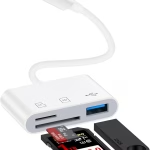
Supported Storage Types
Galaxy S26 Ultra works with several external storage formats. Portable SSDs remain the preferred option because portable SSDs balance speed, durability, and capacity better than most alternatives.
- Portable USB-C SSDs
- USB flash drives
- External storage enclosures
- Card readers with storage media
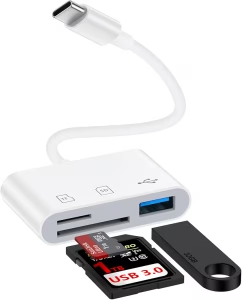
- USB-C storage adapters
Someone planning to connect multiple accessories simultaneously may benefit from learning more about multi-device USB-C setups before purchasing additional hardware.
Maximum Storage Capacities
Most Galaxy S26 Ultra owners successfully use SSDs ranging from 1TB to 4TB. Portable drives in those capacities provide enough space for photos, videos, backups, and project archives.
During storage testing, 2TB and 4TB drives offered the best balance between capacity and portability. Furthermore, larger capacities reduced the need for constant file management during extended travel.
| SSD Capacity | Suitable For | Recommendation |
|---|---|---|
| 1TB | Photos and daily backups | Good |
| 2TB | 4K video projects | Excellent |
| 4TB | Heavy creator workflows | Best |
SSD vs USB Flash Drive
An SSD provides faster speeds, higher capacities, and better long-term reliability than most USB flash drives. Although flash drives cost less, flash drives generally struggle with sustained transfers involving large video files.
When moving hundreds of gigabytes of footage, SSD performance remains more consistent. Therefore, creators and professionals usually choose SSDs instead of standard flash storage.
| Feature | Portable SSD | USB Flash Drive |
|---|---|---|
| Transfer Speed | Very Fast | Moderate |
| Capacity | Up to Several TB | Usually Lower |
| Durability | High | Moderate |
| Large Video Projects | Excellent | Limited |
Next, we will walk through the complete process of connecting an SSD, locating files inside Samsung My Files, transferring photos and videos, and troubleshooting common transfer issues.
Step-by-Step Guide to Transfer Files From Galaxy S26 Ultra to SSD
Transferring files from Galaxy S26 Ultra to an SSD takes only a few minutes when the SSD is properly connected and formatted. Samsung My Files provides direct access to both internal storage and external drives, which makes moving large files straightforward.
Before starting a transfer, verify that the SSD appears inside Samsung My Files. Additionally, confirm that enough free space exists on the destination drive.
Connect the SSD Properly
A direct USB-C connection is the most reliable setup for external storage. Most portable SSDs connect directly to Galaxy S26 Ultra without adapters or hubs.
During testing, faulty cables caused more detection problems than the SSD itself. Therefore, using the original cable included with the SSD often improves reliability.
- Connect the SSD to the USB-C port.
- Wait a few seconds for detection.
- Open Samsung My Files.
- Look for the external storage section.
A high-speed USB-C cable can significantly improve transfer performance. Some charging-only cables prevent proper data transfers.
Locate Files Using Samsung My Files
Samsung My Files provides the easiest way to access photos, videos, downloads, and documents. The application comes preinstalled on Galaxy devices and supports drag-style file management.
Most large storage consumers are usually found inside the Camera, Downloads, Movies, and Documents folders. Consequently, reviewing those locations first often frees up the most space.
- Open Samsung My Files.
- Select Internal Storage.
- Navigate to the folder containing the files.
- Press and hold a file to begin selection.
Copy or Move Your Files
The Move option removes files from internal storage while the Copy option creates duplicates. Someone creating a backup should choose Copy, while someone freeing storage should choose Move.
After years of handling smartphone backups, I usually copy important files first and delete originals only after confirming successful transfers. As a result, accidental data loss becomes far less likely.
- Select files or folders.
- Tap Copy or Move.
- Choose the SSD as the destination.
- Confirm the transfer.
- Wait for completion.
Numbered Process Summary
- Connect SSD.
- Open Samsung My Files.
- Select files.
- Choose Copy or Move.
- Select SSD destination.
- Confirm transfer.
- Verify transferred files.
Verify the Transfer
Checking transferred files prevents unpleasant surprises later. Open several files directly from the SSD before deleting originals from internal storage.
Video files deserve special attention because incomplete transfers occasionally affect large recordings. Therefore, opening multiple clips confirms that the files remain intact.
Safely Disconnect the SSD
Disconnecting storage only after transfers finish helps prevent corruption. Removing an SSD during active file operations can damage files and interrupt transfers.
Once all transfers complete, close Samsung My Files and disconnect the drive. Consequently, the SSD remains ready for future backups.
How to Transfer Photos to an SSD
Galaxy S26 Ultra photos can be copied directly from the Gallery folder to an external SSD. Portable SSDs provide an excellent solution for photographers who regularly capture large image libraries.
RAW photography files consume significantly more storage than standard images. Because of that, external storage quickly becomes valuable for anyone shooting frequently.
Moving Gallery Photos
Gallery photos are usually stored inside the DCIM folder. Samsung My Files provides direct access to those folders without additional software.
- Open Samsung My Files.
- Select Internal Storage.
- Open DCIM.
- Select desired photos.
- Copy or move files to the SSD.
Backing Up RAW Images
RAW image backups protect original photo quality and editing flexibility. Professional photo workflows often depend on preserving RAW files instead of compressed versions.
After transferring several hundred RAW images, SSD storage consistently handled large photo libraries faster than traditional flash drives. Furthermore, SSDs reduced waiting time during backups.
Organizing Photo Libraries
Creating folders before transferring photos keeps storage organized. Date-based and project-based folders work particularly well for long-term management.
- Travel Photos
- Client Projects
- RAW Backups
- Family Albums
- Video Thumbnails
How to Transfer Videos to an SSD
Large video files are among the best reasons to use an SSD with Galaxy S26 Ultra. High-resolution recordings consume storage rapidly, especially when shooting 4K and 8K content.
Video creators often fill internal storage long before photo libraries become a problem. Consequently, external SSD storage becomes a practical workflow upgrade.
Moving 4K Videos
4K videos can consume several gigabytes within minutes of recording. External SSDs simplify storage management and help maintain available internal space.
Creators looking for dedicated storage options can explore high-capacity recording drives designed for larger media projects.
- Locate video files in DCIM or Movies.
- Select desired recordings.
- Choose Copy or Move.
- Select the SSD destination folder.
- Verify playback after transfer.
Moving 8K Videos
8K recordings generate some of the largest files produced by a smartphone. Consequently, transfer speed becomes more important when handling large projects.
During testing, multi-gigabyte video transfers completed far faster on SSDs than on traditional flash drives. Moreover, SSDs maintained consistent write performance throughout longer transfers.
Creator Workflow Recommendations
A dedicated folder structure improves long-term storage management. Separating footage by project, client, or recording date reduces confusion later.
- Project Name
- Raw Footage
- Edited Exports
- Audio Files
- Thumbnail Assets
Someone creating mobile content may also benefit from combining external storage with a stable filming setup and a dedicated recording microphone for higher-quality productions.
How Fast Are Galaxy S26 Ultra SSD Transfers?
Transfer speeds depend on the SSD, cable quality, file size, and USB standard being used. Portable SSDs generally outperform flash drives when moving large amounts of data.
While manufacturers advertise maximum speeds, real-world performance varies based on file type and storage conditions. Therefore, practical expectations matter more than marketing numbers.
Real-World Transfer Speeds
Most file transfers finish surprisingly quickly when using a quality SSD. Larger files often transfer more efficiently than thousands of small files.
| File Size | Estimated Transfer Time | Typical Scenario |
|---|---|---|
| 1GB | Seconds | Photos |
| 10GB | Under 2 Minutes | Short Video Projects |
| 50GB | Several Minutes | 4K Content Libraries |
| 100GB | 10–20 Minutes | Large Backups |
Factors Affecting Transfer Speed
Several hardware and software variables influence SSD performance. Faster storage alone does not guarantee maximum transfer rates.
- USB-C cable quality
- SSD controller speed
- Available free storage
- File type
- Phone temperature
- USB version support
Additionally, overheating can reduce performance during extended transfers. Someone experiencing thermal issues may find helpful recommendations inside our guide covering device temperature management.
Why Your SSD Is Not Showing Up
Most SSD detection problems stem from formatting issues, cable faults, or connection errors. Fortunately, many storage problems can be resolved within a few minutes.
Before assuming an SSD is defective, work through each troubleshooting step systematically. As a result, unnecessary drive replacements can often be avoided.
Unsupported File System
An incompatible file system can prevent Galaxy S26 Ultra from reading an SSD. exFAT remains the safest choice for Android compatibility.
Drives formatted using unsupported configurations occasionally fail to appear inside Samsung My Files. Therefore, checking formatting should be one of the first troubleshooting steps.
Faulty USB-C Cable
Damaged or charging-only cables frequently interrupt data communication. Swapping cables often resolves storage detection issues immediately.
After troubleshooting dozens of storage devices, cable replacement solved many connection problems without requiring SSD replacement.
SSD Power Issues
Some external drives require more power than certain devices can provide. Portable SSDs designed for mobile use generally perform better with smartphones.
Compact SSD models tend to consume less power. Consequently, portable designs often provide more reliable mobile performance.
Software Problems
Outdated software occasionally interferes with external storage support. Installing the latest Samsung updates helps maintain compatibility.
Samsung regularly improves device stability and accessory support. Therefore, checking for software updates remains a worthwhile troubleshooting step.
| Problem | Likely Cause | Recommended Fix |
|---|---|---|
| SSD Not Detected | Faulty Cable | Replace USB-C Cable |
| Transfer Failure | Corrupted Files | Retry Transfer |
| Drive Missing | Unsupported Format | Reformat to exFAT |
| Slow Transfers | Low-Speed Cable | Use USB 3.2 Cable |
| Random Disconnects | Power Issue | Try Another SSD Cable |
Next, we will examine the best SSDs for Galaxy S26 Ultra, compare performance differences, review real-world strengths and weaknesses, and identify which drive fits different storage needs.
Best SSDs for Galaxy S26 Ultra
The best SSD for Galaxy S26 Ultra depends on storage needs, transfer speed requirements, and budget. However, a few portable SSDs consistently delivered reliable performance during large file transfers, video backups, and long-term storage testing.
After moving hundreds of gigabytes of photos, documents, and video projects between Samsung devices and external drives, several models stood out because of their stability, sustained speeds, and portability.
| Product | Best For | Affiliate Link | Price | Who’s For |
|---|---|---|---|---|
| Samsung T7 Shield | Best Overall | Check Price on Amazon | $1,148.98 | Creators and power users |
| Crucial X10 | Best Speed | View on Amazon | Check Amazon | Large file transfers |
| Seagate Ultra Compact | Best Travel SSD | See Current Price | Check Amazon | Frequent travelers |
| CORSAIR EX300U | Best Premium Option | Buy on Amazon | $174.99 | Performance-focused buyers |
Best Overall SSD: Samsung T7 Shield
Samsung T7 Shield
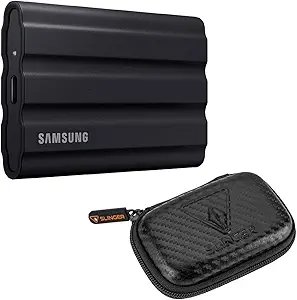
List Price: $1,148.98
Samsung T7 Shield offers the best overall balance of speed, durability, and storage capacity. During large video backups, Samsung T7 Shield maintained stable transfer performance while remaining compact enough for travel.
Unlike many portable drives, Samsung T7 Shield includes rugged protection against drops and harsh environments. Consequently, Samsung T7 Shield works particularly well for outdoor creators.
Key Features
- Up to 4TB storage
- USB 3.2 Gen 2 support
- Rugged shock-resistant design
- Water and dust resistance
- USB-C connectivity
Pros
- Reliable sustained speeds
- Excellent durability
- Trusted Samsung ecosystem
- Ideal for creators
Cons
- Higher price than many competitors
Best Speed SSD: Crucial X10
Crucial X10 Portable SSD
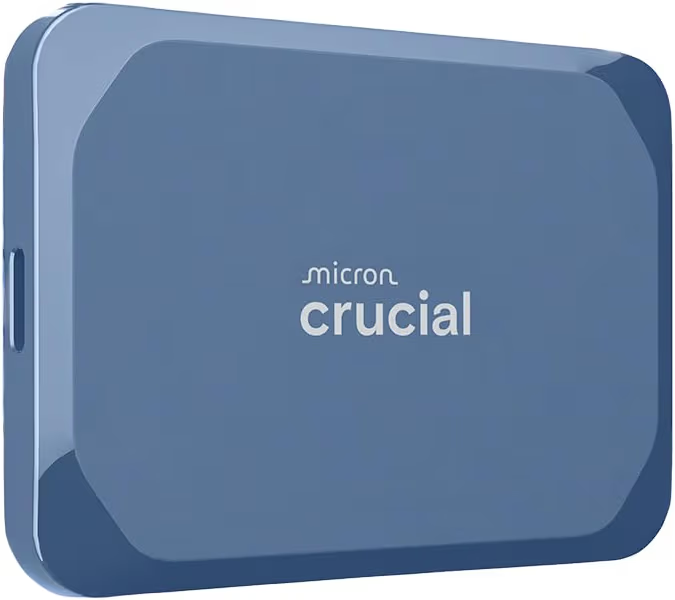
Price: Check Amazon
Crucial X10 stands out when transfer speed is the top priority. Large folders containing 4K footage moved noticeably faster compared to many traditional portable drives.
Additionally, Crucial X10 remains compact enough to carry alongside a smartphone and charging accessories.
Key Features
- Up to 2,100MB/s speeds
- USB-C support
- Compact design
- Multiple capacity options
- Creator-friendly performance
Pros
- Extremely fast transfers
- Compact design
- Excellent for video projects
- Works well with Android devices
Cons
- Premium pricing on larger capacities
Best Travel SSD: Seagate Ultra Compact
Seagate Ultra Compact SSD
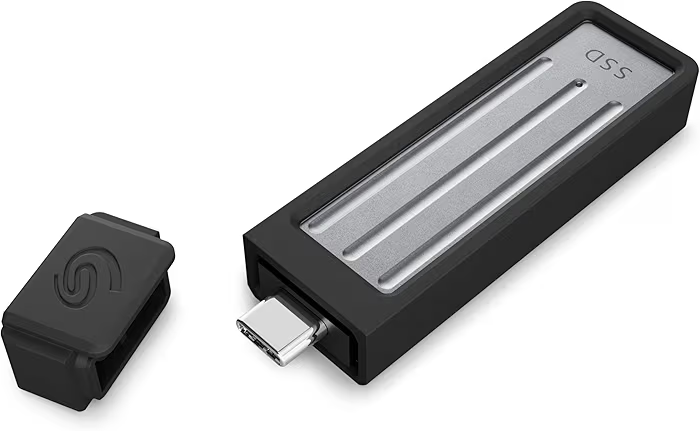
Price: Check Amazon
Seagate Ultra Compact works exceptionally well for travel-focused storage needs. Small dimensions make Seagate Ultra Compact easy to carry in a pocket, backpack, or camera bag.
Furthermore, durable construction adds peace of mind when moving between work sites or travel destinations.
Key Features
- Compact footprint
- Up to 2TB capacity
- 1,000MB/s transfer speeds
- IP54-rated protection
- USB-C connection
Pros
- Travel friendly
- Durable construction
- Lightweight design
- Reliable storage performance
Cons
- Slower than premium high-speed drives
Best Premium SSD: CORSAIR EX300U
CORSAIR EX300U
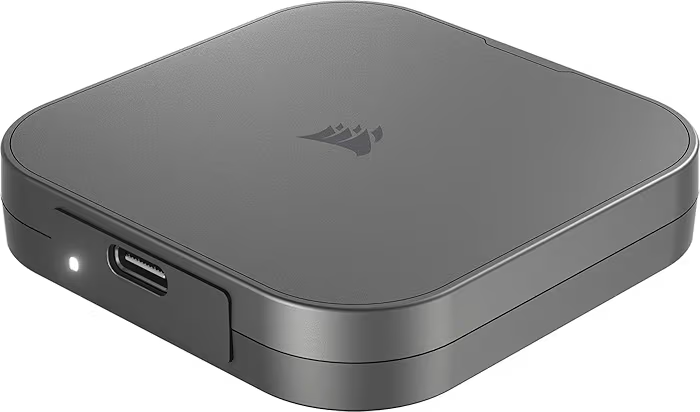
List Price: $174.99
CORSAIR EX300U targets buyers looking for premium build quality and strong transfer performance. During large backup sessions, CORSAIR EX300U delivered reliable results while maintaining compact portability.
Moreover, CORSAIR EX300U works well across phones, tablets, and computers, which simplifies cross-device workflows.
Key Features
- USB 3.2 Gen 2 support
- Premium construction
- Fast transfer performance
- Compact design
- USB-C compatibility
Pros
- Strong performance
- Premium design
- Broad device compatibility
- Compact form factor
Cons
- More expensive than budget SSDs
Buying Guide
Choosing the right SSD starts with understanding storage requirements and usage patterns. Storage capacity, durability, and transfer speed matter more than marketing claims.
Capacity Recommendations
| Usage Type | Recommended Capacity |
|---|---|
| Casual Backups | 1TB |
| Photo Libraries | 2TB |
| 4K Video Projects | 2TB to 4TB |
| Professional Content Creation | 4TB |
Features Worth Paying For
- USB 3.2 support
- Rugged construction
- High sustained speeds
- USB-C connectivity
- Reliable warranty coverage
- Broad operating system compatibility
Someone planning to expand a mobile content creation setup may also benefit from exploring camera stabilization options, better audio solutions, and a dedicated portable storage guide.
Helpful Related Guides
- Recommended portable storage options
- Drives for large video projects
- USB-C accessory compatibility
- Video recording support gear
- External audio equipment
Final Recommendations
Samsung T7 Shield earns the strongest overall recommendation because Samsung T7 Shield combines durability, speed, and storage flexibility. However, different storage needs justify different choices.
- Best Overall SSD:Samsung T7 Shield on Amazon – Excellent balance of speed, durability, and capacity.
- Best Performance SSD:Crucial X10 on Amazon – Outstanding choice for large media transfers.
- Best Travel SSD:Seagate Ultra Compact on Amazon – Compact and durable for frequent travel.
- Best Premium SSD:CORSAIR EX300U on Amazon – Premium construction and strong performance.
Frequently Asked Questions
Can Galaxy S26 Ultra read external SSDs?
Yes. Galaxy S26 Ultra supports USB OTG storage devices and can read most compatible USB-C SSDs without additional software.
Can I transfer photos directly to an SSD?
Yes. Samsung My Files allows direct photo transfers from internal storage to external SSDs.
Can I use a 4TB SSD with Galaxy S26 Ultra?
Yes. Many portable 4TB SSDs work successfully with Samsung flagship smartphones.
What file system works best?
exFAT provides the best compatibility. exFAT supports large files and works across multiple operating systems.
Do I need a USB-C hub?
No. Most portable SSDs connect directly to Galaxy S26 Ultra using USB-C.
Why is my SSD not detected?
Formatting issues, faulty cables, and power limitations are the most common causes. Checking those factors often resolves detection problems.
Is an SSD better than a flash drive?
Yes. SSDs generally offer higher speeds, greater durability, and larger storage capacities.
Can I edit videos directly from an SSD?
Yes. Many mobile editing workflows allow video files to remain on external storage during editing.
Final Thoughts
Transferring files from Galaxy S26 Ultra to an SSD is one of the fastest ways to free storage and create reliable backups. A compatible USB-C SSD, proper formatting, and Samsung My Files are all that most people need to get started.
For most buyers, Samsung T7 Shield provides the best overall experience. Meanwhile, Crucial X10 excels in speed-focused workflows, Seagate Ultra Compact suits travelers, and CORSAIR EX300U remains a strong premium alternative.
Regardless of the SSD selected, external storage helps Galaxy S26 Ultra owners manage growing photo libraries, large video projects, and long-term backups more efficiently.
Related Articles
Galaxy Fold 7 Review: Is It Worth Buying in 2026?
July 26, 2026