Most people only use 60% of what their Fire TV Stick can actually do. I learned that after months of streaming movies and testing every hidden feature buried in the settings. Once I unlocked Dolby Vision, Atmos, and the new Ambient Experience, my TV felt brand new.
In this guide, I’ll walk you through the lesser-known settings and shortcuts that turn your Fire TV Stick into a true smart entertainment hub. You’ll learn how to access hidden menus, enable high-end video modes, and use Alexa to do far more than open apps.
If you haven’t already done the initial setup, check my Fire TV Stick Setup & Optimization Guide first. Once your device is running smoothly, come back here to explore the advanced stuff.
Why You’re Missing Out on the Fire TV Stick’s Full Power
When you first set up the Fire TV Stick, it hides some advanced options by default. Amazon keeps things simple so beginners aren’t overwhelmed, but for enthusiasts like me, it means leaving performance and quality on the table.
For example, Dolby Vision and Dolby Atmos aren’t always enabled automatically. Also, Ambient Experience mode is off by default, and the hidden developer options hold tools that can help you tweak speed and visuals.
So What Are Hidden Features?
Hidden features are the advanced settings, shortcuts, or built-in tools not visible in the main menu. They’re not secret, just underused. Most people never find them because they require specific button combinations or navigation paths.
When I started testing them, I found that small tweaks like adjusting color depth or enabling frame-rate matching made a huge difference in playback quality.
Enable Dolby Vision for Sharper Picture Quality
If you own a compatible TV, enabling Dolby Vision can dramatically improve picture quality. It enhances brightness, contrast, and color accuracy in supported content on Prime Video and Netflix.
How to Enable Dolby Vision
- Go to Settings > Display & Audio > Display > Dynamic Range Settings.
- Select Always HDR or Adaptive (recommended).
- Restart the Fire TV Stick to apply changes.
When you play a Dolby Vision title, a small logo appears briefly in the top-right corner. I tested it with Jack Ryan on Prime Video and instantly saw deeper shadows and more vivid highlights.
Check If Your TV Supports It
Go to your TV’s settings menu and confirm it supports Dolby Vision or HDR10+. If not, content will fall back to HDR or SDR. For best results, use an HDMI 2.0 or higher cable rated for 18 Gbps bandwidth.
To compare visual quality across models, you can read my Firestick 4K vs 4K Max guide where I measured contrast and brightness differences between both versions.
Unlock Dolby Atmos for Cinematic Sound
Dolby Atmos is another feature most users skip, but it’s one of the easiest upgrades to activate. It creates a 3D sound field that feels like the audio is moving around you and not just from left and right, but above and behind as well.
How to Turn It On
- Navigate to Settings > Display & Audio > Audio > Surround Sound.
- Select Best Available.
- Restart your Fire TV Stick and test with Atmos-compatible content.
Try streaming Tom Clancy’s Without Remorse on Prime Video. The helicopters and explosions sound noticeably fuller in Dolby Atmos. Of course, you’ll need a TV or soundbar that supports Atmos.
If you’re shopping for accessories, check that your soundbar has an HDMI ARC or eARC port. Without it, Atmos won’t pass through properly. I made that mistake early on and only got standard stereo output until I upgraded.
Discover the New Ambient Experience Mode
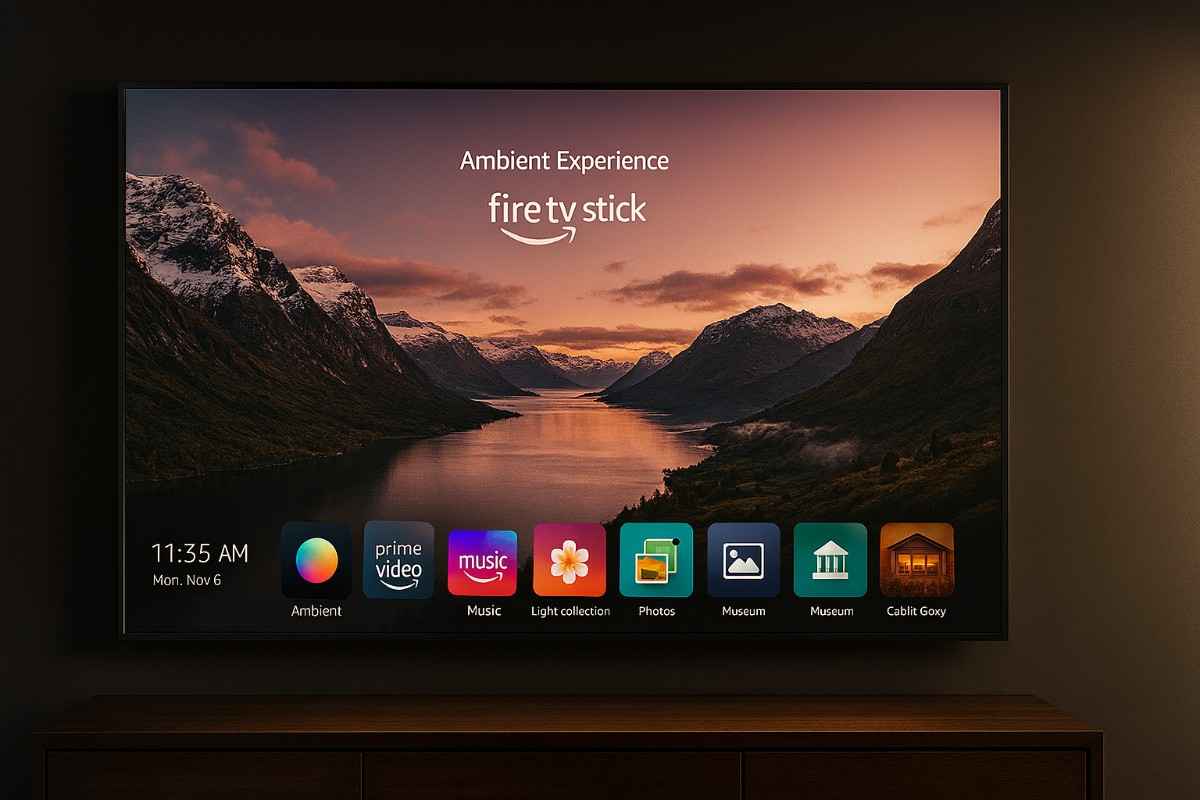
Introduced on the Fire TV Stick 4K Max (2nd Gen), Ambient Experience turns your idle TV screen into a smart display. It’s similar to Amazon’s Echo Show but on a larger canvas.
Why It’s Worth Using
When activated, Ambient Experience shows widgets like the weather, calendar, smart home controls, and personal photos. You can also display artworks, landscapes, or motivational quotes. I use it as a digital photo frame when guests visit.
How to Enable It
- Go to Settings > Display & Audio > Ambient Experience.
- Toggle Enable Ambient Experience to On.
- Customize wallpapers and widgets as you like.
To turn it on instantly, just say, “Alexa, open Ambient Experience.” You can exit by pressing the Home button on your remote.
Customize Your Smart Display
Click Widgets under Ambient Experience settings. Here, you can add your calendar, to-do list, sticky notes, and even smart home shortcuts like light controls. It transforms your TV into an always-on information panel.
If you want step-by-step setup visuals, check out the dedicated Fire TV Stick Ambient Experience Guide where I break down widget configurations in detail.
Enable Hidden Developer Options
There’s a secret menu on every Fire TV Stick called Developer Options. It’s mostly used by power users and app testers, but a few settings in there can help you speed up your device.
How to Access Developer Options
- Go to Settings > My Fire TV > About.
- Highlight Fire TV Stick and press the Select button 7 times.
- A message will appear saying “You are now a developer.”
- Go back and open Developer Options.
Useful Settings Inside Developer Options
- ADB Debugging: Turn off unless you need to connect via computer. Keeping it off improves battery life in the remote.
- Apps from Unknown Sources: Enable only when sideloading trusted apps.
- Frame Rate Matching: Allows Fire TV to match the original frame rate of movies for smoother motion.
Be careful while experimenting here. Don’t modify advanced options unless you know what they do. A wrong setting might cause display flicker or app crashes.
Use Voice Commands Beyond the Basics
Alexa on the Fire TV Stick can do far more than open Netflix or play music. Once you link your smart home devices, you can control lights, thermostats, and even cameras right from the TV screen.
Cool Commands You Should Try
- “Alexa, show me my front door camera.” – Works with Ring and Blink cameras.
- “Alexa, dim the living room lights.” – If you have smart bulbs connected to Alexa.
- “Alexa, what’s on my calendar today?” – Displays your upcoming events.
I use these daily, especially the camera view. It’s faster than picking up my phone. If you want to see how Alexa performs during real-world use, my Fire TV Stick Review includes detailed voice assistant tests.
Enable App Auto-Update and Optimization
Keeping apps updated ensures fewer crashes and better streaming quality. Some updates even include new codecs or bug fixes for 4K playback.
How to Enable Auto-Updates
- Go to Settings > Applications > Appstore.
- Select Automatic Updates and toggle it On.
When I enabled this, I noticed Netflix started loading faster after a recent patch. Small things like this add up over time.
Manually Update Apps
If auto-updates don’t work, go to the Appstore manually, open the app page, and select Update. Do this monthly to keep everything current.
We’ve covered most of the display and audio upgrades so far. In the next section, I’ll walk through even more hidden tricks like screen mirroring, data saver mode, and privacy settings you should change right now.
Mirror Your Smartphone or Laptop Screen
Screen mirroring is one of those hidden features most people forget about. Yet it’s one of the easiest ways to share photos, presentations, or mobile videos on a larger screen.
I discovered it accidentally while testing the Fire TV Stick Wi-Fi features. Once I enabled it, I could stream my phone screen in seconds without installing any third-party apps.
How to Enable Screen Mirroring
- Press and hold the Home button on your Fire TV remote.
- Select Mirroring from the shortcut menu.
- On your phone, open Settings > Display > Cast (or Smart View on Samsung devices).
- Choose your Fire TV Stick from the available devices list.
After a few seconds, your phone’s display should appear on the TV. I use it often to view photos or quickly check mobile apps while watching something else.
Troubleshooting Mirroring Issues
- Make sure both devices are on the same Wi-Fi network.
- If it doesn’t connect, restart both your phone and Fire TV Stick.
- Update your Fire OS software if the feature doesn’t appear.
For more Wi-Fi optimizations, including how to improve network stability, check my guide on Firestick Wi-Fi Features.
Use the Data Saver Mode for Limited Internet Plans
Streaming in 4K looks amazing, but it can eat data fast. If you’re on a limited plan or using a mobile hotspot, the Fire TV Stick’s Data Saver mode is a lifesaver.
How Data Saver Works
It reduces streaming resolution when bandwidth is low and adjusts background app activity to consume less data. You’ll still get smooth playback but at a slightly reduced quality, especially on larger screens.
How to Turn It On
- Go to Settings > Preferences > Data Monitoring.
- Enable Data Monitoring and then select Set Data Alert.
- Turn on Data Saver to limit resolution and background updates.
When I tested it for a week, my data usage dropped by nearly 35% with only minor quality loss. That’s ideal when streaming over mobile networks or limited home broadband.
Control Privacy & Data Collection
Amazon devices collect viewing data by default to recommend shows and ads. However, you can adjust these privacy settings to control how much data you share.
How to Manage Privacy Settings
- Open Settings > Preferences > Privacy Settings.
- Disable Device Usage Data and Collect App Usage Data.
- Scroll down to Interest-based Ads and toggle it Off.
After disabling these, I noticed fewer promotional pop-ups and more consistent app performance. It’s a quick way to make your interface cleaner and faster.
Why You Should Do It
Reducing background data not only protects privacy but also minimizes random slowdowns during streaming. The less the Fire TV Stick phones home to Amazon’s servers, the smoother it feels overall.
Set Up Multiple User Profiles
If several people use the same TV, you’ll love the User Profiles feature. Each user can have personalized recommendations, watch lists, and parental controls.
How to Add New Profiles
- Go to Settings > Account & Profile Settings.
- Select Add Profile.
- Enter a name and choose an avatar.
- Switch profiles anytime from the Home screen.
Each profile keeps track of where you left off in movies and series. When I created separate profiles for my kids, it stopped them from messing up my “Continue Watching” section.
You can find detailed instructions in my Fire TV Stick User Profile Setup Guide.
Access Accessibility Shortcuts
Amazon has quietly built in a range of accessibility features for users with hearing or visual difficulties. These are tucked away under Accessibility settings but are genuinely helpful for everyone.
Useful Accessibility Options
- VoiceView Screen Reader: Reads menus and on-screen text aloud.
- Closed Captions: Customize size, color, and background opacity.
- Screen Magnifier: Zoom into any part of the display with shortcut keys.
How to Turn Them On Quickly
Press and hold the Back + Menu buttons together on your remote to open the Accessibility menu instantly. This shortcut saves several clicks through the settings menu.
Free Up Storage Space Automatically
Running out of storage is common if you install many apps. The Fire TV Stick offers a hidden “App Storage Manager” that clears cache data and unused files automatically.
How to Use It
- Go to Settings > Applications > Manage Installed Applications.
- Select an app and choose Clear Cache or Clear Data.
- Repeat for other large apps like Netflix, Prime Video, or Disney+.
I recommend clearing cache once a month. It usually frees 200–300 MB, enough to install one or two new apps without performance issues.
Connect Bluetooth Accessories
Your Fire TV Stick can pair with Bluetooth headphones, keyboards, or game controllers. This feature is great for late-night streaming or gaming sessions.
How to Pair Devices
- Go to Settings > Controllers & Bluetooth Devices > Other Bluetooth Devices.
- Set your accessory to pairing mode.
- Select it from the available list and wait for the connection to complete.
I use this often with my Bluetooth headset. It lets me watch movies quietly while others sleep.
Check Fire OS Version and Updates
Amazon frequently releases updates that add features or fix bugs. Staying up-to-date ensures you get better performance and new UI enhancements like faster navigation or improved app compatibility.
How to Update Manually
- Open Settings > My Fire TV > About.
- Select Check for Updates.
- If an update is available, click Install Update.
After updating, my navigation lag dropped noticeably. The interface felt snappier, and app icons loaded faster. If your device feels slow, this is often the easiest fix.
Bonus: Use the Fire TV App on Your Phone
If you ever lose your remote or want a faster typing experience, download the official Amazon Fire TV App. It includes a touch-based remote, voice search, and quick navigation buttons.
Download the Fire TV App on Google Play
Features I Use Most
- Voice Search directly from the phone’s mic.
- Quick access to installed apps and channels.
- Keyboard input for easier searches and passwords.
It’s also handy for pairing new Fire TV Sticks during setup if the original remote isn’t detected.
Final Thoughts
When I first bought my Fire TV Stick, I thought it was just another streaming dongle. But after exploring all these hidden features, I realized it’s closer to a full-fledged smart hub.
Enabling Dolby Vision and Atmos transformed my movie nights. The Ambient Experience turned my TV into a living room display, and the small tweaks like Data Saver and cache cleaning made it smoother overall.
To sum it up, the Fire TV Stick is packed with features waiting for you to explore. If you’re new to the device, start with my Fire TV Stick Setup Guide. Then, come back to this post and try out each hidden trick at your own pace.
And if you’re considering an upgrade, read my Firestick 4K vs 4K Max comparison before you buy. It explains which model gives you the best balance between performance and price in 2025.
Keep exploring, keep streaming, and soon your Fire TV Stick will feel like a brand-new device every time you turn it on.

Oluremi Olaoye is a professional driver and technology content contributor based in Ondo, Nigeria. As the founder and primary voice behind Gizmosum, Remi leverages practical, daily experience to help users navigate the complexities of digital banking and consumer electronics. With a specialized focus on mobile hardware and SEO strategy, his work provides reliable guides and technical insights designed to simplify the ever-shifting technological era for a global audience.