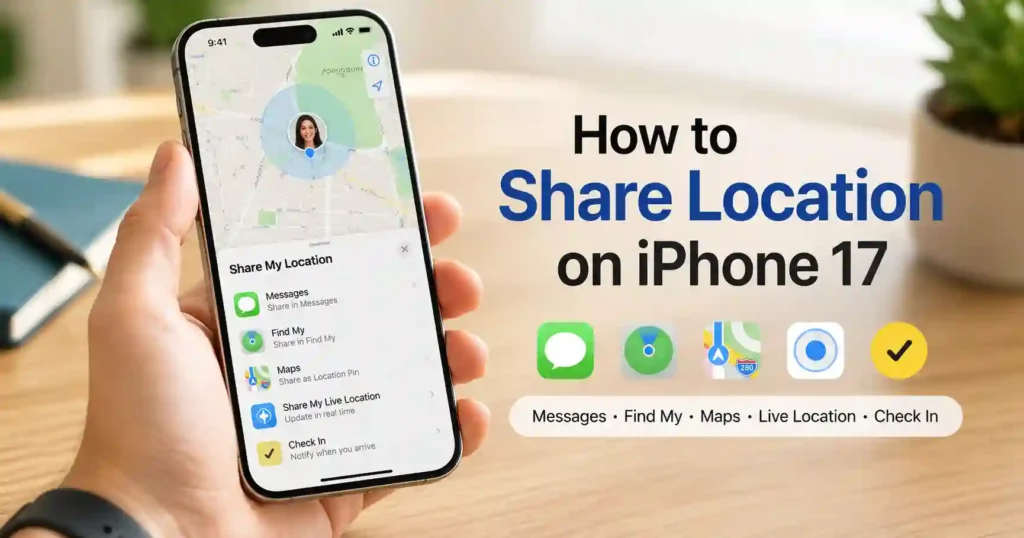
If you want to know how to share location on iPhone 17, the simplest method is to use Messages and choose whether to send a one-time location or share your Live Location for a selected period. iPhone also lets you share location through Find My, send a pinned location, share your ETA while traveling, request someone else’s location, and stop sharing whenever you want.
The important difference is that a pinned location is a snapshot, while Live Location can update as you move. This guide explains each method, when to use it, how to enable location access, how to see a shared location, how to stop sharing, and what to check when location sharing does not work.
What Is the Easiest Way to Share Location on iPhone 17?
Messages is the easiest option for most people because you can share a location directly inside an existing conversation. Open a conversation, tap the Add button, choose Location, then select the appropriate sharing option.
For a one-time location, send a pin. For ongoing sharing, choose Share and select how long you want your location available. Apple also supports location sharing through Find My and Maps.
How Do You Share Your Location on iPhone 17?
You can share your location on iPhone 17 through Messages by opening a conversation, tapping Add, selecting Location, and choosing how you want to share it. Apple supports both one-time location sharing and ongoing Live Location sharing.
- Open the Messages app.
- Open an existing conversation or start a new one.
- Tap the Add button.
- Tap Location.
- Choose the appropriate location-sharing option.
- Select how long you want to share your location when that option is available.
- Tap the Send button.
The right option depends on what you want the other person to see. A pinned location shows where you are at that moment, while Live Location can continue updating as you move.
Apple’s current iPhone documentation confirms that Messages can share an ongoing location and can also send a pinned location that does not update as you move.
Apple’s guide to sharing your location in Messages provides the current step-by-step instructions.
How Do You Enable Location Sharing on iPhone 17?
Location sharing requires Location Services and the appropriate Find My access to be enabled. If the sharing option is unavailable or another person cannot see your location, check the relevant privacy settings first.
Open Settings, then go to the privacy and location controls on the iPhone. Check that Location Services is enabled and that Find My has permission to access location information.
Apple specifically recommends checking Settings > Privacy & Security > Location Services > Find My when location sharing is configured but other people cannot see the location.
Location sharing can also depend on the iOS version and the availability of certain features in the user’s country or region. Apple notes that some location-sharing options require compatible iOS versions.
How Do You Send Your Current Location From iPhone 17?
Send a pinned location when you want someone to see where you are now without continuously following your movements. A pinned location is useful when you simply need to tell a friend where to meet you.
- Open Messages.
- Open the conversation with the person.
- Tap Add.
- Tap Location.
- Tap the Map Pin button.
- Adjust the map if necessary.
- Tap Send Pin.
- Send the message.
A pinned location is different from Live Location. The recipient receives the location you shared, but the pin does not continue updating as you move.
This makes a pinned location the better choice when you want to minimize ongoing location sharing.
How Do You Share Live Location on iPhone 17?
You can share Live Location through Messages or Find My when you want another person to follow your ongoing location. You can choose a sharing duration such as one hour, until the end of the day, or indefinitely when the option is available.
In Messages, open the conversation and use the location-sharing controls. Select the option to share your location, choose the duration, and send the location.
You can also use Find My:
- Open Find My.
- Tap the Me tab.
- Turn on Share My Location if necessary.
- Open the People tab.
- Tap the Add button.
- Choose Share My Location.
- Select the person.
- Choose the sharing duration.
Live Location is designed for ongoing sharing rather than a single location snapshot. Depending on the setup, the person you share with can view your location through Find My, Maps, Contacts, or Messages.
Apple states that Live Location can also provide information about the direction someone is traveling and their speed while they are moving.
How Do You Share Your Location While Traveling on iPhone 17?
Use Maps to share your ETA during a trip or use Check In when you want a trusted contact to know whether you reached your destination safely. These features serve different purposes from ordinary location sharing.
How Do You Share Your ETA in Maps?
Maps can share your ETA while you are following driving, cycling, or walking directions. The person receiving the ETA can follow your progress during the trip.
Start navigation in Maps and use the trip-sharing controls to share your ETA with the appropriate contact.
ETA sharing is particularly useful when someone needs to know when you are expected to arrive. It is more useful for a journey than for simply telling someone where you are.
Apple explains that ETA sharing can include your Live Location and the stops along your route while you are navigating.
How Does Check In Share Your Location?
Check In is designed to notify a trusted contact if your trip or activity does not proceed as expected. It does not simply broadcast your location continuously from the moment you start the session.
When a Check In does not complete as expected and you are unresponsive, Apple can share relevant information with the trusted contact. This can include your current location and certain device information.
That makes Check In useful for situations such as traveling home, meeting someone, or completing an activity where someone needs reassurance that you arrived safely.
How Do You Request Someone’s Location on iPhone 17?
You can request someone’s location through Messages by opening the conversation, tapping Add, selecting Location, and choosing Request. You can also ask where someone is and use the Request Location option when it appears.
- Open Messages.
- Open the conversation with the person.
- Tap Add.
- Tap Location.
- Tap Request.
- Send the request.
The other person must choose to share their location. A location request does not give you unrestricted access to another person’s location.
After the person shares their location, it can appear below their name in the Messages conversation. You can tap the location to view it on a map.
How Do You See a Shared Location on iPhone 17?
When someone shares their location with you, you can generally open the shared location from Messages, Find My, Maps, or the relevant contact information. The exact view depends on how the location was shared.
In Messages, open the conversation and tap the person’s name or shared location. The map can then be opened for a larger view.
Find My provides a dedicated place for viewing people who have shared their location with you. Maps can also show a person’s shared location when the appropriate sharing relationship is active.
Remember that a one-time pin and Live Location provide different information. A pin represents the location that was shared at that time, while Live Location can continue updating.
What Is the Difference Between a Location Pin, Live Location, ETA, and Check In?
The main difference is how much location information is shared and whether the information continues updating. Choosing the right method can reduce unnecessary location exposure.
| Method | Best For | How It Works | Location Updates |
|---|---|---|---|
| Send Pin | Sharing where you are now | Sends a location snapshot | No |
| Live Location | Ongoing location sharing | Shares your changing location | Yes |
| Maps ETA | Sharing progress during travel | Shares trip progress and ETA | Yes during the trip |
| Check In | Arrival and safety situations | Can share information if the expected trip does not complete normally | Condition-dependent |
How Do You Stop Sharing Your Location on iPhone 17?
You can stop sharing your location with one person or turn off Share My Location for everyone through Find My. You can also stop sharing from Messages or Maps.
How Do You Stop Sharing With One Person?
In Find My, open the People tab, select the person, and choose Stop Sharing My Location. You can also stop sharing from a Messages conversation.
In Messages, open the conversation, tap the person’s name at the top, and select Stop Sharing or the equivalent location-sharing control shown on the device.
Apple explains that stopping location sharing with a person through one supported method can stop the sharing relationship across the relevant apps.


How Do You Temporarily Stop Sharing With Everyone?
Open Find My, select the Me tab, and turn off Share My Location. This temporarily prevents people from receiving your ongoing shared location.
If you turn Share My Location back on later, people you previously shared with can regain access according to the existing sharing relationship.
Can Safety Check Stop Location Sharing?
Safety Check can help you quickly review or stop information sharing when personal safety is a concern. It is useful when you need a broader privacy review rather than simply stopping location sharing with one contact.
Apple provides Safety Check as a way to review and update sharing with individual people and apps.
Why Is Location Sharing Not Working on iPhone 17?
Location sharing problems usually require checking Location Services, Find My access, sharing settings, software compatibility, and regional availability. Start with the settings before assuming the feature itself is broken.
Is Location Services Turned On?
Location Services must be available for location-based features to determine your position. Check the privacy and location settings on the iPhone and confirm that location access is enabled.
Does Find My Have Location Access?
Find My needs appropriate location access when you use it to share your location. Check the Find My permission under Location Services if another person cannot see your location.
Are You Using a Supported iOS Version?
Some location-sharing features depend on the iOS version and device compatibility. If an expected option does not appear, check for available software updates.
Apple’s documentation notes that some location-sharing options require specific iOS versions.
Is Location Sharing Available in Your Region?
Location-sharing availability can vary by country or region. If the settings appear correct but the feature still does not work, check Apple’s current documentation for regional limitations.
Did You Send a Pin Instead of Live Location?
A sent pin does not continue updating, so it can look like Live Location has stopped when the pin was actually intended as a one-time share. Check which sharing method you selected.
💡 Pro Tip: If someone only needs to know where you are meeting them, send a pinned location instead of starting ongoing Live Location sharing.
Does Location Sharing Work the Same on iPhone 17 Pro and Pro Max?
The core location-sharing methods are based on Apple’s iOS features, so the basic process does not need a separate tutorial for each iPhone 17 model. iPhone 17 Pro and iPhone 17 Pro Max users can use the same major location-sharing tools described here when their software and feature requirements are met.
This means searches such as how to send location on iPhone 17 Pro and how to send location on iPhone 17 Pro Max generally lead to the same Messages, Find My, and Maps workflows.
The important differences are more likely to involve the specific feature being used, software version, compatibility, or regional availability rather than a completely different location-sharing procedure.
What Should You Know About Location-Sharing Privacy on iPhone 17?
The safest approach is to choose the shortest sharing duration and least detailed location method that meets your needs. A one-time pin reveals less ongoing movement than Live Location.
Use a pin when someone only needs your current meeting point. Use Live Location when another person genuinely needs to follow your movement over time.
For travel, consider whether ETA sharing or Check In better matches the situation. These features can provide useful trip information without treating every situation as a need for continuous location sharing.
Also review who can access your location and stop sharing when the reason for sharing has ended.
What Are the Most Common Questions About Sharing Location on iPhone 17?
How Do I Send My Location on iPhone 17 Pro Max?
Open Messages, choose the conversation, tap Add, select Location, and send the appropriate location option. The same basic workflow applies to the iPhone 17 Pro Max when the relevant feature is supported.
Can I Share My Location Only Once?
Yes, you can send a pinned location as a one-time location snapshot. A pinned location does not continue updating as you move.
Can I Share My Location Indefinitely?
Yes, Apple’s location-sharing controls can provide an indefinite option when available. Indefinite sharing continues until you manually stop the sharing relationship.
How Do I Request a Friend’s Location?
Open the Messages conversation, tap Add, choose Location, and tap Request. The other person must choose to share their location.
How Do I See Someone’s Shared Location on iPhone 17?
Open the relevant Messages conversation or Find My and select the person’s shared location. You can then view the location on a map when the sharing relationship is active.
Why Can’t Someone See My Location?
Check Location Services, Find My access, the active sharing relationship, software requirements, and regional availability. Also confirm that you started the intended type of location sharing rather than sending a one-time pin.
How Do I Stop Sharing My Location With One Person?
Open Find My, select People, choose the person, and tap Stop Sharing My Location. You can also stop sharing through the relevant Messages or Maps controls.
Where Can You Find Apple’s Official Location-Sharing Instructions?
Apple Support is the best source for checking the current iPhone location-sharing steps because Apple’s menus and supported features can change with iOS updates.
Apple Support: Share your location with iPhone explains one-time sharing, Live Location, Maps ETA, Check In, and stopping location sharing.
Apple Support: Share your location in Messages on iPhone provides the current Messages workflow for sending pins, sharing location, requesting a location, and stopping sharing.
What Related iPhone Guides Can Help With Location Sharing?
Location sharing can become more useful when your iPhone has enough battery for navigation or extended use. For practical battery-management advice, see our guide on preserving battery life on your iPhone.
If you regularly share your location while traveling, a reliable charger can also be useful. See our guide to fast iPhone chargers for related charging options.
For iPhone 17 Pro Max users who rely on hands-free navigation, our guide to MagSafe accessories for iPhone 17 Pro Max may also be useful.
Final Thought
The best way to share location on iPhone 17 depends on how much information the other person actually needs. Send a pin for a one-time location, use Live Location when someone needs to follow your movement, use Maps for trip progress, and use Check In when the priority is safe arrival.
For most everyday situations, Messages is the simplest starting point because it puts location sharing directly inside the conversation. Before sharing indefinitely, however, check the duration and make sure the selected method matches your privacy needs.
- For a one-time location: Send a Pin.
- For ongoing location sharing: Use Live Location through Messages or Find My.
- For travel: Use Maps ETA or Check In.
- For requesting a location: Use Request Location in Messages.
- For privacy: Stop sharing when the location-sharing need ends.
Choose the location-sharing method that matches the situation, then review your sharing settings whenever your needs change.
Related Articles