
A Bluetooth speaker won’t pair with a phone because the phone or speaker is usually blocking a new connection, the speaker is not in pairing mode, Bluetooth settings have become corrupted, or the speaker needs a reset. Fortunately, most Bluetooth pairing problems can be fixed in a few minutes without replacing the speaker.
This guide explains why a Bluetooth speaker won’t pair with a phone, the most common causes, and the fastest solutions. Additionally, you’ll learn how to identify whether the problem is caused by the phone, the Bluetooth speaker, or wireless interference so you can restore the connection quickly.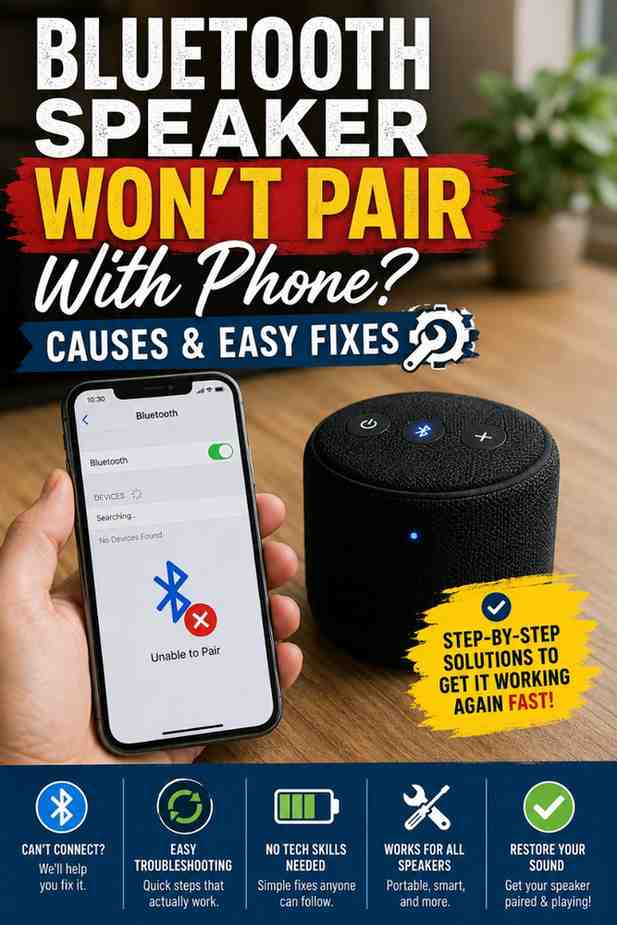
Why Won’t My Bluetooth Speaker Pair With My Phone? (Quick Answer)
A Bluetooth speaker won’t pair with a phone when the speaker is not discoverable, another device is already connected, Bluetooth settings become corrupted, or outdated software prevents a successful connection. In many cases, removing the previous pairing, restarting both devices, or resetting the Bluetooth speaker resolves the issue.
The Most Common Reasons Pairing Fails
Bluetooth pairing fails most often because the Bluetooth speaker remains connected to another smartphone, tablet, laptop, or TV. Many portable speakers automatically reconnect to the last paired device, preventing a new phone from establishing a connection until the previous device disconnects.
Another frequent cause is incorrect pairing mode. Simply powering on a Bluetooth speaker does not always make it discoverable. Most Bluetooth speakers require pressing and holding the Bluetooth or Power button until the LED flashes, indicating that pairing mode is active.
Software issues can also interrupt Bluetooth pairing. Android and iPhone devices occasionally retain outdated Bluetooth information that conflicts with new connections. Forgetting the Bluetooth speaker from the phone’s Bluetooth settings often removes these corrupted records and allows a fresh pairing attempt.
Battery level also affects Bluetooth performance. A Bluetooth speaker with a critically low battery may power on but disable wireless functions to conserve power. Charging the speaker before troubleshooting eliminates this possibility.
| Symptom | Most Likely Cause | Recommended Fix |
|---|---|---|
| Speaker not showing up | Not in pairing mode | Enable pairing mode again |
| Pairing request fails | Old Bluetooth connection | Forget the device and reconnect |
| Speaker immediately disconnects | Connected to another device | Disconnect previous device first |
| Speaker connects without sound | Incorrect audio output | Check audio settings |
| Speaker cannot be discovered | Low battery or firmware issue | Charge and update the speaker |
Quick Symptom-to-Solution Table
| Problem | Quick Solution | Difficulty | Estimated Time |
|---|---|---|---|
| Bluetooth speaker won’t pair | Restart both devices | Easy | 2 minutes |
| Bluetooth speaker not discoverable | Enter pairing mode | Easy | 1 minute |
| Pairing keeps failing | Forget previous connection | Easy | 3 minutes |
| Bluetooth speaker connects but has no audio | Select correct audio output | Easy | 2 minutes |
| Bluetooth speaker disconnects repeatedly | Reduce interference or reset the speaker | Medium | 5 minutes |
Common Causes of Bluetooth Pairing Problems
Understanding why a Bluetooth speaker won’t pair with a phone makes troubleshooting much faster. Instead of trying random fixes, identifying the underlying cause helps you apply the correct solution the first time.
Speaker Isn’t in Pairing Mode
A Bluetooth speaker cannot accept a new connection unless pairing mode is enabled. Many users mistake a powered-on speaker for a discoverable speaker, but these are different states. Pairing mode usually activates after holding the Bluetooth button until the indicator light flashes rapidly.
If the Bluetooth speaker still doesn’t appear after enabling pairing mode, move the phone within a few feet of the speaker and refresh the Bluetooth device list. Nearby devices are detected more reliably at close range.
Bluetooth Is Already Connected to Another Device
A Bluetooth speaker often reconnects automatically to the last paired phone, tablet, television, or laptop. As a result, a new phone cannot establish a connection until the previous device disconnects or Bluetooth is disabled on that device.
If the Bluetooth speaker repeatedly disconnects after pairing, the problem may involve connection instability rather than the pairing process itself. See our guide on fixing a Bluetooth speaker that keeps disconnecting for additional troubleshooting steps.
Low Battery or Outdated Software
A Bluetooth speaker with a weak battery may power on normally while limiting Bluetooth functionality. Charging both the phone and the Bluetooth speaker above 30 percent before troubleshooting removes one of the most common causes of failed pairing.
Outdated operating systems and speaker firmware can also create compatibility issues. Device manufacturers regularly release updates that improve Bluetooth stability, fix pairing bugs, and enhance compatibility with newer smartphones. The Bluetooth Special Interest Group also recommends using current Bluetooth implementations to ensure reliable device interoperability.
Bluetooth Interference or Compatibility Issues
Bluetooth operates on the crowded 2.4 GHz wireless frequency, where Wi-Fi routers, wireless keyboards, gaming controllers, smartwatches, earbuds, and microwave ovens can introduce interference. Excessive wireless traffic may delay or interrupt Bluetooth discovery and pairing.
Compatibility can also affect performance. Although modern Bluetooth versions remain backward compatible, some older Bluetooth speakers may experience pairing difficulties with newer phones until firmware updates are installed or previous pairing records are cleared.
If the Bluetooth speaker eventually connects but audio never plays through the speaker, continue with our guide on fixing a Bluetooth speaker that’s connected but has no sound before assuming the speaker is defective.
How to Fix a Bluetooth Speaker That Won’t Pair
A Bluetooth speaker that won’t pair with a phone can usually be fixed by restarting both devices, removing old Bluetooth connections, resetting the speaker, or updating the software. Start with the simplest solutions first, as most pairing issues are caused by temporary Bluetooth glitches rather than hardware failure.
Restart Both Devices and Enable Pairing Mode Again
Restarting the Bluetooth speaker and the phone clears temporary Bluetooth processes that may prevent pairing. After both devices restart, place the Bluetooth speaker into pairing mode before opening the Bluetooth settings on your phone to search for available devices.
Many Bluetooth speakers require holding the Bluetooth or Power button for several seconds until the LED flashes rapidly. If the indicator remains solid, the Bluetooth speaker is likely connected to another device or is not yet discoverable.
For the best results, keep the Bluetooth speaker within a few feet of the phone during the pairing process. Additionally, turn off Bluetooth on nearby phones, tablets, or laptops that may automatically reconnect to the speaker.
Forget the Bluetooth Connection and Pair Again
Removing the old Bluetooth pairing allows your phone to create a fresh connection with the Bluetooth speaker. Corrupted pairing information is a common reason why a Bluetooth speaker appears in the device list but refuses to connect.
On Android or iPhone, open Bluetooth settings, tap the Bluetooth speaker, and select Forget, Remove, or Unpair. Next, place the Bluetooth speaker back into pairing mode and reconnect it as if it were a new device.
If pairing succeeds but music still doesn’t play through the Bluetooth speaker, the issue may involve audio routing instead of Bluetooth connectivity. Follow our guide on Bluetooth speaker connected but no sound to restore audio output.
Reset the Speaker and Update Software
Resetting the Bluetooth speaker removes saved Bluetooth connections and restores the factory Bluetooth settings. This solution is particularly helpful when the Bluetooth speaker has reached its pairing memory limit or repeatedly rejects new devices.
The reset procedure varies by manufacturer. Some Bluetooth speakers use a dedicated reset button, while others require holding the Volume Up and Power buttons together for several seconds. Check your speaker’s manual if the button combination is different.
After the reset finishes, pair the Bluetooth speaker with your phone again before reconnecting any other devices. If you need model-specific instructions, see our guide on how to reset a Bluetooth speaker.
Software updates can also resolve Bluetooth pairing bugs. Install the latest Android or iOS updates, then check whether the speaker manufacturer provides firmware updates through its companion app. According to Google Android Help and Apple Support, keeping software up to date improves Bluetooth stability and compatibility.
Test With Another Phone to Identify the Faulty Device
Testing the Bluetooth speaker with another phone quickly determines whether the problem originates from the speaker or your smartphone. If the Bluetooth speaker pairs successfully with a different phone, your original phone likely has a Bluetooth settings issue.
Conversely, if the Bluetooth speaker fails to pair with multiple phones, the speaker may require a firmware update, factory reset, or professional repair. Performing this simple test prevents unnecessary troubleshooting on the wrong device.
| Test Result | Likely Cause | Recommended Action |
|---|---|---|
| Pairs with another phone | Problem with your phone | Reset Bluetooth or network settings |
| Fails on every phone | Problem with the speaker | Reset or update firmware |
| Pairs but disconnects later | Wireless interference or unstable connection | Reduce interference and reconnect |
| Pairs but no audio | Incorrect audio output | Verify audio settings |
Alternative Solutions if Pairing Still Fails
If a Bluetooth speaker still won’t pair after completing the basic troubleshooting steps, additional system settings or hardware limitations may be preventing the connection. The following solutions address less common but important causes of Bluetooth pairing failures.
Reset Your Phone’s Network Settings
Resetting network settings clears saved Bluetooth, Wi-Fi, and network configuration files without deleting your personal photos, apps, or documents. This process often fixes persistent Bluetooth issues caused by damaged system settings.
After the network reset completes, restart the phone and pair the Bluetooth speaker again. Because saved Wi-Fi passwords are removed during this process, make sure those credentials are available before proceeding.
Remove Old Paired Devices From the Speaker
Many Bluetooth speakers can remember only a limited number of previously paired devices. Once the memory becomes full, the Bluetooth speaker may stop accepting new pairing requests until older devices are removed.
Resetting the Bluetooth speaker is usually the fastest way to clear its pairing memory. Some premium speakers also allow paired devices to be deleted individually through the manufacturer’s companion app.
Update the Speaker Firmware
Firmware updates improve Bluetooth compatibility, fix software bugs, and enhance wireless performance. Manufacturers frequently release updates after new Android and iPhone versions become available to maintain reliable Bluetooth connections.
If your Bluetooth speaker supports firmware updates, install the latest version using the manufacturer’s official application before attempting to pair the speaker again. Updated firmware often resolves pairing failures without additional troubleshooting.
Contact the Manufacturer if Hardware May Be Faulty
A Bluetooth speaker that still refuses to pair after resetting, updating, and testing with multiple phones may have developed a hardware fault. Damaged Bluetooth chips, internal antenna problems, or power management failures usually require professional repair or replacement.
If the Bluetooth speaker is still covered by its warranty, contact the manufacturer before attempting to disassemble the device. However, if the speaker is older and repair costs approach the price of a replacement, upgrading to a newer model may be the more practical option.
How to Prevent Bluetooth Pairing Problems
Preventing a Bluetooth speaker from failing to pair with your phone is easier than repeatedly troubleshooting connection issues. Regular maintenance, updated software, and proper pairing habits help keep Bluetooth connections stable and reliable.
Keep Firmware Updated
Updating the Bluetooth speaker firmware reduces compatibility issues with newer Android and iPhone releases. Manufacturers regularly publish firmware updates that improve Bluetooth stability, fix known bugs, and enhance wireless performance.
Check the manufacturer’s companion app or support website periodically for available firmware updates. Additionally, keep your phone’s operating system current to ensure both devices support the latest Bluetooth improvements.
Disconnect Devices Before Pairing Another Phone
A Bluetooth speaker often reconnects automatically to the last paired device. Disconnecting Bluetooth on phones, tablets, or laptops before pairing a different phone prevents connection conflicts and speeds up the pairing process.
If you frequently switch between devices, unpair those you no longer use. Doing so reduces the chance of automatic reconnections interrupting a new pairing attempt.
Maintain Sufficient Battery Charge
Keeping both the Bluetooth speaker and the phone adequately charged helps maintain reliable Bluetooth performance. Some Bluetooth speakers reduce wireless functionality or become unstable when the battery level becomes critically low.
Recharge the Bluetooth speaker before long listening sessions and avoid storing it with a completely depleted battery. Regular charging habits can also extend the lifespan of rechargeable lithium-ion batteries.
Reduce Wireless Interference Nearby
Bluetooth uses the 2.4 GHz wireless band, which is shared with Wi-Fi routers, wireless accessories, and other electronic devices. Reducing interference improves pairing reliability and minimizes unexpected connection failures.
Move the Bluetooth speaker away from crowded wireless environments during the initial pairing process. Additionally, avoid placing the speaker directly beside a Wi-Fi router or connecting numerous Bluetooth devices at the same time.
Frequently Asked Questions
Why is my Bluetooth speaker not showing up?
A Bluetooth speaker usually does not appear because it is not in pairing mode or is already connected to another device. Enable pairing mode until the Bluetooth indicator flashes, then refresh the Bluetooth device list on your phone. Moving the speaker closer to the phone can also improve device discovery.
Why does Bluetooth pairing fail even when the speaker is visible?
Bluetooth pairing can fail because of corrupted pairing records, outdated software, or compatibility problems. Forget the Bluetooth speaker in your phone’s Bluetooth settings, restart both devices, and create a new connection. If the issue continues, updating the speaker firmware may resolve the problem.
Why does my phone find the speaker but won’t connect?
Your phone may detect the Bluetooth speaker while another device remains connected to it. Disconnect Bluetooth on previously paired devices and try again. If the Bluetooth speaker still refuses to connect, resetting the speaker often clears stored pairing information.
How do I force a Bluetooth speaker into pairing mode?
Most Bluetooth speakers enter pairing mode by pressing and holding the Bluetooth or Power button until the LED flashes rapidly. The exact method varies by manufacturer, so consult the user manual if the standard button combination does not work.
Can a Bluetooth speaker remember too many devices?
Yes. Many Bluetooth speakers store only a limited number of paired devices. Once that memory is full, the speaker may reject new pairing requests. Resetting the Bluetooth speaker or deleting old paired devices usually restores normal pairing functionality.
When should I replace my Bluetooth speaker?
You should consider replacing a Bluetooth speaker if it fails to pair with multiple phones after a factory reset and firmware update, or if hardware faults prevent reliable operation. If replacement is the better option, our guide to the best Bluetooth speakers under $50 can help you choose an affordable upgrade. If you need a speaker for home entertainment, you may also find our recommendations for the best Bluetooth speakers for TV without delay useful.
Final Thought
A Bluetooth speaker won’t pair with a phone for many reasons, but the problem is usually caused by incorrect pairing mode, saved Bluetooth connections, outdated software, or wireless interference rather than permanent hardware failure. Working through the troubleshooting steps in order helps identify the cause without unnecessary repairs.
If the Bluetooth speaker pairs successfully but produces no audio, continue with our guide on Bluetooth speaker connected but no sound. Likewise, if the Bluetooth speaker connects but frequently drops the connection, our article on fixing a Bluetooth speaker that keeps disconnecting provides additional troubleshooting.
Finally, if you plan to use a Bluetooth speaker with a television after restoring the connection, our guide on how to connect a Bluetooth speaker to a TV without audio delay explains how to reduce Bluetooth latency for a better viewing experience.