A Bluetooth speaker keeps disconnecting because the wireless connection becomes unstable due to signal interference, low battery, outdated firmware, software bugs, or excessive distance between connected devices. Fortunately, most Bluetooth speaker connection problems can be solved in a few minutes without replacing the speaker.
This guide explains why a Bluetooth speaker keeps disconnecting, the most common causes, and practical solutions that restore a stable Bluetooth connection. Additionally, you’ll learn how Bluetooth technology works, how to identify the exact cause, and when recurring disconnects indicate a hardware problem.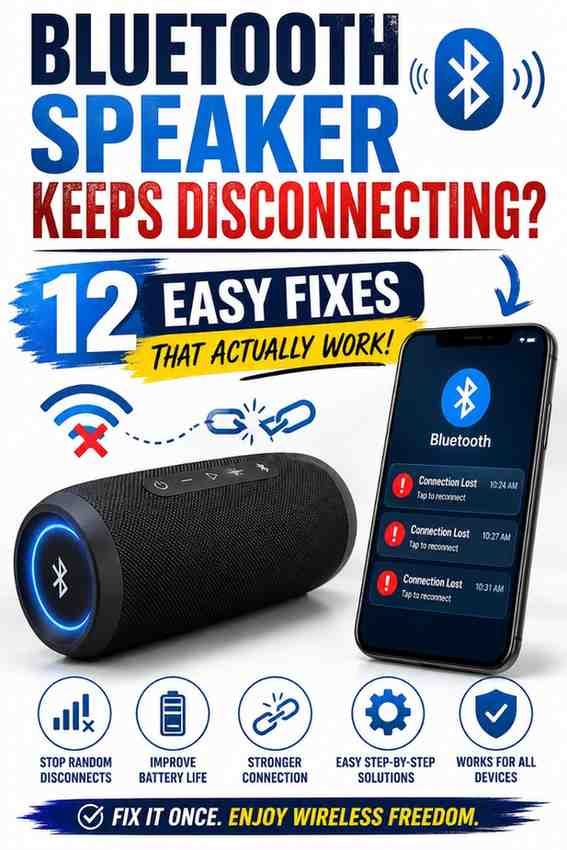
Why Does My Bluetooth Speaker Keep Disconnecting?
A Bluetooth speaker keeps disconnecting when the Bluetooth signal becomes interrupted or unstable. Common causes include a weak wireless signal, low battery, radio interference from nearby electronics, outdated firmware, battery optimization settings, or software glitches on the connected device.
| Possible Cause | Symptoms | Recommended Fix | Difficulty | Time Required |
|---|---|---|---|---|
| Weak Bluetooth signal | Disconnects while moving away | Move closer to the speaker | Easy | 1 minute |
| Low battery | Random disconnects | Fully recharge the speaker | Easy | 30–120 minutes |
| Bluetooth interference | Audio cuts in and out | Reduce nearby wireless devices | Easy | 5 minutes |
| Outdated firmware | Frequent reconnection attempts | Install the latest firmware | Moderate | 10–20 minutes |
| Software bug | Disconnects after updates | Restart and update the connected device | Easy | 5–15 minutes |
Before attempting advanced troubleshooting, start with the simplest fixes such as charging the Bluetooth speaker, restarting both devices, and reconnecting the Bluetooth pairing. Many random Bluetooth disconnects disappear after completing these basic steps.
Bottom Line: A Bluetooth speaker keeps disconnecting because the Bluetooth connection becomes unstable. Identifying whether the cause is the speaker, the connected device, or the surrounding environment is the fastest way to restore a reliable connection.
What Causes a Bluetooth Speaker to Disconnect Randomly?
A Bluetooth speaker disconnects randomly when wireless communication between the speaker and the connected device is interrupted. Bluetooth relies on a stable radio signal, so anything that weakens that signal can cause unexpected disconnects during music playback, calls, or video streaming.
Understanding the specific cause helps avoid unnecessary resets or replacements. Instead of trying every possible fix, identifying the underlying issue allows you to choose the most effective solution first.
Weak Bluetooth Signal
A weak Bluetooth signal is one of the most common reasons a Bluetooth speaker keeps disconnecting. Bluetooth devices communicate over short-range radio frequencies, and the signal becomes less reliable as the distance between the speaker and the connected device increases.
Walls, furniture, metal objects, and even the human body can weaken Bluetooth signals. For example, carrying a phone in a backpack while the Bluetooth speaker remains across the room may introduce enough interference to interrupt audio playback.
Modern Bluetooth versions such as Bluetooth 5.0, Bluetooth 5.2, and Bluetooth 5.3 improve connection stability and range compared to older standards. However, every Bluetooth speaker still performs best when the connected device remains within the recommended operating distance.
Whenever a Bluetooth speaker disconnects while walking around the house or office, moving the phone or laptop closer usually restores a stable connection without changing any settings.
Bottom Line: A weak Bluetooth signal often causes random disconnects. Keeping the Bluetooth speaker and connected device within range minimizes signal loss and improves connection stability.
Low Battery Level
A low battery can cause a Bluetooth speaker to disconnect because the speaker automatically reduces power consumption as the battery level drops. Some Bluetooth speakers disable advanced wireless functions before shutting down completely.
Battery performance naturally declines over time. As rechargeable batteries age, voltage fluctuations become more common, increasing the likelihood of unexpected Bluetooth disconnects even when the battery indicator appears sufficient.
If a Bluetooth speaker disconnects after several hours of playback, fully charging the battery should be one of the first troubleshooting steps. Additionally, using the original charging cable and recommended power adapter helps ensure proper charging performance.
Repeated battery-related connection problems may indicate battery wear rather than a Bluetooth fault. In that situation, replacement may eventually become more practical than continued troubleshooting.
Bottom Line: Low battery levels frequently trigger Bluetooth disconnects. Keeping the Bluetooth speaker adequately charged helps maintain a stronger and more reliable wireless connection.
Bluetooth Interference from Nearby Devices
Bluetooth interference occurs when multiple wireless devices compete for the same 2.4 GHz radio frequency. As a result, a Bluetooth speaker may disconnect repeatedly even when it is close to the connected phone or computer.
Common sources of interference include Wi-Fi routers, wireless keyboards, gaming consoles, smart home devices, microwave ovens, baby monitors, and other Bluetooth accessories operating nearby. The Bluetooth Special Interest Group (Bluetooth SIG) explains that Bluetooth devices use adaptive frequency hopping to reduce interference, but crowded wireless environments can still affect performance.
During daily use, Bluetooth disconnects often become noticeable in apartments, offices, airports, and classrooms where dozens of wireless devices share the same radio spectrum. Reducing unnecessary nearby Bluetooth connections frequently improves signal reliability.
If several Bluetooth accessories are connected simultaneously, disconnecting unused devices may improve overall Bluetooth stability. Likewise, temporarily moving away from Wi-Fi routers can help determine whether radio interference is responsible.
Bottom Line: Wireless interference is a leading cause of unstable Bluetooth connections. Reducing competing wireless signals often restores a consistent Bluetooth speaker connection.

Outdated Firmware or Software
Outdated firmware can cause a Bluetooth speaker to disconnect because firmware controls Bluetooth communication between the speaker and connected devices. Software bugs may become more noticeable after operating system updates on Android, iPhone, Windows, or macOS.
Many manufacturers release firmware updates that improve Bluetooth compatibility, fix random disconnects, and enhance overall connection stability. Checking for firmware updates through the manufacturer’s companion app is therefore an important troubleshooting step. Additionally, keeping the connected phone or computer updated helps resolve compatibility issues. Official support pages from Google Android Help and Apple Support provide guidance for updating Bluetooth-related software.
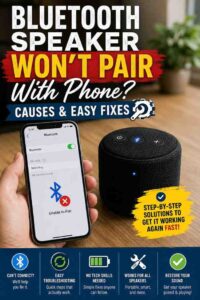
If reconnecting the Bluetooth speaker does not solve the problem after an update, removing the pairing and creating a new Bluetooth connection often resolves software-related issues. If the speaker refuses to reconnect afterward, follow this guide on Bluetooth speaker won’t pair with phone to complete the pairing process correctly.
Bottom Line: Firmware and software updates improve Bluetooth compatibility and reliability. Keeping both the Bluetooth speaker and the connected device updated reduces unexpected disconnects caused by software bugs.
How to Fix a Bluetooth Speaker That Keeps Disconnecting
A Bluetooth speaker that keeps disconnecting can usually be fixed by following a few troubleshooting steps in the correct order. Starting with simple solutions before attempting advanced fixes saves time and helps identify the actual cause of the unstable Bluetooth connection.
Work through each solution one at a time and test the Bluetooth speaker after every step. If the connection remains stable, there is no need to continue with additional troubleshooting.
Restart Both Devices
Restarting both devices is often the fastest way to fix a Bluetooth speaker that keeps disconnecting. Restarting clears temporary software glitches that can interrupt Bluetooth communication between the speaker and the connected phone, tablet, computer, or TV.
Turn off the Bluetooth speaker completely, then power off the connected device. Wait about 30 seconds before turning both devices back on and reconnecting them. This process refreshes the Bluetooth services without affecting saved settings.
Many random Bluetooth disconnects disappear after a simple restart because background processes that interfere with Bluetooth are reset automatically.
Bottom Line: Restarting both devices is the quickest troubleshooting step and often restores a stable Bluetooth connection without changing any settings.
Charge the Speaker Completely
Charging the Bluetooth speaker to 100% helps eliminate power-related connection problems. Many Bluetooth speakers automatically reduce wireless performance when the battery level becomes critically low.
Use the original charging cable and a compatible power adapter whenever possible. Third-party chargers with insufficient power output may charge the battery slowly or fail to provide a full charge.
After the battery reaches full capacity, reconnect the Bluetooth speaker and monitor the connection for several minutes. If the disconnecting problem disappears, low battery was likely the cause.
Battery issues that continue after a full charge may indicate battery wear rather than a Bluetooth software problem.
Bottom Line: A fully charged Bluetooth speaker maintains a more stable wireless connection and reduces unexpected Bluetooth dropouts.
Forget and Pair the Speaker Again
Removing the existing Bluetooth pairing and creating a new connection often fixes corrupted Bluetooth profiles. Pairing information can become damaged after software updates or repeated connection attempts.
Open the Bluetooth settings on the connected device, locate the Bluetooth speaker, choose Forget or Remove Device, and then place the speaker back into pairing mode before connecting again.
If the Bluetooth speaker refuses to reconnect after removing the pairing, follow this guide on Bluetooth speaker won’t pair with phone for detailed pairing instructions and additional troubleshooting steps.
Creating a fresh Bluetooth connection removes outdated pairing data and often restores reliable performance.
Bottom Line: Forgetting and repairing the Bluetooth speaker replaces corrupted Bluetooth settings and resolves many recurring connection problems.
Factory Reset the Bluetooth Speaker
A factory reset removes saved Bluetooth devices and restores the Bluetooth speaker to its original settings. This solution is especially helpful when disconnecting continues after restarting and reconnecting the speaker.
Reset methods vary by manufacturer, but most Bluetooth speakers require holding the Power and Bluetooth buttons or another button combination for several seconds. Always consult the manufacturer’s instructions before performing a reset.
If you need model-specific reset instructions, read our guide on how to reset a Bluetooth speaker for step-by-step directions.
After resetting the Bluetooth speaker, pair it with only one device first before reconnecting additional phones or computers.
Bottom Line: A factory reset clears corrupted settings and gives the Bluetooth speaker a clean start, making it one of the most effective solutions for persistent disconnects.
Why Does My Bluetooth Speaker Disconnect on Different Devices?
A Bluetooth speaker may disconnect differently depending on the connected device because each operating system manages Bluetooth connections in its own way. Understanding device-specific causes makes troubleshooting much faster.
Android Phones
Android phones may disconnect a Bluetooth speaker because of battery optimization, aggressive background app management, or outdated Bluetooth services. Some Android manufacturers automatically limit Bluetooth activity to conserve battery power.
Disable battery optimization for frequently used music apps and install the latest Android software updates. Additionally, clearing the Bluetooth cache on supported Android devices can resolve persistent connection issues.
Bottom Line: Android battery management settings can interrupt Bluetooth connections. Adjusting power settings often improves connection stability.
iPhone and iPad
iPhone and iPad devices generally maintain stable Bluetooth connections, but temporary iOS bugs or outdated software can still cause random disconnects. Restarting the device and installing the latest iOS update often resolves these issues.
If the Bluetooth speaker disconnects after an iOS update, removing the Bluetooth pairing and reconnecting the speaker usually restores normal operation.
Bottom Line: Updating iOS and reconnecting the Bluetooth speaker solves most Bluetooth disconnecting issues on iPhone and iPad.
Windows and Mac Computers
Windows PCs and Mac computers may disconnect a Bluetooth speaker because of outdated Bluetooth drivers, operating system bugs, or power management settings. Bluetooth adapters in older computers can also contribute to unstable connections.
Updating Bluetooth drivers on Windows or installing the latest version of macOS improves compatibility with newer Bluetooth speakers. Additionally, disabling Bluetooth power-saving features may reduce unexpected disconnects.
Bottom Line: Updated Bluetooth drivers and proper power management settings help computers maintain stable Bluetooth speaker connections.
Smart TVs
Smart TVs sometimes disconnect Bluetooth speakers because television software prioritizes power saving or supports only basic Bluetooth audio profiles. Firmware updates can improve Bluetooth compatibility on many TV models.
If your Bluetooth speaker disconnects while watching TV or audio falls out of sync, follow our guide on how to connect a Bluetooth speaker to a TV without audio delay to improve both connection stability and audio performance.
Bottom Line: Smart TV software limitations can affect Bluetooth stability. Updating TV firmware and using the correct Bluetooth settings often produces better results.
What If the Speaker Stays Connected but There’s No Audio?
A Bluetooth speaker that remains connected but produces no sound usually has an audio routing or playback problem rather than a Bluetooth connection issue. Checking audio settings should be the first troubleshooting step.
Check Audio Output Settings
Verify that the Bluetooth speaker is selected as the active audio output device. Phones, computers, and TVs can remain connected to a Bluetooth speaker while continuing to send sound to their built-in speakers.
Bottom Line: Selecting the correct audio output device restores sound when the Bluetooth connection remains active.
Restart Media Playback
Pause the music or video, close the streaming app, and reopen it before playing media again. Occasionally, media applications fail to switch audio output correctly after connecting a Bluetooth speaker.
Restarting playback refreshes the audio stream and often restores normal sound without disconnecting the Bluetooth speaker.
Bottom Line: Restarting media playback resolves temporary audio routing problems in many streaming apps.
Test Another App
Play audio from a different application to determine whether the problem is app-specific. If audio works normally in another app, the original application may require an update or restart.
Testing multiple apps helps isolate software problems without changing Bluetooth settings unnecessarily.
Bottom Line: Comparing different apps helps determine whether the issue lies with the Bluetooth speaker or the media application.
Reconnect the Speaker
Disconnect the Bluetooth speaker, reconnect it, and test audio again. Re-establishing the Bluetooth connection often resolves audio synchronization issues that occur after extended use.
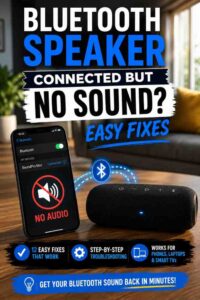
If the Bluetooth speaker connects successfully but still produces no sound, follow our complete guide on Bluetooth speaker connected but no sound for additional troubleshooting steps tailored to phones, computers, and smart TVs.
Bottom Line: Reconnecting the Bluetooth speaker refreshes the audio connection and frequently restores sound without additional troubleshooting.
How to Prevent Bluetooth Speaker Disconnects
A Bluetooth speaker is less likely to disconnect when it is properly maintained and used within its intended operating conditions. Preventive maintenance not only improves connection stability but also extends the lifespan of the Bluetooth speaker.
Keep Firmware Updated
Keeping the Bluetooth speaker firmware updated is one of the best ways to prevent random disconnects. Manufacturers regularly release firmware updates that improve Bluetooth stability, fix software bugs, and increase compatibility with newer phones, tablets, and computers.
Check the manufacturer’s mobile app or official support website periodically for available firmware updates. Additionally, install software updates on the connected device to ensure both devices use the latest Bluetooth improvements.
Bottom Line: Updated firmware reduces software-related Bluetooth problems and improves long-term connection reliability.
Stay Within Bluetooth Range
Maintaining an appropriate distance between the Bluetooth speaker and the connected device helps preserve a strong wireless signal. Although modern Bluetooth 5.0 and newer versions provide greater range, physical obstacles can still weaken the connection.
Whenever possible, keep the Bluetooth speaker and the connected phone, tablet, or laptop in the same room. Reducing walls, furniture, and metal barriers between devices significantly improves Bluetooth performance.
Bottom Line: Staying within the recommended Bluetooth range minimizes signal loss and prevents unexpected disconnects.
Reduce Wireless Interference
Reducing nearby wireless interference helps maintain a consistent Bluetooth connection. Devices that use the 2.4 GHz frequency, including Wi-Fi routers, wireless cameras, baby monitors, and gaming accessories, can interfere with Bluetooth communication.
Position the Bluetooth speaker away from crowded wireless environments whenever practical. Additionally, disconnect unused Bluetooth accessories if several devices are paired at the same time.
Bottom Line: Fewer competing wireless signals allow the Bluetooth speaker to maintain a stronger and more reliable connection.
Avoid Low Battery Levels
Keeping the Bluetooth speaker charged prevents many unexpected connection problems. As rechargeable batteries age, Bluetooth performance often becomes less stable when battery levels fall too low.
Recharge the Bluetooth speaker before long listening sessions rather than waiting until the battery is nearly empty. Consistent charging habits also help preserve overall battery health.
Bottom Line: Maintaining a healthy battery level improves Bluetooth stability and reduces random disconnects.
When Should You Replace Your Bluetooth Speaker?
A Bluetooth speaker should be replaced when hardware problems prevent a stable connection despite completing all recommended troubleshooting steps. Hardware failures cannot usually be corrected through software updates or resetting the speaker.
Signs of Hardware Failure
Repeated disconnects across multiple phones, tablets, computers, and TVs often indicate internal hardware damage. Likewise, Bluetooth speakers that frequently restart, fail to enter pairing mode, or lose connection immediately after pairing may have damaged Bluetooth components.
If every troubleshooting step has failed and the same problem occurs with different devices, replacing the Bluetooth speaker may be more cost-effective than attempting repairs.
Bottom Line: Connection problems on every device usually point to hardware failure rather than software issues.
Battery No Longer Holds a Charge
A worn-out battery can cause the Bluetooth speaker to disconnect unexpectedly even after a full charge. Battery capacity naturally decreases over time, reducing both playback time and wireless stability.
If the Bluetooth speaker powers off quickly or disconnects whenever the battery level drops slightly, battery degradation is the likely cause. Some premium speakers allow battery replacement, while many compact models do not.
Bottom Line: An aging battery can directly affect Bluetooth performance and may justify replacing the speaker.
Bluetooth Chip or Antenna Damage
Physical damage from drops, water exposure, or manufacturing defects can affect the Bluetooth chip or internal antenna. Unlike software problems, damaged hardware usually causes frequent signal loss regardless of the connected device.
If the Bluetooth speaker disconnects at very short distances after all troubleshooting has been completed, internal hardware damage becomes a strong possibility.
Bottom Line: Internal Bluetooth hardware damage often requires replacing the Bluetooth speaker because repairs are rarely economical.
Recommended Upgrade Options
If your current Bluetooth speaker is no longer reliable, upgrading to a newer model with Bluetooth 5.3, longer battery life, and improved wireless stability can provide a better listening experience. Modern Bluetooth speakers also support stronger wireless performance and improved compatibility with current smartphones and smart TVs.
For readers looking for a replacement, consider our guides to the best Bluetooth speaker under $50, the best Bluetooth speaker for TV without delay, or the best Bluetooth speaker with microphone. If you prefer a durable outdoor option, our roundup of the best Bluetooth speaker for golf cart may also be helpful. Additionally, our Anker Bluetooth speaker review covers one of the most reliable brands available today.
Bottom Line: Replacing an aging Bluetooth speaker with a newer model often provides stronger wireless performance, longer battery life, and improved Bluetooth stability.
Frequently Asked Questions
Why does my Bluetooth speaker disconnect every few seconds?
A Bluetooth speaker disconnects every few seconds when the wireless connection is repeatedly interrupted. Common causes include low battery, radio interference, outdated firmware, or a corrupted Bluetooth pairing. Restarting both devices, recharging the speaker, and reconnecting the Bluetooth pairing usually resolve the problem.
Can low battery cause Bluetooth disconnections?
Yes. Low battery can cause a Bluetooth speaker to disconnect because many speakers automatically reduce power consumption as battery levels fall. Fully charging the Bluetooth speaker is one of the quickest ways to determine whether battery level is responsible for the unstable connection.
Can Wi-Fi interfere with Bluetooth?
Yes. Wi-Fi and Bluetooth both operate in the 2.4 GHz frequency band, which can create interference in crowded wireless environments. Although Bluetooth uses adaptive frequency hopping to reduce conflicts, moving the Bluetooth speaker away from Wi-Fi routers or disconnecting unused wireless devices may improve stability.
Why does Bluetooth disconnect when I play music?
Bluetooth may disconnect during music playback because streaming audio requires a continuous wireless connection. Weak signals, software bugs, outdated firmware, or interference from nearby devices can interrupt data transmission and cause playback to stop unexpectedly.
Should I update my Bluetooth speaker’s firmware?
Yes. Firmware updates often fix Bluetooth bugs, improve compatibility with newer devices, and increase connection reliability. Checking for updates through the manufacturer’s official app or support website helps keep the Bluetooth speaker performing at its best.
How do I know if my Bluetooth speaker is faulty?
A Bluetooth speaker is likely faulty if it disconnects with multiple devices after restarting, resetting, updating firmware, and creating a new Bluetooth pairing. Persistent connection failures across different phones, tablets, computers, and TVs usually indicate hardware failure.
Final Thought
A Bluetooth speaker keeps disconnecting because of signal interference, low battery, outdated firmware, software issues, or internal hardware problems. Fortunately, most connection issues can be solved by restarting both devices, fully charging the speaker, reconnecting the Bluetooth pairing, updating firmware, or performing a factory reset.
If the Bluetooth speaker continues disconnecting after completing every troubleshooting step in this guide, hardware failure becomes the most likely explanation. Upgrading to a newer Bluetooth speaker with improved wireless technology may provide the most reliable long-term solution.