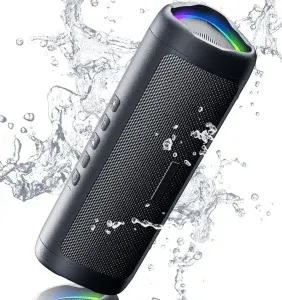
Learning how to reset Bluetooth speaker models correctly can solve many common wireless connection problems without replacing the speaker. A Bluetooth speaker factory reset clears stored pairing information, restores default settings, and often resolves pairing failures, random disconnections, or software glitches that prevent normal operation.
This guide explains what a Bluetooth speaker reset does, when you should perform one, how it differs from a simple restart, and what to prepare before beginning. Additionally, the guide provides practical advice that applies to most portable Bluetooth speakers regardless of brand.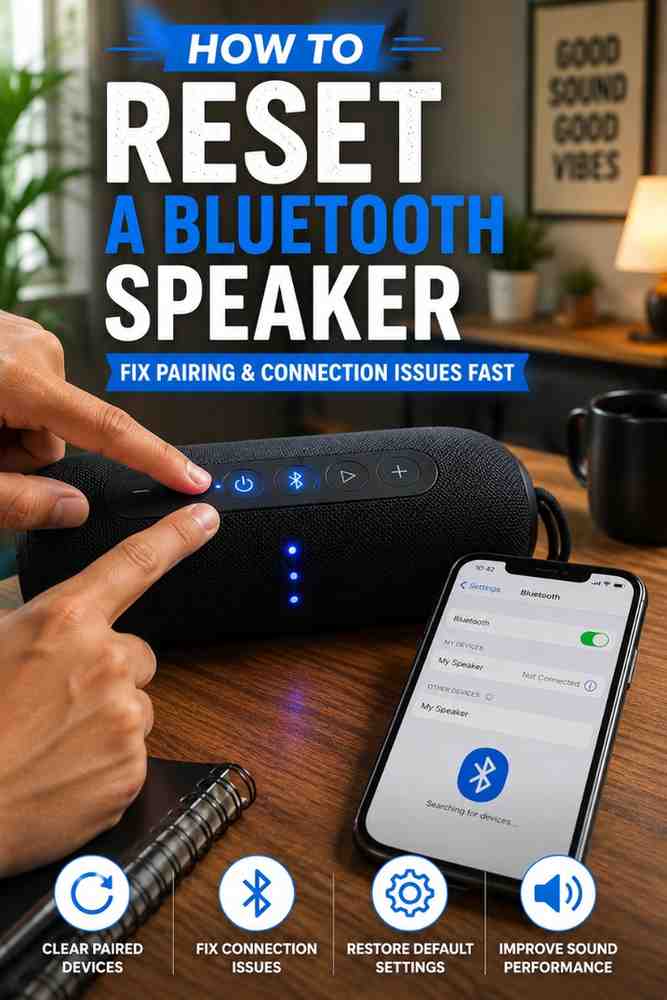
How Do You Reset a Bluetooth Speaker?
A Bluetooth speaker reset restores the speaker to its factory settings by removing saved Bluetooth connections and user-configured settings. Most Bluetooth speaker models perform a factory reset by holding a specific combination of buttons until the LED indicator flashes or the speaker restarts.
Although every manufacturer uses slightly different button combinations, the purpose remains the same. A Bluetooth speaker factory reset clears corrupted pairing information that may prevent the speaker from connecting properly to phones, tablets, computers, or televisions.
What a Factory Reset Does
A Bluetooth speaker factory reset removes previously paired devices and returns software settings to their original state. As a result, the Bluetooth speaker behaves like a new device the next time you turn it on.
Factory resetting a Bluetooth speaker can help resolve problems such as failed pairing attempts, repeated connection drops, Bluetooth discovery issues, and unresponsive controls. However, a factory reset does not update firmware or repair damaged hardware.
In practical use, a Bluetooth speaker factory reset is often the quickest solution after multiple failed pairing attempts. Instead of repeatedly deleting and reconnecting devices, resetting the Bluetooth speaker gives both the speaker and the connected device a fresh start.
What Happens After Resetting
After resetting, the Bluetooth speaker forgets every phone, tablet, computer, or television previously paired with it. Consequently, every device must be paired again before wireless audio can work.
Most Bluetooth speakers automatically enter pairing mode immediately after a successful factory reset. The flashing Bluetooth indicator confirms the speaker is ready to accept a new connection.
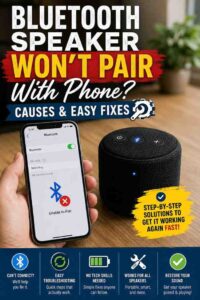
If pairing still fails after resetting, another connection issue may exist. In that situation, follow a dedicated troubleshooting guide for a Bluetooth speaker that won’t pair with a phone before assuming the speaker is defective.
Does Resetting Delete Paired Devices?
Yes. A Bluetooth speaker factory reset deletes every saved Bluetooth pairing stored in the speaker’s memory. Every connected device must forget the speaker and establish a new Bluetooth connection afterward.
Fortunately, resetting a Bluetooth speaker usually does not erase firmware updates. Most manufacturers store firmware separately from pairing information, so installed software remains unchanged after the reset process.
If the Bluetooth speaker supports a companion mobile app with customized equalizer settings or shortcuts, some preferences may also return to their default values depending on the manufacturer.


Restart vs. Factory Reset
A Bluetooth speaker restart simply powers the speaker off and back on, while a Bluetooth speaker factory reset erases saved Bluetooth information and restores default settings. Understanding this difference helps you choose the correct troubleshooting method.
| Feature | Restart | Factory Reset |
|---|---|---|
| Turns speaker off and on | Yes | Yes |
| Deletes paired devices | No | Yes |
| Restores default settings | No | Yes |
| Fixes software glitches | Sometimes | Often |
| Requires new Bluetooth pairing | No | Yes |
A restart works well for temporary freezes or minor audio interruptions. However, a Bluetooth speaker factory reset is the better choice when pairing failures, connection instability, or repeated Bluetooth errors continue after restarting.
What You Need Before Resetting Your Bluetooth Speaker
Preparing a Bluetooth speaker before resetting reduces the chance of failed resets or incomplete pairing. Spending a few minutes checking the speaker and connected devices can save much more troubleshooting time later.
Charge the Speaker
A Bluetooth speaker should have enough battery power before beginning a factory reset. Low battery levels can interrupt the reset sequence or prevent the speaker from restarting correctly.
Many manufacturers recommend charging the Bluetooth speaker to at least 50 percent before performing maintenance tasks. If the battery is nearly empty, connect the original charging cable and allow sufficient charging time first.
Disconnect All Paired Devices
Disconnecting every connected phone, tablet, laptop, or television prevents active Bluetooth sessions from interfering with the factory reset. Additionally, turning off Bluetooth on nearby devices reduces accidental automatic reconnections.
Removing active Bluetooth connections also makes it easier to verify that the Bluetooth speaker successfully enters pairing mode after the reset process finishes.
Identify the Correct Button Combination
Every Bluetooth speaker brand uses its own factory reset procedure. Some speakers require holding the Power and Bluetooth buttons, while others use Play, Volume Up, or Volume Down in different combinations.
Checking the user manual or the manufacturer’s support page before resetting helps avoid unnecessary button presses that do not trigger the reset sequence. Following the correct procedure also reduces confusion when LED indicators begin flashing.
Back Up App Settings if Supported
Some Bluetooth speakers include companion applications that store custom equalizer profiles, stereo pair settings, or personalized shortcuts. A factory reset may remove those customizations even though firmware remains installed.
If the Bluetooth speaker allows exporting or saving user profiles within the companion app, complete that process before resetting. Restoring saved preferences afterward is much faster than recreating every audio setting manually.
How to Reset a Bluetooth Speaker Step by Step
Resetting a Bluetooth speaker usually takes less than a minute when you follow the correct procedure. Although button combinations vary by manufacturer, the overall process is similar for most portable Bluetooth speakers.
Universal Reset Method
A universal Bluetooth speaker reset starts by turning on the speaker and ensuring it has enough battery power. Next, press and hold the factory reset button combination for your model until the LED indicator flashes, changes color, or the speaker powers off and back on automatically.
Many Bluetooth speakers use one of these button combinations:
| Common Button Combination | Typical Result |
|---|---|
| Power + Bluetooth | Factory reset starts |
| Volume Up + Play/Pause | Reset confirmation tone |
| Bluetooth + Volume Down | LED flashes rapidly |
| Power button only (long press) | Factory settings restored on some models |
If your Bluetooth speaker does not respond to one combination, consult the manufacturer’s instructions instead of repeatedly pressing random buttons. Using the correct method prevents unnecessary troubleshooting and speeds up the reset process.
Wait for LED Confirmation
A successful Bluetooth speaker reset is usually confirmed by an LED flashing pattern, an audible tone, or an automatic restart. These indicators show that the speaker has erased its previous Bluetooth connections and returned to its default settings.
Avoid pressing additional buttons while the Bluetooth speaker is resetting. Interrupting the process may prevent the reset from completing properly, requiring you to repeat the entire procedure.
Once the Bluetooth speaker finishes restarting, wait a few seconds before attempting to reconnect another device. Giving the speaker enough time to initialize helps prevent pairing errors.
Remove the Speaker from Bluetooth Settings
After resetting the Bluetooth speaker, remove the old Bluetooth profile from every previously connected device. Otherwise, the phone, tablet, computer, or TV may continue trying to use outdated pairing information.
Open the Bluetooth settings on your device, locate the Bluetooth speaker, and choose Forget Device, Remove, or a similar option. After removing the old profile, scan for available Bluetooth devices again.
If the Bluetooth speaker still refuses to establish a new connection after forgetting the device, additional pairing issues may be involved. In that situation, refer to the guide on Bluetooth speaker won’t pair with a phone for more advanced troubleshooting.
Pair the Speaker Again
Once the Bluetooth speaker enters pairing mode, open the Bluetooth menu on your phone, tablet, laptop, or television and select the speaker from the list of available devices. A successful connection normally takes only a few seconds.
Play music or a short video immediately after pairing to verify that both the Bluetooth connection and audio output are working correctly. Testing the speaker right away makes it easier to identify any remaining issues.
If you plan to use the Bluetooth speaker with a television, pairing alone may not eliminate audio lag. For the best listening experience, read our guide on connecting a Bluetooth speaker to a TV without audio delay, which explains additional settings that can reduce latency.
How to Reset Popular Bluetooth Speaker Brands
Most Bluetooth speaker brands follow similar reset principles, but each manufacturer assigns different button combinations. Checking the correct reset method for your model ensures the factory reset works the first time.
JBL, Sony and Bose Speakers
JBL, Sony, and Bose Bluetooth speakers generally require holding two buttons together for several seconds until the LED flashes or the speaker restarts. Some models use the Power and Bluetooth buttons, while others rely on the Play and Volume controls.
After the Bluetooth speaker resets, remove the old Bluetooth connection from every paired device before reconnecting. Skipping this step often causes the phone or computer to reconnect using outdated pairing information.
Always verify the exact reset procedure for your specific model through the manufacturer’s official support documentation because button combinations can vary between product generations.
Anker Soundcore and Tribit Speakers
Anker Soundcore and Tribit Bluetooth speakers often include dedicated reset procedures that involve holding the Bluetooth and Power buttons together. Certain Soundcore models may also allow resetting through the companion mobile application.
If you own an Anker model and want to learn more about its performance, features, and everyday usability, our Anker Bluetooth speaker review provides additional information beyond the reset process.
After resetting either brand, reconnect only one device first. Confirming a stable connection before pairing multiple devices helps prevent future Bluetooth conflicts.
Ultimate Ears and Marshall Speakers
Ultimate Ears and Marshall Bluetooth speakers typically enter factory reset mode by pressing and holding two or more buttons until the speaker powers off or emits a confirmation sound. The required buttons differ by model, making the user manual the most reliable reference.
After the Bluetooth speaker completes the reset, check that pairing mode activates automatically. If pairing mode does not appear, manually enable Bluetooth discovery before attempting a new connection.
Many connection problems disappear after resetting because the Bluetooth speaker removes corrupted pairing records stored in its internal memory.
LG and Other Portable Bluetooth Speakers
LG Bluetooth speakers and many other portable wireless speakers generally use a similar factory reset process, although the required buttons may differ. Some entry-level models include a recessed reset button that must be pressed with a small pin or paper clip.
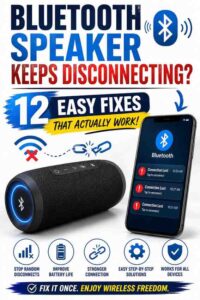
If your Bluetooth speaker continues disconnecting after a successful reset, the issue may involve wireless interference, outdated firmware, or Bluetooth compatibility rather than the reset itself. Our guide on why a Bluetooth speaker keeps disconnecting explains additional solutions that can restore a stable connection.
When the Bluetooth speaker still fails after following the correct reset procedure, move to the troubleshooting steps in the next section before considering a replacement.
What to Do If Your Bluetooth Speaker Still Doesn’t Work
A Bluetooth speaker should connect and play audio normally after a successful factory reset. However, if the Bluetooth speaker still fails to work, the problem may involve the connected device, outdated firmware, wireless interference, or a hardware fault rather than the reset itself.
Speaker Won’t Pair After Resetting
A Bluetooth speaker that will not pair after resetting usually has an old Bluetooth profile saved on the phone, tablet, or computer. Remove the speaker from the device’s Bluetooth settings, restart Bluetooth, and begin the pairing process again.
Bluetooth pairing can also fail if another nearby device automatically reconnects to the speaker first. Therefore, disable Bluetooth on nearby devices before attempting a new connection.
If the Bluetooth speaker still cannot establish a connection, follow our complete guide on fixing a Bluetooth speaker that won’t pair with a phone. The guide covers additional pairing solutions that go beyond a factory reset.
Speaker Keeps Disconnecting
A Bluetooth speaker that disconnects repeatedly after resetting often experiences signal interference instead of a software problem. Wi-Fi routers, microwaves, wireless keyboards, and other Bluetooth devices can interrupt the wireless connection.
Move the Bluetooth speaker closer to the connected device and remove obstacles such as walls or large metal objects. Additionally, keep the speaker’s firmware updated whenever the manufacturer releases new software.
If random disconnections continue, read our guide explaining why a Bluetooth speaker keeps disconnecting. The troubleshooting steps cover battery issues, firmware problems, and Bluetooth interference in greater detail.
Connected but No Sound
A Bluetooth speaker may appear connected while producing no sound because another audio output device is selected. Verify that the Bluetooth speaker is chosen as the active playback device before assuming the reset failed.
Increase the volume on both the Bluetooth speaker and the connected device. Additionally, test audio using another application because some media apps maintain independent volume controls.
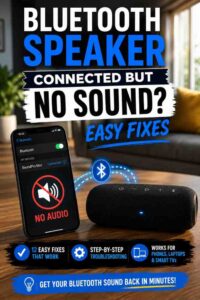
If the Bluetooth connection succeeds but audio never plays, our guide on a Bluetooth speaker connected but no sound explains the most common causes and practical fixes.
When a Hardware Problem Is Likely
A Bluetooth speaker may have a hardware problem if it cannot enter pairing mode, refuses to power on after charging, or never responds to the correct reset button combination. Physical damage, worn batteries, damaged charging ports, or failed internal components cannot be repaired with a factory reset.
Inspect the Bluetooth speaker for signs of water damage, loose buttons, cracked ports, or impact damage. If the speaker still falls within the manufacturer’s warranty period, contact the official support team before attempting further repairs.
When repair costs exceed the value of the speaker, replacing the Bluetooth speaker is often the most practical solution. Budget-friendly replacement options are available in our guide to the best Bluetooth speakers under $50.
Tips to Prevent Future Bluetooth Connection Problems
Most Bluetooth speaker connection issues can be avoided through proper maintenance. Following a few simple habits helps reduce pairing failures, unexpected disconnections, and audio interruptions.
Keep Firmware Updated
Bluetooth speaker firmware updates improve compatibility, fix software bugs, and enhance wireless stability. Many manufacturers distribute firmware updates through their official mobile applications.
Check for firmware updates regularly instead of waiting until connection problems appear. According to official support documentation from many speaker manufacturers, keeping firmware current improves Bluetooth reliability and device compatibility.
Avoid Pairing With Too Many Devices
A Bluetooth speaker stores a limited number of paired devices. Saving too many phones, tablets, laptops, and televisions can create connection conflicts, especially when several devices are nearby.
Remove devices you no longer use from the Bluetooth speaker’s memory. Maintaining a smaller pairing list makes future connections faster and more reliable.
Maintain Battery Health
A weak battery can affect Bluetooth speaker performance long before the speaker stops powering on. Low voltage may reduce wireless stability, shorten connection range, or interrupt playback unexpectedly.
Recharge the Bluetooth speaker before the battery becomes completely depleted. Additionally, use the manufacturer’s recommended charging cable and adapter whenever possible.
Reduce Wireless Interference
Bluetooth speaker performance improves when wireless interference is minimized. Keep the speaker away from crowded wireless environments whenever possible, particularly when using Bluetooth near multiple Wi-Fi networks or other Bluetooth accessories.
If you primarily connect the Bluetooth speaker to a television, selecting a model designed for low-latency audio can provide a better viewing experience. Our guide to the best Bluetooth speakers for TV without delay explains which features reduce audio lag.
Frequently Asked Questions
How do I factory reset my Bluetooth speaker?
A Bluetooth speaker is usually factory reset by turning it on and holding the correct button combination until the LED flashes or the speaker restarts. Because button combinations vary by manufacturer, check the official user manual if the first attempt does not work.
Why won’t my Bluetooth speaker reset?
A Bluetooth speaker may not reset because the battery is too low, the wrong button combination is being used, or the speaker has a hardware problem. Charging the speaker fully and following the manufacturer’s reset instructions usually resolves the issue.
Can I reset a Bluetooth speaker without an app?
Yes. Most Bluetooth speakers can be factory reset using physical buttons without installing a companion application. Some premium models also provide reset options within their mobile apps, but those apps are usually optional.
How long does a Bluetooth speaker reset take?
A Bluetooth speaker factory reset normally takes less than one minute. After the reset finishes, wait for the speaker to restart completely before pairing it with another device.
Does resetting improve Bluetooth performance?
Yes, resetting a Bluetooth speaker often improves Bluetooth performance when software glitches or corrupted pairing records cause connection problems. However, a factory reset cannot fix hardware failures or damaged batteries.
What should I do if resetting doesn’t fix the problem?
If resetting the Bluetooth speaker does not solve the issue, remove the old Bluetooth connection, update the speaker’s firmware, test another device, and inspect the speaker for hardware damage. Persistent problems after these steps usually indicate that professional repair or replacement is necessary.
Final Thought
Knowing how to reset a Bluetooth speaker is one of the most effective ways to fix pairing problems, connection failures, and minor software glitches. A proper factory reset clears outdated Bluetooth information, restores default settings, and gives the speaker a fresh start without affecting installed firmware.
Most Bluetooth speaker issues are resolved by following the correct reset procedure, forgetting the old Bluetooth connection, and pairing the speaker again. Additionally, keeping firmware updated, maintaining battery health, and limiting unnecessary paired devices helps prevent many common Bluetooth problems.
If the Bluetooth speaker still does not work after completing every troubleshooting step, the issue is likely related to hardware rather than software. At that point, replacing the speaker may be the most cost-effective option, especially if repair costs exceed the value of the device.