A Bluetooth speaker connected but no sound is one of the most common Bluetooth audio problems on phones, computers, and smart TVs. In most cases, the Bluetooth connection is successful, but the device continues sending audio to the wrong output, media audio is disabled, or a temporary software issue interrupts playback.
This guide explains why a Bluetooth speaker connects without playing sound, the most common causes, and the first troubleshooting steps to restore audio. Additionally, the guide covers Bluetooth audio routing, media settings, and software issues that affect Android phones, iPhones, Windows PCs, and smart TVs.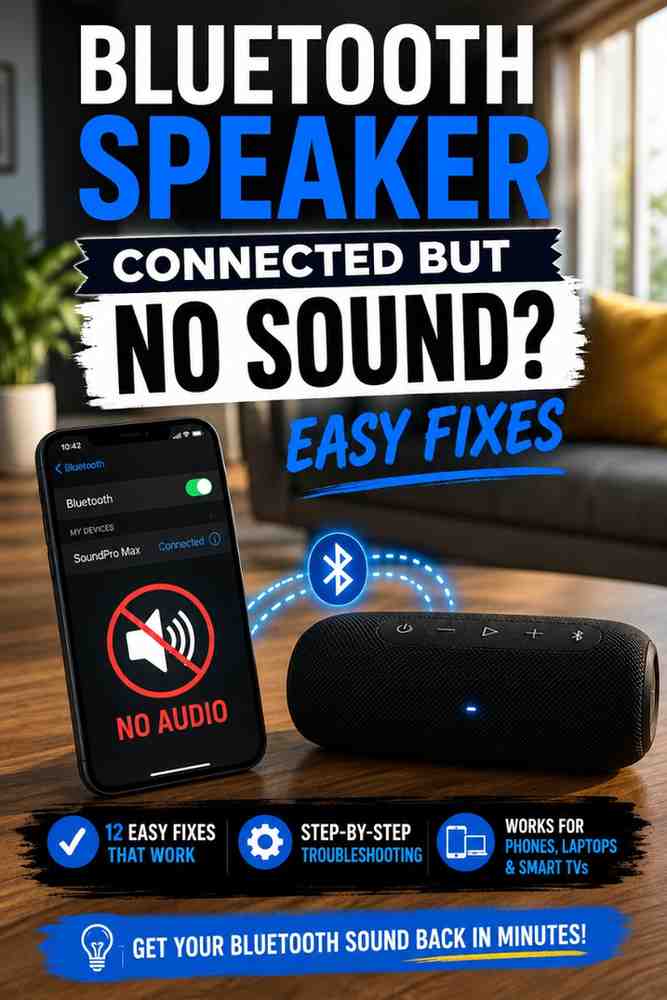
Why Is My Bluetooth Speaker Connected but No Sound?
A Bluetooth speaker can connect successfully but produce no sound because the audio is being sent to another playback device, media audio is disabled, the speaker volume is muted, or a temporary Bluetooth software issue prevents audio routing.
A Bluetooth connection only confirms that two devices have paired successfully. However, Bluetooth pairing does not guarantee that music, videos, or system sounds will automatically play through the Bluetooth speaker. As a result, checking the audio output settings is usually the first step toward resolving the issue.
| Symptom | Most Likely Cause | Recommended Fix |
|---|---|---|
| Connected but silent | Wrong playback device | Select the Bluetooth speaker as the audio output |
| Phone still plays sound | Media Audio disabled | Enable Media Audio in Bluetooth settings |
| TV uses built-in speakers | Audio output not changed | Switch TV audio output to Bluetooth |
| Laptop speakers still work | Default playback device incorrect | Choose the Bluetooth speaker as the default device |
| No sound after pairing | Software or firmware glitch | Restart or reconnect both devices |
The Difference Between Bluetooth Pairing and Audio Output
A Bluetooth speaker connected but no sound usually happens because Bluetooth pairing and audio playback are two separate functions. Pairing establishes a wireless connection, while audio routing determines where music, videos, notifications, and calls are actually played.
For example, a smartphone may display Connected even though the operating system continues sending audio to its built-in speaker. Likewise, a Windows computer can remain paired with a Bluetooth speaker while using its internal speakers as the default playback device.
Modern operating systems also support multiple Bluetooth profiles. The Advanced Audio Distribution Profile (A2DP) handles high-quality stereo audio, while other Bluetooth profiles manage functions such as calls or remote controls. According to the Bluetooth Special Interest Group (Bluetooth SIG), devices must support compatible Bluetooth profiles before media audio can function correctly.
Understanding this difference helps identify why a Bluetooth speaker appears connected without producing sound. Before assuming the speaker is faulty, verify that the Bluetooth speaker is selected as the active playback device.
Most Common Reasons Audio Doesn’t Play
A Bluetooth speaker connected but no sound is most often caused by incorrect audio routing instead of hardware failure. Fortunately, most problems can be resolved within a few minutes without replacing the speaker.
- The wrong playback device is selected.
- Media Audio is disabled on Android.
- The Bluetooth speaker volume is turned down.
- The phone, computer, or TV volume is muted.
- The Bluetooth connection became unstable after pairing.
- A temporary software glitch interrupted audio playback.
- Outdated Bluetooth drivers or firmware caused compatibility issues.
- Another Bluetooth device automatically took over audio output.
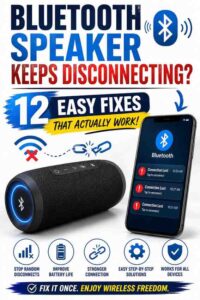
If the Bluetooth connection repeatedly drops before audio starts playing, the issue may extend beyond sound settings. In that situation, read our guide on Bluetooth speaker keeps disconnecting because unstable wireless connections often interrupt media playback.
Common Causes of Bluetooth Speaker Connected but No Sound
A Bluetooth speaker connected but no sound can result from several different issues, but identifying the underlying cause makes troubleshooting much faster. The following causes account for most Bluetooth audio problems across Android, iPhone, Windows, laptops, and smart TVs.
Wrong Audio Output Selected
The wrong audio output is the most common reason a Bluetooth speaker connected but no sound occurs. Although Bluetooth pairing succeeds, the operating system may continue sending sound to built-in speakers, wired headphones, or another Bluetooth device.
Windows computers commonly retain the previous playback device after reconnecting a Bluetooth speaker. Similarly, smart TVs often reconnect to a Bluetooth speaker but continue using their internal speakers until the audio output is changed manually.
After connecting a Bluetooth speaker to a television, selecting the correct output device is just as important as pairing. If you’re using a television, see our guide on how to connect a Bluetooth speaker to a TV without audio delay for the correct audio configuration.

Speaker or Device Volume Is Muted
A Bluetooth speaker connected but no sound may simply be caused by muted or very low volume. Many Bluetooth speakers store their own independent volume level, which means increasing the phone volume alone may not restore audio.
For example, some Bluetooth speakers remember the last volume setting used with another device. After reconnecting later, the speaker may still be set to minimum volume even though the connected phone displays maximum volume.
Increasing the volume on both the Bluetooth speaker and the connected device eliminates one of the quickest and easiest causes before moving to more advanced troubleshooting.
Media Audio Is Disabled
Media Audio being disabled is a frequent cause of a Bluetooth speaker connected but no sound on Android devices. Bluetooth may remain connected for calls while preventing music, videos, games, and streaming apps from using the speaker.
Android allows users to enable or disable separate Bluetooth functions, including phone calls, contacts, and media audio. If the Media Audio option is switched off, the Bluetooth speaker stays connected but remains silent during media playback.
Google explains in its Android Help documentation that Bluetooth device permissions determine which audio functions are available after pairing. Checking these permissions often restores sound immediately.
Software or Firmware Glitches
A Bluetooth speaker connected but no sound can also result from temporary software bugs affecting either the speaker or the connected device. Bluetooth services occasionally fail after operating system updates, prolonged standby mode, or interrupted pairing attempts.
Firmware problems may prevent a Bluetooth speaker from processing audio correctly even though the connection appears normal. Likewise, outdated Bluetooth drivers on Windows computers can interfere with audio routing until they are updated or restarted.
If restarting the Bluetooth connection does not resolve the issue, resetting the Bluetooth speaker often removes corrupted pairing information. Follow our step-by-step guide on how to reset a Bluetooth speaker before assuming the hardware has failed.
How to Fix a Bluetooth Speaker Connected but No Sound
A Bluetooth speaker connected but no sound can usually be fixed by correcting the audio output settings, refreshing the Bluetooth connection, or resetting the speaker. Start with the simplest solutions first because most audio problems are caused by incorrect settings rather than hardware failure.
Restart Both Devices
Restarting both the Bluetooth speaker and the connected device clears temporary software glitches that may interrupt audio playback. A fresh Bluetooth connection forces both devices to establish a new audio session and often restores sound immediately.
- Turn off the Bluetooth speaker.
- Restart the phone, tablet, computer, or TV.
- Wait about 30 seconds.
- Turn the Bluetooth speaker back on.
- Reconnect the speaker and test audio playback.
After restarting, play audio from a video or music app instead of relying on notification sounds. This confirms whether the Bluetooth speaker is receiving media audio correctly.
Select the Bluetooth Speaker as the Playback Device
A Bluetooth speaker connected but no sound frequently occurs because another playback device remains active. Selecting the Bluetooth speaker as the primary audio output ensures all media is routed correctly.
On Android
- Open Settings.
- Tap Connected Devices or Bluetooth.
- Select the connected Bluetooth speaker.
- Verify that Media Audio is enabled.
On iPhone
- Open Control Center.
- Tap the AirPlay or audio output icon.
- Select the connected Bluetooth speaker.
- Play music to confirm the audio output changed.
On Windows 10 and Windows 11
- Right-click the speaker icon.
- Select Sound Settings.
- Choose the Bluetooth speaker under Output.
- Set it as the default playback device if necessary.
On Smart TVs
- Open the TV audio settings.
- Select Sound Output or Audio Output.
- Choose the connected Bluetooth speaker.
- Test audio using a streaming app.
If your television still plays through its internal speakers after pairing, follow our guide on how to connect a Bluetooth speaker to a TV without audio delay for platform-specific setup instructions.
Forget and Pair the Speaker Again
A Bluetooth speaker connected but no sound may result from corrupted pairing information. Removing the saved Bluetooth connection and pairing the speaker again creates a new connection profile and often restores normal audio.
- Open Bluetooth settings.
- Select the Bluetooth speaker.
- Choose Forget or Remove Device.
- Restart Bluetooth on both devices.
- Pair the speaker again.
- Play music to verify the connection.
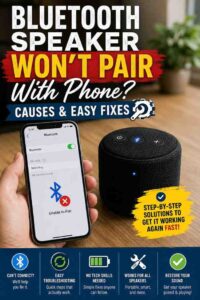
If the Bluetooth speaker cannot be paired again after removing it, the issue is no longer limited to audio playback. Read our troubleshooting guide on Bluetooth speaker won’t pair with your phone to diagnose pairing failures.
Reset the Bluetooth Speaker
Resetting the Bluetooth speaker removes saved Bluetooth devices and restores the factory Bluetooth configuration. This solution is especially useful when the speaker connects successfully but consistently fails to play sound.
Different manufacturers use different reset methods. Some Bluetooth speakers require holding the Power and Volume Up buttons, while others use the Bluetooth and Play buttons together. Always check the manufacturer’s instructions before performing a reset.
After completing the reset, pair the Bluetooth speaker as if it were a new device. Avoid restoring previous Bluetooth connections until you confirm that audio playback works correctly.
If you are unsure how to reset your model, follow our complete guide on how to reset a Bluetooth speaker for brand-specific instructions.
Device-Specific Fixes
A Bluetooth speaker connected but no sound can behave differently depending on the operating system. Android phones, iPhones, Windows computers, and smart TVs each manage Bluetooth audio using different settings, so checking the correct platform-specific options often resolves the issue faster.
Android Phones
A Bluetooth speaker connected but no sound on Android is commonly caused by disabled Media Audio permissions or Bluetooth cache issues. Android separates phone calls from media playback, allowing one function to work while the other remains disabled.
- Confirm Media Audio is enabled.
- Increase the speaker and phone volume.
- Restart Bluetooth.
- Forget and reconnect the speaker.
- Install available Android system updates.
Additionally, disconnect other Bluetooth accessories such as earbuds or smartwatches that may automatically take over audio playback.
iPhone and iPad
A Bluetooth speaker connected but no sound on an iPhone or iPad usually indicates that iOS is sending audio to another output device. AirPlay devices, wireless earbuds, or previously connected speakers may remain selected after pairing.
- Open Control Center.
- Select the correct audio output.
- Restart Bluetooth.
- Restart the iPhone or iPad.
- Update to the latest version of iOS.
Testing the Bluetooth speaker with both Apple Music and another media application can help determine whether the issue is app-specific or system-wide.
Windows 10 and Windows 11
A Bluetooth speaker connected but no sound on Windows is usually caused by incorrect playback settings or outdated Bluetooth drivers. Windows often reconnects a Bluetooth speaker without automatically switching the default output device.
- Set the Bluetooth speaker as the default playback device.
- Run the Windows audio troubleshooter.
- Restart Bluetooth services.
- Update Bluetooth and audio drivers.
- Reconnect the Bluetooth speaker.
Microsoft also recommends installing the latest Windows updates because audio improvements and Bluetooth compatibility fixes are included in many system updates.
Smart TVs and Streaming Devices
A Bluetooth speaker connected but no sound on a Smart TV often occurs because the television continues using its internal speakers. Some streaming devices also require manual audio output selection every time a Bluetooth speaker reconnects.
- Confirm the TV supports Bluetooth audio output.
- Select the Bluetooth speaker under Sound Output.
- Restart the television.
- Reconnect the Bluetooth speaker.
- Update the TV firmware.
If you primarily use a television for movies or gaming, a low-latency speaker provides a better listening experience after the audio issue is resolved. Our guide to the best Bluetooth speakers for TV without delay explains which models reduce audio lag while maintaining stable Bluetooth performance.
How to Prevent Bluetooth Audio Problems
A Bluetooth speaker connected but no sound is usually preventable with a few simple maintenance habits. Keeping Bluetooth software updated, minimizing wireless interference, and maintaining healthy battery levels reduces the likelihood of future audio issues across phones, computers, and smart TVs.
Keep Firmware Updated
Updating Bluetooth speaker firmware improves compatibility, fixes known bugs, and enhances Bluetooth stability. Manufacturers regularly release firmware updates that resolve audio routing problems, connection failures, and playback interruptions discovered after a speaker is released.
Before updating, install the companion app provided by the speaker manufacturer and check whether a newer firmware version is available. Additionally, update the operating system on your phone, computer, or TV because Bluetooth improvements are often included in system updates.
Firmware updates are particularly important if a Bluetooth speaker suddenly stops playing audio after working normally for months. Installing the latest software often restores compatibility with newer Android, iOS, Windows, and TV operating system versions.
Avoid Bluetooth Interference
A Bluetooth speaker connected but no sound can sometimes be caused by wireless interference rather than faulty hardware. Bluetooth operates on the 2.4 GHz frequency, which is shared with many household devices including Wi-Fi routers, wireless keyboards, baby monitors, and microwave ovens.
For more reliable audio playback, keep the Bluetooth speaker within the recommended operating range and remove physical obstacles such as thick walls or metal furniture whenever possible. Additionally, disconnect unused Bluetooth accessories that may compete for the same wireless connection.
If your Bluetooth speaker frequently loses audio before becoming silent, interference may be causing unstable communication. In that case, reviewing our guide on Bluetooth speaker keeps disconnecting can help identify additional causes.
Keep Devices Fully Charged
Low battery levels can affect Bluetooth performance on both the Bluetooth speaker and the connected device. Many Bluetooth speakers automatically reduce performance or disconnect certain functions when battery power becomes critically low.
Before troubleshooting more advanced settings, charge both devices above 30 percent whenever practical. Furthermore, use the original charging cable or a certified replacement to ensure the speaker receives adequate power during charging.
If the Bluetooth speaker powers off unexpectedly during playback, recharge the battery completely before assuming a Bluetooth or software fault exists.
Disconnect Unused Bluetooth Devices
A Bluetooth speaker connected but no sound may occur because another paired device automatically becomes the preferred audio output. Smartphones, tablets, laptops, wireless earbuds, and car audio systems can all compete for Bluetooth priority.
Review the list of previously paired Bluetooth devices and disconnect accessories that are not currently needed. As a result, the active Bluetooth speaker becomes the primary destination for music, videos, and other media.
Managing saved Bluetooth connections also makes reconnecting faster and reduces confusion when multiple wireless audio devices are nearby.
Frequently Asked Questions
Why does Bluetooth say connected but there is no sound?
A Bluetooth speaker can show as connected without producing sound because the connected device is still sending audio to another playback device, Media Audio is disabled, or a temporary software issue interrupted audio routing. Selecting the Bluetooth speaker as the active output and restarting both devices resolves most cases.
Why is my phone still playing through its own speaker?
Your phone usually continues using its built-in speaker because the Bluetooth speaker has not been selected as the media output device. Open the Bluetooth or audio output settings, choose the connected Bluetooth speaker, and verify that Media Audio permissions are enabled if you use an Android device.
Can Bluetooth connect without audio?
Yes. Bluetooth pairing only establishes communication between two devices. Audio playback depends on compatible Bluetooth profiles, playback settings, and correct audio routing. Therefore, a successful Bluetooth connection does not always mean music or video sound will automatically play through the Bluetooth speaker.
Why does my TV ignore my Bluetooth speaker?
A Smart TV may continue using its internal speakers because the audio output setting has not changed after Bluetooth pairing. Open the television’s sound settings, select the connected Bluetooth speaker as the preferred output device, and install any available firmware updates if the issue persists.
Why does Bluetooth work for calls but not music?
Bluetooth calls and Bluetooth music often use different Bluetooth profiles. Phone calls may function correctly while Media Audio remains disabled or unsupported. Checking Bluetooth permissions and enabling media playback usually restores audio for music, videos, games, and streaming apps.
How do I know if my Bluetooth speaker is damaged?
Test the Bluetooth speaker with another phone, tablet, or computer. If the Bluetooth speaker still produces no sound after resetting and reconnecting to multiple devices, hardware damage or an internal speaker fault may be responsible. However, software configuration issues should always be ruled out first.
Final Thoughts
A Bluetooth speaker connected but no sound is usually caused by incorrect audio output settings, disabled Media Audio, low volume, outdated software, or temporary Bluetooth glitches rather than a defective speaker. Working through the troubleshooting steps in order helps identify the cause quickly while avoiding unnecessary factory resets or replacements.
If the Bluetooth speaker continues experiencing connection problems after restoring audio, our guide on Bluetooth speaker keeps disconnecting covers additional solutions for unstable wireless connections. Likewise, if you’re considering replacing an older speaker, our reviews of the best Bluetooth speakers under $50, the best Bluetooth speakers with a microphone, and our Anker Bluetooth speaker review can help you choose a reliable model for your needs.
By keeping Bluetooth firmware updated, selecting the correct playback device, and maintaining healthy Bluetooth connections, most Bluetooth audio problems can be prevented before they interrupt your listening experience.