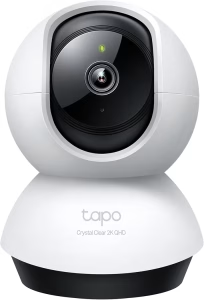
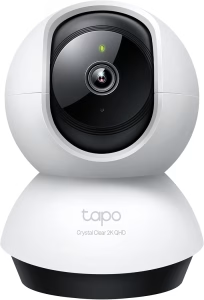
Tapo camera setup without QR code is possible on most modern Tapo cameras, including popular models such as Tapo C100, Tapo C110, Tapo C120, Tapo C200, and Tapo C210. In many cases, a manual setup method works when the QR code is damaged, missing, blurry, or simply refuses to scan.
After setting up several Tapo cameras in different homes, I found that Wi-Fi pairing and device discovery are usually more important than the QR code itself. Fortunately, the Tapo app provides alternative ways to connect a Tapo camera and complete installation.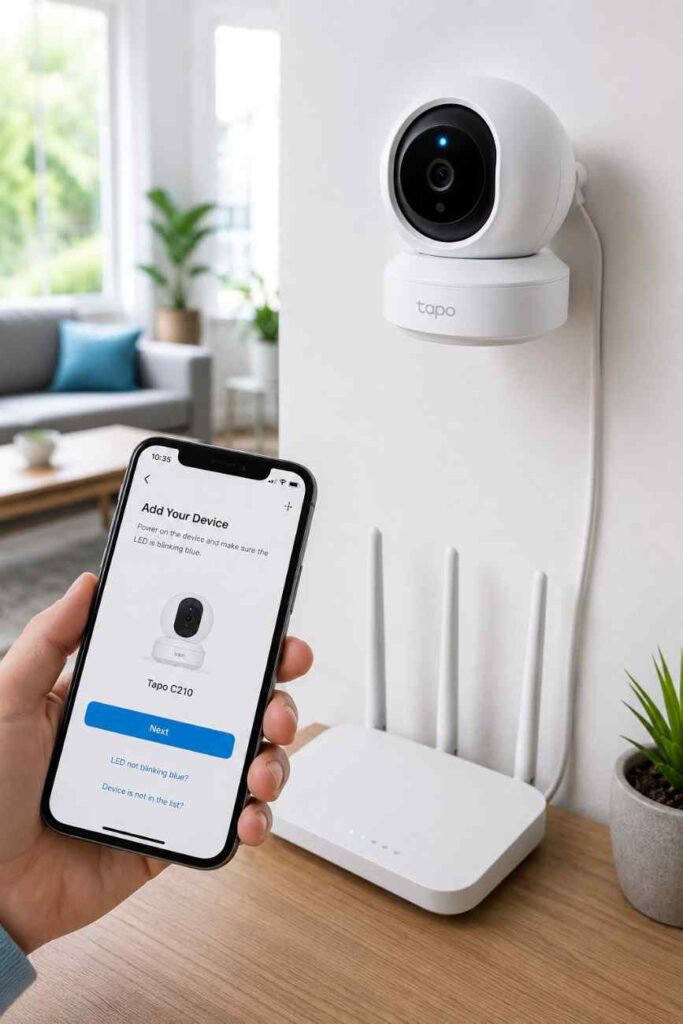
Can You Set Up a Tapo Camera Without a QR Code?
Yes, a Tapo camera setup without QR code is supported on many Tapo camera models through manual device selection and direct Wi-Fi pairing. The QR code mainly helps the Tapo app identify the camera faster, but the actual connection process relies on the camera’s setup network and your Wi-Fi credentials.
During installation, the Tapo app can often detect a nearby Tapo camera after you select the correct model manually. Consequently, a missing QR code does not automatically prevent setup.
When Manual Setup Works
Manual setup works when a Tapo camera enters pairing mode and broadcasts its temporary Wi-Fi network. Most Tapo cameras create a setup network that allows the Tapo app to discover the device without scanning any code.
For example, a Tapo C210 may display a blinking LED after a reset. Once the Tapo camera enters setup mode, the Tapo app can usually continue installation using model selection instead of QR scanning.
Additionally, manual setup is helpful when:
- QR code stickers are damaged
- Camera packaging is missing
- Phone cameras cannot focus properly
- Ceiling-mounted cameras are difficult to reach
- Used Tapo cameras no longer have readable labels
Tapo Models That Support Manual Setup
Most indoor Tapo cameras support manual setup methods. However, setup screens may vary slightly depending on firmware version and Tapo app updates.
| Model | Manual Setup | 2.4GHz Wi-Fi | App Support | Recommended |
|---|---|---|---|---|
| Tapo C100 | Yes | Required | Tapo App | Yes |
| Tapo C110 | Yes | Required | Tapo App | Yes |
| Tapo C120 | Yes | Required | Tapo App | Yes |
| Tapo C200 | Yes | Required | Tapo App | Yes |
| Tapo C210 | Yes | Required | Tapo App | Yes |
| TC70 | Yes | Required | Tapo App | Yes |
Furthermore, every Tapo camera listed above performs best on a dedicated 2.4GHz Wi-Fi network. Many setup failures occur because a router is configured only for 5GHz connections.
Does Tapo Camera Work Without WiFi?
Why Tapo Camera QR Codes Stop Working
A Tapo camera QR code can fail for several reasons, including physical damage, poor lighting, software bugs, and camera focus problems. Understanding the root cause often saves time before attempting a complete reset.
Damaged or Missing QR Code
A damaged QR code is one of the most common reasons for a failed Tapo camera installation. Labels placed on the bottom of a Tapo camera can fade over time, especially in dusty, humid, or outdoor environments.
After inspecting older Tapo C200 units, I noticed that small scratches across the QR pattern frequently prevented the Tapo app from recognizing the code. In those situations, manual setup usually solved the problem.

Poor Camera Focus
Phone camera focus issues can prevent the Tapo app from reading a QR code accurately. Budget smartphones sometimes struggle to focus on small printed codes, particularly when the label is attached to a curved surface.
Moving closer is not always helpful. Instead, increasing distance slightly and allowing the phone camera to focus naturally often improves QR code recognition.
Low Lighting Conditions
Low lighting frequently causes QR code scanning failures during Tapo camera setup. Dark rooms reduce contrast between black and white sections of the code, making recognition difficult.
For better results, position the Tapo camera near a bright window or shine a flashlight indirectly across the QR code surface. As a result, the Tapo app can often scan the label successfully.
App Recognition Errors
Tapo app recognition errors sometimes occur even when the QR code is perfectly visible. Software bugs, outdated app versions, and interrupted permissions can prevent the Tapo app from processing scanned information correctly.
Updating the Tapo app from the official TP-Link app store listing resolves many recognition issues. Additionally, granting camera permissions again can restore scanning functionality.
| Problem | Likely Cause | Recommended Fix |
|---|---|---|
| QR code not scanning | Damaged sticker | Use manual setup |
| Blurry QR code | Camera focus issue | Adjust distance |
| Code invisible | Low lighting | Increase brightness |
| Scan fails repeatedly | App bug | Update Tapo app |
| QR sticker missing | Label removed | Use device information |
How to Set Up a Tapo Camera Manually
A manual Tapo camera setup without QR code requires resetting the camera, joining the temporary setup network, and completing Wi-Fi configuration inside the Tapo app. The process typically takes less than 10 minutes.
Reset the Camera
Resetting a Tapo camera clears previous pairing information and returns the device to setup mode. Most Tapo cameras include a small reset button located near the SD card slot or on the camera body.
Hold the reset button for approximately 5 to 10 seconds until the status LED begins blinking. Once the indicator flashes, the Tapo camera is ready for a fresh installation.
Connect to the Camera Wi-Fi Network
Every Tapo camera creates a temporary Wi-Fi network during setup mode. This network usually appears with a name similar to Tapo_Cam_XXXX.
Open your phone’s Wi-Fi settings and connect directly to the Tapo camera network. After connecting, return to the Tapo app and continue the installation process.
TP-Link provides additional setup documentation through its official support portal: TP-Link Support.
Add the Device in the Tapo App
The Tapo app allows manual device selection when QR scanning fails. Tap the plus icon, choose Camera, and then select the exact Tapo camera model you are installing.
Choosing the correct model is important because setup instructions differ slightly between devices. Consequently, selecting Tapo C210 instead of Tapo C200 may lead to connection issues.
Complete Network Configuration
Network configuration connects the Tapo camera to your home Wi-Fi network. Enter the correct 2.4GHz Wi-Fi password and allow the camera to complete the pairing process.
During setup, keep the Tapo camera within a reasonable distance of the router. Weak signal strength can interrupt installation and force you to repeat the process.
| Step | Action | Expected Result |
|---|---|---|
| 1 | Reset Tapo camera | LED begins blinking |
| 2 | Open Wi-Fi settings | Camera network appears |
| 3 | Connect to Tapo network | Phone links to camera |
| 4 | Select model in Tapo app | Device detected |
| 5 | Enter Wi-Fi password | Camera joins network |
| 6 | Finish installation | Live video becomes available |