Learning how to connect Bluetooth speaker to TV without audio delay can make movies, sports, gaming, and music far more enjoyable. Bluetooth audio lag usually happens because the TV and speaker process sound at different speeds, but the right settings and compatible hardware can reduce or even eliminate the delay.
This guide explains how to connect a Bluetooth speaker to a TV without audio delay, what you need before pairing, and which Bluetooth technologies provide the best results. Additionally, you’ll learn when built-in TV Bluetooth is enough and when a Bluetooth transmitter becomes the better option.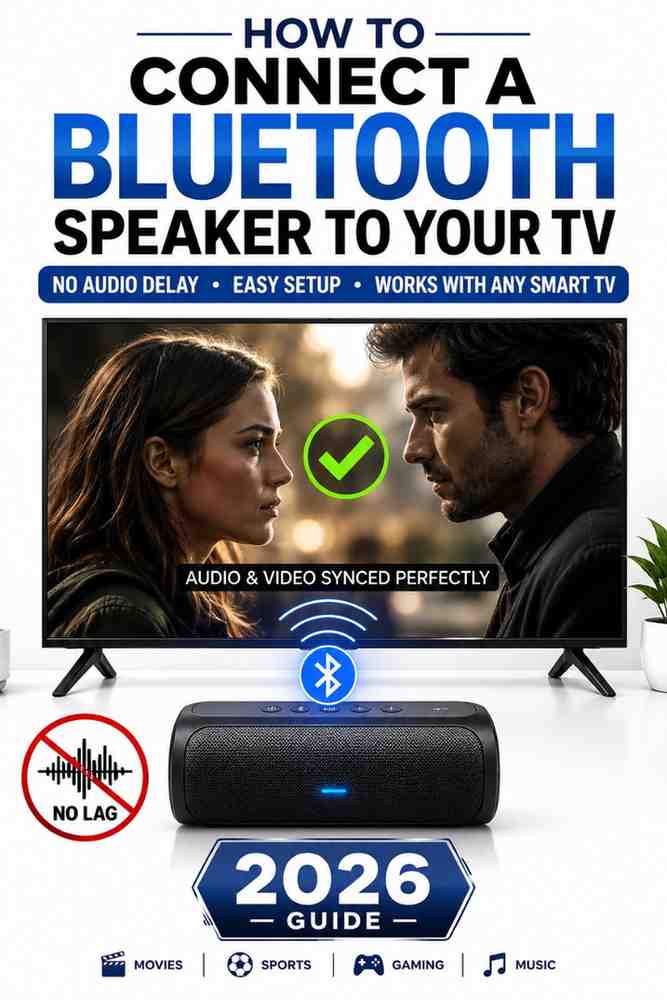
How Can You Connect a Bluetooth Speaker to a TV Without Audio Delay?
The quickest way to connect a Bluetooth speaker to a TV without noticeable audio delay is to use a TV and Bluetooth speaker that both support low-latency audio technologies such as aptX Low Latency, aptX Adaptive, or LC3 where available. If either device only supports the standard SBC codec, some delay is usually unavoidable because Bluetooth audio must be encoded, transmitted, and decoded before playback.
Bluetooth speaker performance also depends on the TV’s audio processing. Features such as Game Mode, AV Sync adjustment, and PCM audio output often reduce processing time, helping sound stay synchronized with the picture.
The Fastest Solution
The fastest way to reduce Bluetooth audio delay is to pair the Bluetooth speaker directly with the TV, enable Game Mode if available, and check for audio synchronization settings. Many modern Smart TVs from Samsung, LG, Sony, and TCL include audio delay controls that allow small timing adjustments.
For older televisions, adding a low-latency Bluetooth transmitter connected through the optical or 3.5 mm audio output usually delivers better synchronization than the TV’s built-in Bluetooth hardware. According to the Bluetooth Special Interest Group (Bluetooth SIG), Bluetooth audio performance depends on supported profiles and codecs rather than Bluetooth version alone.
When Bluetooth Delay Cannot Be Completely Eliminated
Bluetooth audio delay cannot always be removed entirely because every Bluetooth connection introduces some transmission latency. The actual delay depends on the codec used, the TV’s audio processing speed, and the Bluetooth speaker’s hardware.
Watching movies generally tolerates small amounts of latency better than competitive gaming. However, if lip-sync problems remain obvious after adjusting TV settings, switching to HDMI ARC, optical audio, or a dedicated Bluetooth transmitter is often the most effective solution.
Devices That Provide the Best Results
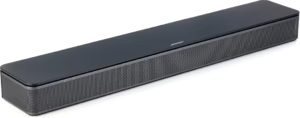
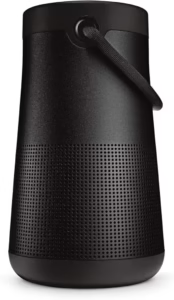
Bluetooth speakers designed for television use usually provide better synchronization than portable speakers optimized only for music playback. Choosing a speaker that supports newer low-latency codecs improves the listening experience, especially during movies and live sports.
If you’re shopping for a speaker specifically for television viewing, our guide to the best Bluetooth speakers for TV without delay compares models that prioritize low-latency audio performance and compatibility with modern Smart TVs.
Bottom Line: Connecting a Bluetooth speaker to a TV without audio delay is possible when both devices support low-latency audio technologies and the correct TV audio settings are enabled. Otherwise, a Bluetooth transmitter or wired connection may provide better synchronization.
What You Need Before Connecting a Bluetooth Speaker to Your TV
Preparing both the Bluetooth speaker and the TV before pairing helps prevent connection failures and unnecessary troubleshooting. Confirming compatibility first also reduces the chance of experiencing noticeable audio lag after pairing.
Check if Your TV Supports Bluetooth Audio
Not every television supports Bluetooth audio output, even if it includes Bluetooth for remote controls or accessories. Open the TV’s sound settings and look for options such as Bluetooth Speaker List, Audio Output, or Wireless Speaker to confirm audio support.
If your television lacks Bluetooth audio output, a Bluetooth transmitter connected through the optical, AUX, or RCA audio port provides an easy alternative without replacing the TV.
Verify Your Speaker’s Bluetooth Version
The Bluetooth speaker should support modern Bluetooth standards and, ideally, low-latency audio codecs. Although Bluetooth 5.0, 5.3, and newer versions improve stability and efficiency, codec support has a greater impact on audio delay than the Bluetooth version itself.
If your Bluetooth speaker frequently loses connection while streaming, follow our guide on fixing a Bluetooth speaker that keeps disconnecting before troubleshooting audio synchronization.
Enable Low-Latency Audio Features
Many Smart TVs include settings that help reduce Bluetooth audio delay. Options such as Game Mode, AV Sync, Auto Low Latency Mode (ALLM), or Audio Delay Adjustment reduce processing time and improve synchronization between sound and video.
Additionally, selecting PCM instead of Bitstream as the audio output format may shorten processing time on some televisions. The exact menu names differ by manufacturer, but these features all aim to improve audio timing.
Update Your TV Firmware
Keeping the TV firmware updated improves Bluetooth compatibility, fixes software bugs, and sometimes enhances audio synchronization. Manufacturers regularly release firmware updates that improve Bluetooth stability and compatibility with newer audio devices.
If the Bluetooth speaker connects successfully but produces no sound after pairing, consult our troubleshooting guide for a Bluetooth speaker connected but no sound, as outdated software is only one possible cause.
Bottom Line: Before connecting a Bluetooth speaker to a TV without audio delay, confirm Bluetooth audio support, verify codec compatibility, enable low-latency settings, and install the latest TV firmware. These simple checks prevent many common pairing and synchronization problems.
How to Connect a Bluetooth Speaker to a TV Step by Step
Connecting a Bluetooth speaker to a TV without audio delay starts with pairing the devices correctly and configuring the TV’s audio settings. Following the proper sequence reduces connection issues and gives the Bluetooth speaker the best chance of maintaining synchronized audio.
Put the Speaker into Pairing Mode
Place the Bluetooth speaker into pairing mode before searching from the TV. Most Bluetooth speakers enter pairing mode by holding the Bluetooth button until the LED indicator flashes, although the exact method varies by manufacturer.
Keep the Bluetooth speaker within a few feet of the TV during the initial pairing process. Additionally, disconnect the Bluetooth speaker from nearby phones, tablets, or laptops because an active connection may prevent the TV from discovering the speaker.
Pair the Speaker from Your TV Settings
Open the TV’s Settings, navigate to Sound or Audio Output, and select the Bluetooth pairing menu. Once the Bluetooth speaker appears in the device list, choose it and wait for the connection confirmation.
If the Bluetooth speaker never appears, restart both devices and try again. When pairing problems continue across multiple devices, our guide on how to reset a Bluetooth speaker explains how to restore factory settings before pairing again.
Set the Bluetooth Speaker as the Default Audio Output
After pairing, select the Bluetooth speaker as the TV’s default sound output. Some Smart TVs automatically switch audio to the Bluetooth speaker, while others require manual selection from the sound output menu.
Avoid enabling multiple audio outputs unless necessary. Sending audio to both the TV speakers and the Bluetooth speaker simultaneously can introduce additional processing delays on some television models.
Test and Adjust Audio Synchronization
Play a movie scene or a video where people are speaking directly to the camera. Watching lip movement is one of the easiest ways to identify whether the Bluetooth speaker and TV remain synchronized.
If voices occur slightly before or after lip movement, adjust the TV’s AV Sync or Audio Delay setting until the sound matches the picture. Many Samsung, LG, Sony, and TCL televisions provide manual audio delay controls specifically for this purpose.
Bottom Line: Pairing the Bluetooth speaker correctly, selecting it as the default audio output, and adjusting AV Sync settings are the most effective steps for reducing Bluetooth audio delay on a TV.
Why Does Bluetooth Audio Delay Happen on TVs?
Bluetooth audio delay happens because the Bluetooth speaker and the TV process sound differently. Before audio reaches the Bluetooth speaker, the TV compresses the sound, transmits it wirelessly, and the speaker decodes it before playback. Every stage adds a small amount of latency.
Bluetooth Codec Limitations
The Bluetooth codec determines how audio is compressed and transmitted between the TV and the Bluetooth speaker. Older codecs such as SBC prioritize compatibility but introduce higher latency, while newer codecs focus on reducing transmission delay.
Codecs such as aptX Adaptive and LC3 provide lower latency than SBC under compatible conditions. According to Qualcomm, aptX technologies are designed to improve audio responsiveness while maintaining sound quality on supported devices.
TV Audio Processing Delay
Many Smart TVs perform additional audio processing before sending sound to the Bluetooth speaker. Features such as virtual surround sound, Dolby processing, and dialogue enhancement improve audio quality but may also increase latency.
Disabling unnecessary sound enhancements often reduces processing time. Furthermore, selecting PCM audio output instead of Bitstream can simplify audio processing on many television models.
Streaming Device Latency
Streaming devices such as Amazon Fire TV, Roku, Chromecast, and Google TV can contribute additional processing delay before audio reaches the Bluetooth speaker. The delay depends on both the streaming device and the television’s audio pipeline.
Keeping streaming devices updated ensures the latest Bluetooth compatibility improvements and may resolve synchronization issues introduced by older firmware versions.
Distance and Wireless Interference
Bluetooth speakers communicate over short-range wireless signals that can be affected by physical obstacles and nearby wireless devices. Thick walls, Wi-Fi routers, cordless phones, and other Bluetooth products may introduce interference that affects audio stability.
Position the Bluetooth speaker closer to the TV whenever possible. Maintaining a clear line of sight also improves connection quality and minimizes unnecessary retransmissions.
| Bluetooth Codec | Typical Latency | Suitable for TV | Best Use | Notes |
|---|---|---|---|---|
| SBC | 170 to 270 ms | Fair | General audio | Highest compatibility but noticeable delay |
| AAC | 120 to 180 ms | Good | Streaming media | Better on Apple devices |
| aptX | 70 to 120 ms | Very Good | Movies and TV | Requires compatible hardware |
| aptX Adaptive | 50 to 80 ms | Excellent | Gaming and video | Adjusts dynamically to conditions |
| LC3 | 20 to 50 ms | Excellent | Future Bluetooth LE Audio devices | Requires Bluetooth LE Audio support |
Bottom Line: Bluetooth audio delay mainly results from codec limitations, TV audio processing, streaming device latency, and wireless interference. Understanding these factors makes it easier to choose the right solution instead of replacing a perfectly good Bluetooth speaker.
How to Reduce or Eliminate Bluetooth Audio Lag
Reducing Bluetooth audio lag requires adjusting the TV’s settings before considering additional hardware. In many cases, simple configuration changes noticeably improve synchronization between the Bluetooth speaker and the TV.
Enable Game Mode
Game Mode reduces video and audio processing to lower overall system latency. Although designed for gaming, Game Mode also improves lip synchronization during movies, live television, and streaming content.
Locate Game Mode under the TV’s picture or gaming settings and enable it before testing Bluetooth audio again. Many users notice immediate improvements after activating this feature.
Adjust AV Sync Settings
AV Sync settings allow the TV to delay either the picture or the sound until both remain synchronized. The exact adjustment range varies by manufacturer, but most televisions allow fine tuning in small increments.
Test several scenes with spoken dialogue after each adjustment instead of making large changes. Small adjustments usually produce the most natural synchronization.
Use PCM Instead of Bitstream
Selecting PCM audio output often reduces processing requirements because the TV sends uncompressed audio directly to the Bluetooth speaker. Bitstream formats may require additional decoding before playback.
Open the TV’s audio settings and switch from Bitstream or Auto to PCM if available. Afterwards, test several videos to determine whether synchronization has improved.
When to Use a Bluetooth Transmitter
A dedicated Bluetooth transmitter is the best solution when the TV lacks Bluetooth audio support or only supports older codecs. Many transmitters include aptX Low Latency support, allowing compatible Bluetooth speakers to receive audio with significantly reduced delay.
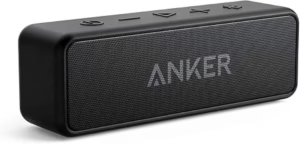
If your existing Bluetooth speaker performs well for music but struggles with television audio, upgrading to a transmitter is often more cost-effective than replacing the speaker. However, if you’re considering new hardware, our guide to the Anker Bluetooth speaker review explores one of the popular options for everyday listening.
Bottom Line: Enabling Game Mode, adjusting AV Sync, switching to PCM, and using a low-latency Bluetooth transmitter are the most effective ways to minimize Bluetooth audio lag without replacing your television.
Troubleshooting Bluetooth Audio Delay
Bluetooth audio delay is not always caused by latency alone. A Bluetooth speaker may have connection problems, outdated firmware, or incorrect audio settings that affect synchronization. Troubleshooting the Bluetooth speaker methodically helps identify the real cause before replacing any equipment.
Speaker Connected but No Sound
If the Bluetooth speaker connects successfully but produces no sound, the TV may still be sending audio to its internal speakers or another output device. Open the TV’s audio output settings and confirm that the Bluetooth speaker is selected as the active output.
Next, increase the volume on both the TV and the Bluetooth speaker because some models maintain separate volume controls. If the problem persists, follow our guide on fixing a Bluetooth speaker that is connected but has no sound for additional troubleshooting steps.
Bluetooth Speaker Keeps Disconnecting
A Bluetooth speaker that disconnects repeatedly can interrupt audio and make lip-sync issues appear worse than they actually are. Common causes include low battery power, wireless interference, outdated firmware, or exceeding the Bluetooth operating range.
Move the Bluetooth speaker closer to the TV and remove nearby sources of interference such as Wi-Fi routers or other Bluetooth devices. If random disconnections continue, see our guide on why a Bluetooth speaker keeps disconnecting for more targeted solutions.
Reset the Bluetooth Speaker
Resetting the Bluetooth speaker removes saved pairings and restores the default Bluetooth configuration. A factory reset often resolves pairing conflicts, unstable connections, and audio synchronization issues caused by corrupted Bluetooth settings.
After resetting the Bluetooth speaker, remove the speaker from the TV’s paired devices list before pairing it again. If you need model-specific instructions, read our guide on how to reset a Bluetooth speaker.
Pairing Issues After TV Updates
Some TV firmware updates reset Bluetooth settings or introduce compatibility changes that affect previously paired devices. If Bluetooth audio delay or pairing problems begin immediately after an update, remove the Bluetooth speaker from the TV, restart both devices, and complete the pairing process again.
If the issue remains after repairing the connection, check the TV manufacturer’s support page for newer firmware or known Bluetooth issues. Manufacturers such as Samsung, LG, Sony, and TCL regularly release updates that improve Bluetooth compatibility.
Bottom Line: Most Bluetooth audio problems are caused by incorrect audio output settings, unstable Bluetooth connections, outdated firmware, or pairing conflicts. Checking these areas first usually resolves the issue without purchasing new equipment.
Frequently Asked Questions
Can Bluetooth audio delay be completely eliminated?
No, Bluetooth audio delay cannot always be eliminated completely because every Bluetooth connection introduces some latency. However, using a Bluetooth speaker and TV that support low-latency codecs, enabling Game Mode, and adjusting AV Sync settings can reduce the delay to a level that is barely noticeable during normal viewing.
Does Bluetooth 5.4 reduce audio latency?
Bluetooth 5.4 improves efficiency and supports newer Bluetooth features, but Bluetooth version alone does not determine audio latency. Codec support, TV processing, and speaker hardware have a much greater impact on synchronization than the Bluetooth version itself.
Is a Bluetooth transmitter better than built-in TV Bluetooth?
Yes, a Bluetooth transmitter is often better when the TV uses older Bluetooth hardware or lacks support for low-latency codecs. Many dedicated transmitters support aptX Low Latency, providing better synchronization with compatible Bluetooth speakers than standard built-in Bluetooth.
Which Bluetooth codec is best for watching movies?
aptX Adaptive and LC3 generally provide the best balance between sound quality and low latency when both the TV and Bluetooth speaker support them. If those codecs are unavailable, aptX offers better performance than SBC for watching movies and television.
Does Game Mode improve Bluetooth audio?
Yes, Game Mode often improves Bluetooth audio synchronization by reducing the TV’s internal video and audio processing. Although Game Mode cannot change Bluetooth codec performance, it frequently reduces lip-sync issues during gaming, sports, and streaming video.
Can I use any Bluetooth speaker with a Smart TV?
Most Smart TVs can connect to compatible Bluetooth speakers that support standard Bluetooth audio profiles. However, not every Bluetooth speaker delivers low-latency performance. Choosing a model designed for television use provides a better experience, especially when watching dialogue-heavy content.
Final Thought
Learning how to connect a Bluetooth speaker to a TV without audio delay begins with understanding what causes the delay. In most cases, Bluetooth latency comes from codec limitations, TV audio processing, or incompatible hardware rather than a defective Bluetooth speaker.
For the best results, confirm that the TV supports Bluetooth audio, enable Game Mode when available, adjust AV Sync settings, and use PCM audio output if supported. When built-in Bluetooth cannot provide acceptable synchronization, a low-latency Bluetooth transmitter is often the simplest and most effective upgrade.
If you continue experiencing Bluetooth issues after following this guide, these related resources may help:
- Best Bluetooth Speakers for TV Without Delay
- Bluetooth Speaker Connected but No Sound
- Bluetooth Speaker Keeps Disconnecting
- How to Reset a Bluetooth Speaker
- Anker Bluetooth Speaker Review
Choosing the right Bluetooth speaker, using compatible low-latency technology, and optimizing the TV’s audio settings will give you the smoothest wireless listening experience with minimal audio delay.