A Fire TV Stick black screen is usually caused by a loose HDMI connection, insufficient power, the wrong TV input, or a temporary software glitch. In most cases, the problem can be fixed within a few minutes without replacing the streaming device.
This guide explains the fastest ways to fix a Fire TV Stick black screen, why the issue happens, and how to prevent it from returning. Each solution starts with the simplest checks before moving to more advanced troubleshooting.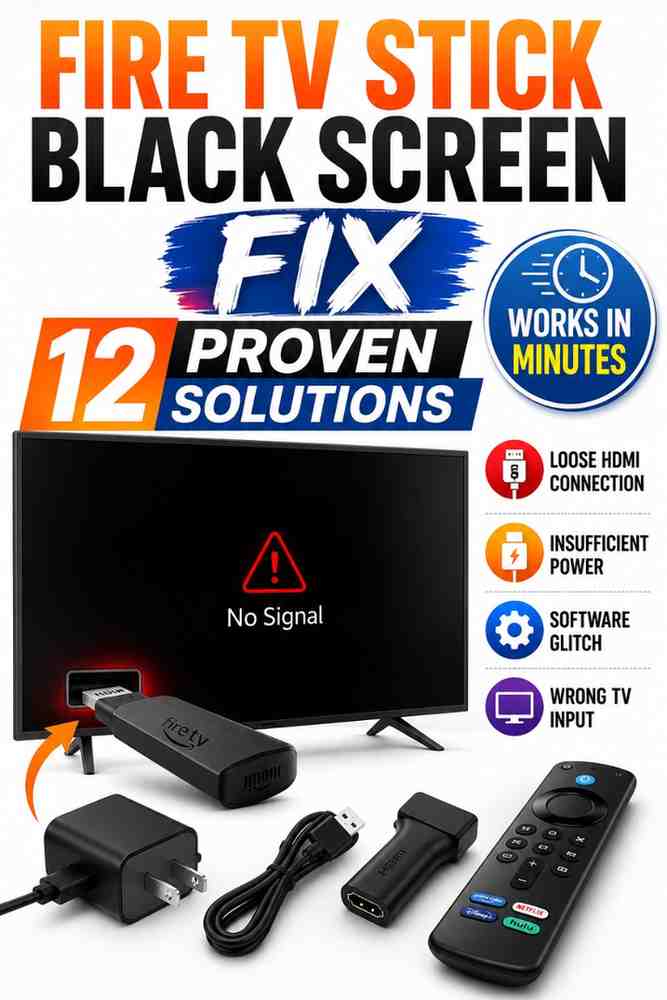
How Do You Fix a Fire TV Stick Black Screen?
The fastest way to fix a Fire TV Stick black screen is to check the HDMI connection, use the original Amazon power adapter, restart the Fire TV Stick, and verify that the correct TV input is selected. These four steps solve most display issues because they address the most common causes before advanced troubleshooting is necessary.
Check the HDMI Connection
A loose or unstable HDMI connection is one of the most common reasons a Fire TV Stick displays a black screen. Even a partially connected HDMI plug can interrupt the video signal while the Fire TV Stick continues running in the background.
Remove the Fire TV Stick from the HDMI port and reconnect it firmly. Additionally, inspect the HDMI connector for dust, bent pins, or visible damage that could interfere with the connection. If your TV includes multiple HDMI ports, note which one the Fire TV Stick is connected to before testing another port later if necessary.
Many televisions also include an HDMI extender with the Fire TV Stick. If the extender is loose or damaged, connect the Fire TV Stick directly to the television if space allows. Otherwise, try reconnecting the extender securely before assuming the streaming device has failed.
If the Fire TV Stick recently began restarting before the display turned black, software or power problems may also be involved. Continue troubleshooting with this guide or read the guide on Fire TV Stick keeps restarting for additional diagnosis.
Use the Original Amazon Power Adapter
Using the original Amazon power adapter provides the stable power required for the Fire TV Stick to operate correctly. Many black screen problems occur because the streaming device is powered from a television’s USB port instead of the supplied wall adapter.
Television USB ports often deliver less power than the Fire TV Stick requires, especially during startup or software updates. As a result, the Fire TV Stick may boot incorrectly, freeze on a black screen, or restart repeatedly without displaying the home screen.
Disconnect the USB cable from the television and connect the Fire TV Stick to the original Amazon power adapter and wall outlet. Wait about one minute after reconnecting the power before turning on the television. This simple change frequently restores normal operation.
If the original adapter has been lost or damaged, replace it with a quality adapter that matches Amazon’s recommended power specifications instead of using an unknown charger with insufficient output.
Restart the Fire TV Stick
Restarting the Fire TV Stick clears temporary software glitches that can interrupt the display during startup. A simple restart refreshes the operating system without deleting installed apps or personal settings.
If the Fire TV Stick still responds to the remote, press and hold the Select and Play/Pause buttons together for about five seconds. The Fire TV Stick should automatically restart and reload Fire OS.
If the screen remains completely black, unplug the Fire TV Stick from its power source for at least 60 seconds before reconnecting it. This full power cycle allows the internal hardware to reset and often resolves temporary display failures.
If the Fire TV Stick remote does not respond during the restart process, troubleshooting the remote should be the next step. Follow the guide on Fire TV Stick remote not working before attempting additional software fixes.
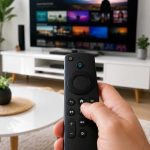
Select the Correct TV Input
Selecting the correct TV input is essential because the Fire TV Stick only displays video through the HDMI port where it is connected. Accidentally switching to another HDMI source can make it appear that the Fire TV Stick has stopped working.
Use the television remote to open the Input or Source menu. Next, cycle through each HDMI input until the Fire TV Stick home screen appears. Many televisions label active HDMI ports, making identification easier.
If the Fire TV Stick still shows a black screen after selecting every HDMI input, verify that another device such as a game console or Blu-ray player works correctly on the same HDMI port. This quick test helps determine whether the issue is related to the television or the Fire TV Stick itself.
After restoring the display, reconnect the Fire TV Stick to Wi-Fi if the network settings were lost during troubleshooting. The guide on Fire TV Stick won’t connect to Wi-Fi explains how to restore the wireless connection quickly.
Bottom Line: Most Fire TV Stick black screen problems are caused by simple connection or power issues rather than hardware failure. Checking the HDMI connection, using the original Amazon power adapter, restarting the Fire TV Stick, and selecting the correct TV input will resolve the majority of cases before advanced troubleshooting becomes necessary.
Why Does a Fire TV Stick Show a Black Screen?
A Fire TV Stick shows a black screen because the video signal cannot reach the television correctly or Fire OS cannot finish loading. Power problems, HDMI communication errors, display resolution conflicts, and software faults are the most common causes.
Understanding why the Fire TV Stick displays a black screen makes troubleshooting faster. Instead of trying random fixes, you can identify the underlying cause and apply the most effective solution.
Insufficient Power
Insufficient power is one of the leading causes of a Fire TV Stick black screen. The Fire TV Stick requires consistent power to boot Fire OS, maintain video output, and run streaming apps without interruption.
Many televisions provide limited USB power that is suitable for small accessories but not for a streaming device. As a result, the Fire TV Stick may freeze during startup, display only a black screen, or restart repeatedly after showing the Amazon logo.
Power-related problems often become more noticeable after a Fire OS update because newer software versions can increase startup activity. Connecting the Fire TV Stick to the original Amazon wall adapter provides the stable power needed for reliable performance.
HDMI Handshake Failure
An HDMI handshake failure happens when the Fire TV Stick and the television cannot establish a secure video connection. Without successful communication, the television may remain black even though the Fire TV Stick continues operating.
HDMI handshake issues may occur after changing televisions, switching HDMI ports, powering devices on in a different order, or using an aging HDMI extender. Additionally, compatibility features such as HDCP and HDMI-CEC can occasionally interrupt the connection.
Turning off both devices, reconnecting the Fire TV Stick, and powering on the television before the Fire TV Stick often restores communication. If the problem continues, testing another HDMI port helps determine whether the issue is isolated to a specific input.
Display Resolution Problems
A display resolution mismatch can prevent the Fire TV Stick from showing a picture. The Fire TV Stick automatically selects the best supported resolution, but communication errors or incorrect settings can cause the television to reject the video signal.
This problem is more common when moving the Fire TV Stick between televisions with different display capabilities. For example, switching from a 4K television to an older HD television may result in a temporary black screen until the resolution is reset.
Resetting the display resolution forces the Fire TV Stick to detect the television again. In many situations, this restores the picture without affecting installed apps or personal settings.
Software or Hardware Issues
Software corruption or failing hardware can also cause a Fire TV Stick black screen, although these situations are less common than connection or power problems. A failed Fire OS update, corrupted system files, or damaged internal components may prevent the device from starting normally.
If the Fire TV Stick consistently freezes after displaying the Amazon logo or repeatedly restarts before going black, software corruption may be responsible. In these cases, updating Fire OS or performing a factory reset often restores normal operation.
Hardware failure becomes more likely when the Fire TV Stick overheats frequently, shows physical damage, or fails to display an image on multiple televisions using different HDMI ports and power adapters. Replacing the streaming device should only be considered after every troubleshooting step has been completed.
Bottom Line: A Fire TV Stick black screen usually results from insufficient power, HDMI handshake failures, display resolution conflicts, or software issues. Identifying the specific cause helps you choose the correct fix instead of replacing a device that can often be repaired in minutes.
Advanced Fixes If the Screen Is Still Black
If the Fire TV Stick still shows a black screen after completing the basic troubleshooting steps, advanced fixes can restore normal operation. These solutions address deeper software and hardware communication problems that simple restarts cannot resolve.
Try Another HDMI Port
Using another HDMI port is an effective way to determine whether the problem is caused by the television instead of the Fire TV Stick. Individual HDMI ports can develop faults or experience compatibility issues over time.
Disconnect the Fire TV Stick from the current HDMI port and connect it to another available port on the same television. Next, select the matching input source using the television remote and wait a few moments for the Fire TV Stick to initialize.
If the picture appears normally, the original HDMI port may require servicing or its settings may need adjustment. This quick test can eliminate unnecessary software troubleshooting.
Reset the Display Resolution
Resetting the display resolution forces the Fire TV Stick to renegotiate the best supported video output with the television. This process is particularly useful after connecting the streaming device to a different television.
With the Fire TV Stick powered on, press and hold the appropriate button combination supported by your Fire OS version until the device cycles through available display resolutions. Wait several seconds between each resolution to see whether the television displays an image.
If a picture appears, confirm the displayed resolution before the countdown ends. Saving the correct resolution prevents the Fire TV Stick from returning to an unsupported display mode.
Update Fire OS
Keeping Fire OS updated improves compatibility, fixes software bugs, and resolves known display issues. Software updates frequently include stability improvements that prevent startup problems and HDMI communication errors.
If the Fire TV Stick becomes accessible after troubleshooting, open the Settings menu and check for available system updates. Install every available update before testing streaming apps again.
An active internet connection is required to download updates. If the Fire TV Stick cannot reconnect after troubleshooting, follow the guide on Fire TV Stick won’t connect to Wi-Fi before checking for software updates.
Factory Reset the Fire TV Stick
A factory reset should be the final troubleshooting step because it removes downloaded apps, account information, and personalized settings. However, a factory reset can resolve persistent software corruption that causes a Fire TV Stick black screen.
If the Fire TV Stick remains responsive, perform the reset through the Settings menu. When the display is unavailable but the remote still works, use the supported remote button combination for your Fire TV Stick model to begin the reset process.
After the factory reset finishes, pair the remote again and complete the initial setup. If you need help reconnecting the remote, see the guide on pair your Fire TV Stick remote before continuing the setup process.
Bottom Line: Advanced troubleshooting for a Fire TV Stick black screen includes testing another HDMI port, resetting the display resolution, updating Fire OS, and performing a factory reset only when necessary. These steps resolve most persistent software and compatibility problems without immediately replacing the streaming device.
How to Fix Specific Black Screen Problems
Some Fire TV Stick black screen issues occur only under certain conditions. Identifying when the black screen appears helps narrow down the cause and choose the most effective solution instead of repeating general troubleshooting steps.
Black Screen but Sound Works
A Fire TV Stick black screen with sound usually indicates that the streaming device is working but the video signal is not displaying correctly. HDMI handshake failures, unsupported display resolutions, or faulty HDMI ports are the most common causes.
Start by reconnecting the Fire TV Stick, changing to another HDMI port, and restarting both the television and the streaming device. Additionally, reset the display resolution if the problem began after moving the Fire TV Stick to another television or changing video settings.
If only one streaming app shows a black screen while audio continues playing, uninstalling and reinstalling the affected app may resolve corrupted application data without affecting the rest of Fire OS.
Black Screen After the Amazon Logo
A Fire TV Stick that reaches the Amazon logo before displaying a black screen usually experiences a software startup problem. Fire OS begins loading correctly but cannot finish the boot process.
Disconnect the Fire TV Stick from power for at least one minute before reconnecting it with the original Amazon power adapter. If the problem continues after several restarts, check for software updates or perform a factory reset if the Settings menu becomes accessible.
If the Fire TV Stick repeatedly restarts before showing the home screen, additional troubleshooting may be required. The guide on Fire TV Stick keeps restarting explains how to resolve continuous reboot problems.
Black Screen After a Software Update
A Fire TV Stick black screen after an update can occur if the software installation was interrupted or if the new firmware temporarily conflicts with the television’s display settings. Although uncommon, the issue usually has a software-based solution.
Restart the Fire TV Stick completely before attempting additional repairs. Next, reconnect the HDMI cable securely and test another HDMI port to eliminate connection issues that may appear immediately after a reboot.
If the display returns, verify that Fire OS has fully completed the update before launching streaming apps. Keeping the Fire TV Stick connected to reliable power during future updates helps reduce the risk of incomplete installations.
Fire TV Stick Keeps Going Black
A Fire TV Stick that repeatedly goes black during streaming often experiences overheating, unstable power delivery, or intermittent HDMI communication. The problem may appear after several minutes of watching content instead of immediately after startup.
Ensure the Fire TV Stick has adequate ventilation and is not trapped behind the television where heat can build up. Additionally, avoid using overloaded power strips or low-quality USB chargers that may cause unstable power delivery.
If the issue continues across multiple televisions using the original power adapter, the Fire TV Stick may be developing a hardware fault. At that point, replacing the streaming device is often more practical than continuing extensive troubleshooting.
Bottom Line: The timing of a Fire TV Stick black screen provides valuable clues. Whether the issue occurs after the Amazon logo, during streaming, after an update, or only when sound is present, matching the symptom to the correct solution saves time and avoids unnecessary repairs.
How to Prevent a Fire TV Stick Black Screen
Preventing a Fire TV Stick black screen is easier than fixing one after it occurs. Regular maintenance and proper setup reduce the likelihood of display problems and improve long-term reliability.
Use Reliable Power
Reliable power is essential for stable Fire TV Stick performance. Always connect the Fire TV Stick to the original Amazon power adapter instead of relying on a television’s USB port unless Amazon specifically recommends otherwise.
A dedicated wall outlet provides consistent voltage during startup, software updates, and 4K streaming. Stable power reduces unexpected restarts, freezes, and display failures over time.
Keep Fire OS Updated
Keeping Fire OS updated helps protect the Fire TV Stick from software bugs that can affect video output and overall performance. Amazon regularly releases updates that improve stability, compatibility, and security.
Check periodically for system updates, especially if the Fire TV Stick begins behaving differently after installing new streaming apps. Updating promptly reduces the chance of known software issues affecting daily use.
Prevent Overheating
Excessive heat can reduce the performance of a Fire TV Stick and contribute to black screen problems during long streaming sessions. High temperatures may also shorten the lifespan of internal components.
Leave enough space around the Fire TV Stick for airflow and avoid placing objects directly against the device. If the television is mounted close to a wall, using the included HDMI extender can improve ventilation.
Check HDMI Connections Regularly
HDMI connections can loosen gradually when televisions are moved or cables are frequently disconnected. Periodically checking the Fire TV Stick connection helps prevent intermittent display issues before they become persistent.
Inspect the HDMI connector, extender, and power cable for wear or damage whenever cleaning or rearranging your entertainment system. Replacing worn accessories early is often less expensive than diagnosing repeated connection problems.
If the original remote eventually becomes unreliable, replacing it is easier than replacing the entire streaming device. See the guide on best Fire TV Stick remote replacement to compare compatible options.
Bottom Line: Most Fire TV Stick black screen problems can be prevented by using reliable power, keeping Fire OS updated, preventing overheating, and checking HDMI connections regularly. These simple maintenance habits improve both performance and long-term reliability.
Frequently Asked Questions
Why is my Fire TV Stick black screen but I hear sound?
A Fire TV Stick black screen with sound usually means the video signal is not reaching the television correctly. HDMI handshake issues, display resolution conflicts, or a faulty HDMI port are the most common causes. Testing another HDMI port and resetting the display resolution usually resolve the problem.
Can a bad HDMI cable cause a black screen?
Yes. A damaged or low-quality HDMI cable can interrupt video transmission while other Fire TV Stick functions continue operating. Replacing the cable or using another HDMI port helps determine whether the cable is responsible for the black screen.
Will a factory reset fix the problem?
Yes, a factory reset can fix persistent software problems that cause a Fire TV Stick black screen. However, perform a factory reset only after trying simpler solutions because it removes installed apps, settings, and account information.
Can overheating cause a black screen?
Yes. Excessive heat may cause the Fire TV Stick to reduce performance, restart unexpectedly, or display a black screen. Keeping the streaming device well ventilated and away from enclosed spaces helps prevent overheating.
Why does my Fire TV Stick work on another TV?
A Fire TV Stick that works on another television often indicates a compatibility issue with the original TV. HDMI settings, display resolution, HDCP communication, or a faulty HDMI port may prevent the picture from appearing on one television but not another.
When should I replace my Fire TV Stick?
Replace the Fire TV Stick only after completing all recommended troubleshooting steps. If the streaming device still shows a black screen on multiple televisions using different HDMI ports and the original power adapter, hardware failure becomes the most likely explanation.
Conclusion
Recap the Most Effective Fixes
A Fire TV Stick black screen is most commonly resolved by checking the HDMI connection, using the original Amazon power adapter, restarting the streaming device, selecting the correct TV input, and applying advanced fixes only when necessary. Following these steps in order helps identify the cause quickly while avoiding unnecessary factory resets or replacements.
When to Seek Hardware Replacement
If the Fire TV Stick continues displaying a black screen after testing multiple televisions, HDMI ports, power adapters, and software recovery methods, replacing the device is the most practical solution. Older streaming devices may also benefit from newer hardware with improved performance and longer software support.
If you decide to upgrade, compare the Fire TV Stick 4K Max vs Fire TV Stick 4K to choose the model that best fits your streaming needs. You can also explore the best Fire TV Stick models currently available.
Next Troubleshooting Resources
Many Fire TV Stick problems are connected. After resolving a black screen, you may also want to learn how to improve your streaming setup with the best Fire TV Stick accessories or decide whether upgrading from an older device makes sense by comparing the Fire TV Stick HD vs Fire TV Stick 4K.
Following the troubleshooting steps in this guide will resolve most Fire TV Stick black screen issues without professional repair. Beginning with the simplest fixes and progressing to advanced solutions provides the fastest path back to uninterrupted streaming.