
Pairing a Fire TV Stick remote usually takes less than a minute when the correct steps are followed. This guide explains how to pair an original or replacement remote, what you need before starting, and how to connect a new remote even if the old one is unavailable.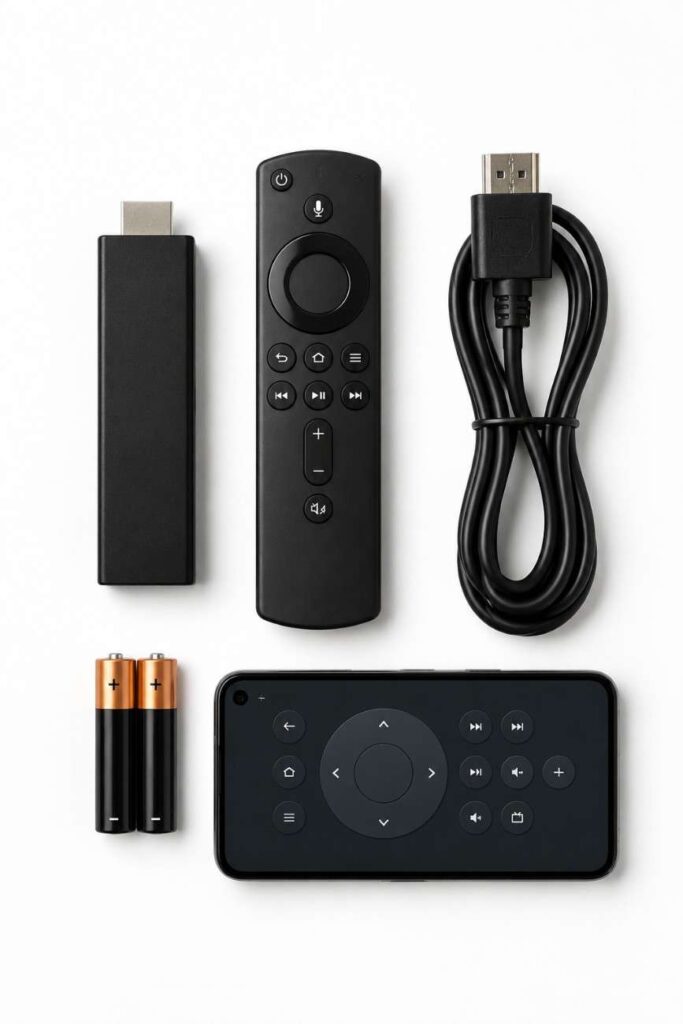
How to Pair a Fire TV Stick Remote
To pair a Fire TV Stick remote, turn on the Fire TV Stick and wait until the Home screen appears. Hold the Home button on the Fire TV Stick remote for about 10 seconds until the TV displays a confirmation message or the remote begins working.
During daily use, the pairing process usually completes within 30 to 60 seconds. However, the Fire TV Stick may take slightly longer after a restart or software update, so wait a full minute before trying again.
Standard Pairing Steps
- Turn on the TV connected to the Fire TV Stick.
- Wait until the Fire TV home screen appears.
- Stand within about 10 feet (3 meters) of the Fire TV Stick.
- Insert fresh AAA batteries into the Fire TV Stick remote.
- Press and hold the Home button for about 10 seconds.
- Release the button and wait up to 60 seconds for the Fire TV Stick to detect the remote.
- Press the Select button if prompted to finish pairing.
After using several Fire TV Stick models, pairing works more reliably when no other Bluetooth accessories are trying to connect at the same time. Additionally, keeping the remote close to the Fire TV Stick speeds up the process.
How Long Should You Hold the Home Button?
The Fire TV Stick remote should normally be held for about 10 seconds. Releasing the Home button too early is one of the most common reasons the pairing process fails.
If the Fire TV Stick does not respond after one attempt, wait about 30 seconds before repeating the process. Consequently, the Bluetooth connection has enough time to reset before another pairing request.
What Happens When Pairing Succeeds?
A successfully paired Fire TV Stick remote immediately controls the on-screen menu. The remote can navigate the Home screen, adjust supported TV functions, and activate Alexa Voice features if available.
If the Fire TV Stick does not respond after pairing, continue with the troubleshooting steps later in this guide before assuming the remote is defective.
What You Need Before Pairing Your Fire TV Stick Remote
Preparing the Fire TV Stick correctly prevents most pairing failures. Before starting, verify that the remote, Fire TV Stick, and television are all ready for the Bluetooth connection.
Compatible Fire TV Stick Models
Most Alexa Voice Remotes work with multiple Fire TV Stick generations, but compatibility is not universal. Replacement remotes designed for newer Fire TV Stick models may not support older devices.
| Fire TV Device | Supports Alexa Voice Remote | Replacement Remote Compatible |
|---|---|---|
| Fire TV Stick HD | Yes | Yes |
| Fire TV Stick 4K | Yes | Yes |
| Fire TV Stick 4K Max | Yes | Yes |
| Fire TV Cube | Yes | Yes |
Checking compatibility before pairing can save considerable time. Therefore, verify the remote model before purchasing a replacement.
Fresh Batteries
Fresh alkaline AAA batteries provide the strongest Bluetooth signal during pairing. Weak batteries often allow the LED to light up while preventing a successful connection.
After replacing batteries in several Fire TV Stick remotes, pairing succeeded immediately in situations where partially used batteries repeatedly failed.
TV Powered On
The Fire TV Stick must display the Home screen before the remote can pair. Pairing cannot begin while the TV is on the wrong HDMI input or still loading.
Additionally, confirm that the Fire TV Stick receives power from the supplied adapter instead of relying on a low-power USB port on the television.
Stay Within Bluetooth Range
The Fire TV Stick remote communicates through Bluetooth, not infrared. Remaining within approximately 10 feet gives the best chance of a successful first connection.
Walls, cabinets, and nearby wireless devices can reduce Bluetooth performance. Because of this, stand close to the Fire TV Stick during pairing.
Related Fire TV Guides
How to Pair a Replacement Fire TV Stick Remote
A replacement Fire TV Stick remote can usually be paired without the original remote. The process changes slightly depending on whether the Fire TV Stick already has another paired controller available.
Pairing Without the Original Remote
If the original Fire TV Stick remote is unavailable, download the Fire TV mobile app on a phone connected to the same Wi-Fi network. Open the app, select the Fire TV Stick, and use the virtual remote to access the settings menu.
Navigate to Settings > Controllers & Bluetooth Devices > Amazon Fire TV Remotes > Add New Remote. Then hold the Home button on the replacement remote until the Fire TV Stick detects it.
Using the Fire TV Mobile App
The Fire TV mobile app is one of the easiest backup options when a physical remote is unavailable. During testing, the virtual remote responded quickly enough to complete pairing without additional accessories.
Additionally, the mobile app remains useful if the physical remote batteries fail in the future.
Pairing a Second Remote
The Fire TV Stick supports multiple paired remotes, making it convenient for households with more than one viewer. Open the remote settings menu, choose Add New Remote, and complete the pairing process using the Home button.
Each paired Fire TV Stick remote can control the same streaming device without repeating the setup every time.
Remote Compatibility by Model
Choosing the correct replacement Fire TV Stick remote is important because not every remote supports every Fire TV generation. Newer Alexa Voice Remotes generally support current Fire TV Stick devices, while older remotes may lack newer buttons or voice features.
| Remote Type | Voice Control | Bluetooth Pairing | Recommended For |
|---|---|---|---|
| Alexa Voice Remote | Yes | Yes | Most Fire TV Stick models |
| Basic Fire TV Remote | No | Yes | Older Fire TV devices |
| Third-party Compatible Remote | Varies | Varies | Budget replacements |
Before buying a new controller, compare your Fire TV Stick model with the supported devices listed by the manufacturer. Doing so helps avoid compatibility problems and unnecessary returns.
Fire TV Stick Remote Won’t Pair? Try These Fixes
A Fire TV Stick remote that won’t pair usually has a battery, Bluetooth, software, or compatibility issue. Work through the following fixes in order because each step eliminates one of the most common causes before moving to more advanced troubleshooting.
Restart the Fire TV Stick
Restarting the Fire TV Stick refreshes the Bluetooth connection that the remote uses for pairing. Disconnect the Fire TV Stick from power for about 30 seconds, reconnect it, and wait until the Home screen loads before attempting to pair the remote again.
After restarting several Fire TV Stick devices, the pairing process often completed successfully on the first attempt. Additionally, a full power cycle clears temporary glitches that a simple sleep mode restart may not resolve.
Replace the Batteries
Weak AAA batteries are one of the most overlooked reasons a Fire TV Stick remote fails to pair. Install a fresh pair of high-quality alkaline batteries and ensure both are inserted in the correct direction.
During regular use, partially drained batteries may still illuminate the remote LED but fail to provide a stable Bluetooth signal. Therefore, replacing the batteries is worth trying before purchasing a new remote.
Reset the Remote
Resetting the Fire TV Stick remote removes stored pairing information and allows a fresh Bluetooth connection. The exact button combination varies slightly by remote generation, so follow the instructions for your specific model before pairing again.
After completing a remote reset, restart the Fire TV Stick and repeat the pairing process from the beginning. Consequently, both devices establish a completely new connection instead of trying to restore a failed one.
Remove Bluetooth Interference
Bluetooth interference can interrupt communication between the Fire TV Stick and the remote. Move wireless speakers, game controllers, headphones, or other Bluetooth devices away from the streaming device while pairing.
Placing the Fire TV Stick behind a thick television cabinet can also weaken the Bluetooth signal. Because of this, using the included HDMI extender often improves wireless performance.
Bottom Line: Restart the Fire TV Stick first, install fresh batteries, reset the remote if necessary, and reduce nearby Bluetooth interference before assuming the remote needs replacement.
Common Pairing Mistakes to Avoid
Many Fire TV Stick pairing problems occur because of small setup mistakes rather than hardware failure. Avoiding these common errors can save time and prevent unnecessary troubleshooting.
Standing Too Far from the TV
The Fire TV Stick remote communicates over Bluetooth, so staying close to the streaming device during initial pairing is important. Standing within approximately 10 feet provides the most reliable connection.
Using an Incompatible Remote
Not every Fire TV remote supports every Fire TV Stick model. Always verify compatibility before purchasing a replacement, especially when buying older or third-party remotes.
Holding the Wrong Button
The Home button starts the pairing process on most Alexa Voice Remotes. Pressing Back, Menu, or Select instead will not initiate Bluetooth pairing.
Interrupting the Pairing Process
The Fire TV Stick may need up to one minute to complete pairing. Avoid removing batteries, unplugging the Fire TV Stick, or pressing multiple buttons while the connection is being established.
Continue Troubleshooting Your Fire TV Stick
Expert Tips for Faster Fire TV Remote Pairing
Following a few best practices can make Fire TV Stick remote pairing quicker and more reliable, especially when setting up a new streaming device.
Keep Fire OS Updated
Fire OS updates often include Bluetooth improvements and bug fixes. Check for software updates regularly to maintain stable remote performance.
Label Multiple Remotes
Households with several Fire TV devices benefit from labeling each remote. Doing so prevents confusion when pairing or replacing remotes later.
Pair Before Mounting the TV
Completing the pairing process before mounting a television on the wall makes troubleshooting easier. Accessing the Fire TV Stick is much simpler before cables become difficult to reach.
Use the Fire TV App as a Backup
The Fire TV mobile app provides a reliable backup remote whenever physical batteries fail or the remote becomes misplaced. Keeping the app installed also simplifies future pairing tasks.
Frequently Asked Questions
Why won’t my Fire TV Stick remote pair?
A Fire TV Stick remote may not pair because of weak batteries, Bluetooth interference, outdated software, or an incompatible remote. Restart the Fire TV Stick, install fresh batteries, and repeat the pairing process before replacing the remote.
Can I pair a new remote without the old one?
Yes. A new Fire TV Stick remote can be paired without the original remote by using the Fire TV mobile app. Connect the phone to the same Wi-Fi network, open the app, and add the new remote through the controller settings.
Why is my Fire TV remote blinking orange?
An orange blinking light usually means the Fire TV Stick remote is searching for a device to pair with. If the blinking continues, move closer to the Fire TV Stick, replace the batteries, and restart the streaming device.
Can one Fire TV Stick use multiple remotes?
Yes. A Fire TV Stick can store multiple paired remotes. Open the controller settings and select Add New Remote to connect another compatible remote.
Can I use my phone as a Fire TV remote?
Yes. The official Fire TV mobile app works as a fully functional remote when the phone and Fire TV Stick share the same Wi-Fi network. The app can also help pair replacement remotes.
How do I reset a Fire TV Stick remote?
The reset method depends on the remote model. Most Alexa Voice Remotes require holding a specific button combination before pairing again. After resetting, restart the Fire TV Stick and complete the pairing process from the beginning.
Conclusion
Learning how to pair a Fire TV Stick remote is straightforward once the correct steps are followed. Most pairing problems are resolved by holding the Home button for about 10 seconds, installing fresh batteries, restarting the Fire TV Stick, or using the Fire TV mobile app to add a replacement remote.
If the Fire TV Stick remote still refuses to connect after completing every troubleshooting step, check remote compatibility before purchasing a replacement. Following the methods in this guide should solve the majority of pairing issues without needing a new Fire TV Stick.