Fire TV Stick remote not working is usually caused by weak batteries, a lost Bluetooth connection, software glitches, or a pairing problem. The good news is that most remote issues can be fixed in a few minutes without replacing the remote. This guide explains the most common causes, how to identify the exact problem, and the best solutions before spending money on a new remote.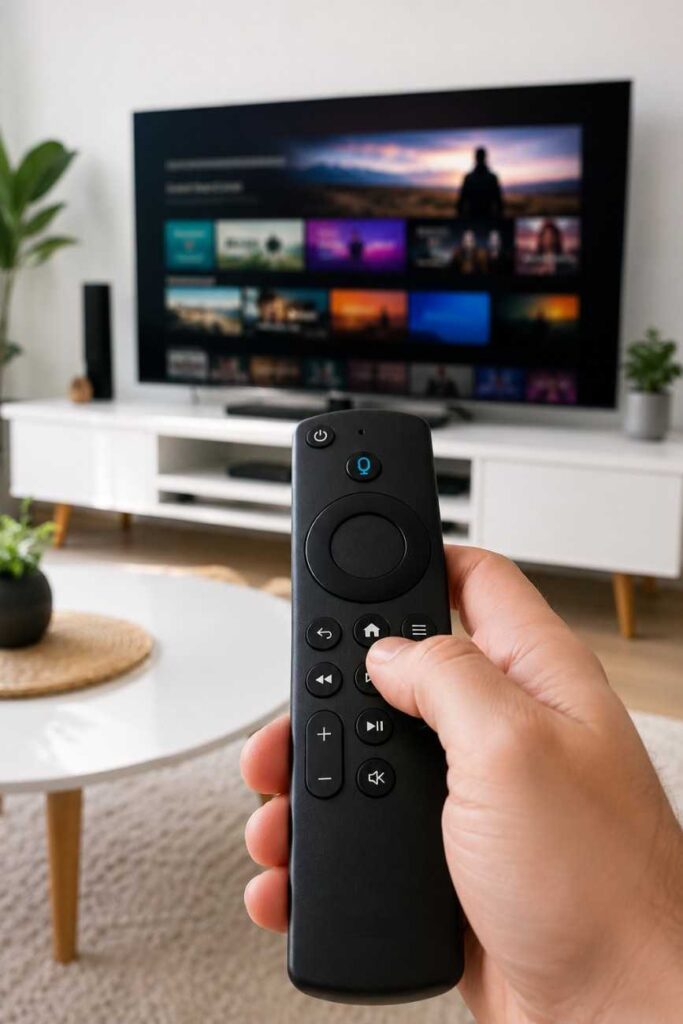
Is Your Fire TV Stick Remote Not Working?
Fire TV Stick remote not working problems can often be solved by replacing the batteries, restarting the Fire TV Stick, moving closer to the device, or pairing the remote again. Additionally, checking whether the remote’s LED light responds can help determine if the issue is related to power, Bluetooth, or hardware.
The Fastest Fixes to Try First
Before trying advanced troubleshooting, work through these quick fixes in order. After using several generations of Fire TV Stick devices, these simple steps have resolved most remote problems without needing a replacement.
| Quick Fix | Why It Helps | Time Needed | Difficulty |
|---|---|---|---|
| Replace both AAA batteries | Weak batteries are the most common cause | 1 minute | Easy |
| Restart the Fire TV Stick | Refreshes Bluetooth communication | 2 minutes | Easy |
| Move within 10 feet | Improves Bluetooth signal strength | 30 seconds | Easy |
| Remove nearby Bluetooth devices | Reduces wireless interference | 2 minutes | Easy |
| Pair the remote again | Reconnects the remote to Fire TV Stick | 2–3 minutes | Easy |
If the remote starts responding after one of these steps, there is usually no need for a factory reset or replacement.
Symptoms and What They Usually Mean
The behavior of a Fire TV Stick remote often points directly to the underlying problem. Identifying the symptom first saves time because you can focus on the most effective fix instead of trying every troubleshooting step.
| Symptom | Likely Cause | Recommended Fix |
|---|---|---|
| No buttons respond | Dead batteries or lost pairing | Replace batteries and pair again |
| Orange blinking light | Bluetooth pairing mode | Reconnect the remote |
| Blue blinking light | Pairing in progress | Wait for pairing to complete |
| Power button works but navigation doesn’t | Bluetooth connection lost | Reconnect the remote |
| Volume buttons don’t work | TV control setup issue | Reconfigure equipment control settings |
| Remote works intermittently | Weak batteries or interference | Replace batteries and reduce interference |
Understanding these symptoms makes troubleshooting faster because each one points to a different part of the Fire TV system.
When the Remote Is Likely Damaged
A Fire TV Stick remote may have suffered hardware damage if it stopped working immediately after being dropped, exposed to liquid, or stored with leaking batteries. Corroded battery terminals can interrupt power even when new batteries are installed.
Another sign of hardware failure is when no LED activity appears after inserting fresh batteries and attempting a reset. In that situation, repairing the remote is rarely practical, and replacing it is usually the better long-term solution.
Why Your Fire TV Stick Remote Stopped Working
Fire TV Stick remote not working issues usually happen because communication between the remote and the streaming device has been interrupted. Knowing the root cause helps you apply the correct fix instead of relying on trial and error.
Dead or Weak Batteries
Weak batteries remain the leading reason a Fire TV Stick remote stops responding. Even if the remote occasionally works, low battery voltage can reduce Bluetooth performance and cause delayed button presses.
After replacing old batteries with a fresh pair of quality alkaline AAA batteries, remote responsiveness often improves immediately. Rechargeable batteries can work, but low-voltage models sometimes provide inconsistent performance.
Bluetooth Pairing Failure
The Fire TV Stick remote communicates through Bluetooth rather than infrared for most commands. Because of this, the remote can lose its pairing after a software update, power interruption, or extended battery removal.
If the remote suddenly disconnects while the Fire TV Stick continues working normally, pairing the remote again is usually enough to restore full control. Later in this guide, you’ll follow the complete reconnection process step by step.
For a detailed walkthrough, you can also read our guide on how to pair a Fire TV Stick remote.
Software or Firmware Glitches
Occasionally, a Fire TV Stick running outdated or interrupted software may stop recognizing the remote correctly. Temporary firmware glitches can also appear after automatic updates or unexpected power loss.
Restarting the Fire TV Stick clears temporary system processes and often restores Bluetooth communication. If software problems continue, installing the latest Fire OS update is recommended before considering a replacement remote.
Physical Damage or Wireless Interference
Bluetooth interference is another overlooked cause of a Fire TV Stick remote not working. Wireless speakers, headphones, gaming controllers, and nearby routers can reduce Bluetooth signal quality, especially in crowded entertainment centers.
Physical obstacles can also affect connectivity. Keeping the Fire TV Stick behind a metal TV panel or inside a cabinet may weaken the signal, while using the included HDMI extender often improves Bluetooth reception.
If your Fire TV Stick also experiences connection issues beyond the remote, our guide on fixing Fire TV Stick Wi-Fi problems can help diagnose related network issues before moving on to more advanced troubleshooting.
Step-by-Step Fixes for a Fire TV Stick Remote That Isn’t Working
Fire TV Stick remote not working problems can usually be resolved without buying a new remote. Start with the simplest fixes first because they solve most Bluetooth and power issues in just a few minutes. If one solution doesn’t work, move to the next until the remote responds normally.
Fix 1–5: Replace Batteries, Restart the Fire TV Stick, Move Closer, Pair Again, and Reduce Bluetooth Interference
Fix 1: Replace the batteries. Install a fresh pair of high-quality alkaline AAA batteries. After using Fire TV Stick devices for years, weak batteries have consistently been the most common cause of an unresponsive remote, even when the old batteries still appear to have some charge.
Fix 2: Restart the Fire TV Stick. Unplug the Fire TV Stick from power for about 60 seconds instead of only turning off the television. Reconnecting the power clears temporary Bluetooth communication errors and refreshes the operating system.
Fix 3: Move closer to the Fire TV Stick. Bluetooth works best within approximately 10 feet (3 meters). Additionally, standing closer removes many signal problems caused by walls, cabinets, or large metal objects around the television.
Fix 4: Pair the remote again. Press and hold the Home button for about 10 seconds until the pairing process starts. Wait for the confirmation message to appear on the TV screen before testing every button.
Fix 5: Reduce Bluetooth interference. Temporarily switch off nearby Bluetooth headphones, speakers, controllers, or other wireless accessories. Because multiple Bluetooth devices share the same frequency, removing interference often restores reliable communication.
If the pairing process fails, follow the complete instructions in our guide on how to pair a Fire TV Stick remote before continuing with the remaining fixes.
Fix 6–10: Reset the Remote, Update Fire OS, Inspect the Buttons, Check HDMI, and Use the Fire TV App
Fix 6: Reset the Fire TV Stick remote. Resetting removes corrupted pairing information and allows the remote to establish a fresh Bluetooth connection. Different Alexa Voice Remote models use slightly different button combinations, so verify the reset method for your remote version before starting.
Fix 7: Update Fire OS. If another remote or the Fire TV mobile app is available, check for pending software updates. Installing the latest Fire OS version fixes compatibility bugs that occasionally prevent proper remote communication.
Fix 8: Inspect every button. Sticky navigation keys, spilled drinks, dust, or worn rubber contacts can prevent individual buttons from responding. Gently cleaning around the buttons with a dry microfiber cloth often restores normal operation.
Fix 9: Check the HDMI connection. A loose HDMI connection can sometimes make it appear that the remote has stopped working when the television is actually failing to display the Fire TV Stick correctly. Disconnect the Fire TV Stick, reconnect it firmly, and use the supplied HDMI extender if space behind the television is limited.
Fix 10: Use the Amazon Fire TV app. Installing the official Fire TV app on an Android or iPhone provides a temporary remote. During daily use, the mobile app has proven especially useful when troubleshooting because it confirms whether the problem is with the remote or the Fire TV Stick itself.
| Fix | What It Solves | Difficulty | Average Time | When to Try It |
|---|---|---|---|---|
| Reset the remote | Pairing errors | Easy | 3 minutes | Remote won’t reconnect |
| Update Fire OS | Software bugs | Easy | 10 minutes | After failed pairing |
| Clean buttons | Unresponsive keys | Easy | 5 minutes | Only some buttons fail |
| Check HDMI connection | Display issues | Easy | 2 minutes | Black screen or no response |
| Use Fire TV app | Remote diagnosis | Easy | 5 minutes | Remote completely unusable |
Fix 11–15: Check Power, Test Another Remote, Identify Hardware Failure, and Replace the Remote
Fix 11: Verify the power source. Connecting the Fire TV Stick directly to the television’s USB port may not provide enough power on some TV models. Using the original Amazon power adapter delivers more stable performance and reduces unexpected Bluetooth problems.
Fix 12: Test another compatible Fire TV remote. Borrowing another compatible Alexa Voice Remote helps determine whether the issue is caused by the original remote or the Fire TV Stick. If the second remote works immediately, the original remote is likely faulty.
Fix 13: Look for hardware failure. Examine the battery compartment for corrosion, loose contacts, or physical damage. After several years of regular use, worn battery terminals can interrupt power even with new batteries installed.
Fix 14: Rule out Fire TV Stick problems. If every compatible remote fails to connect, the Bluetooth hardware inside the Fire TV Stick may be the source of the problem. In that situation, resetting or replacing the streaming device may be necessary.
Fix 15: Replace the remote. When fresh batteries, pairing, resets, software updates, and Bluetooth troubleshooting fail, replacing the remote is usually the most cost-effective solution. Choosing a genuine Alexa Voice Remote ensures full compatibility with voice commands, volume controls, and future Fire OS updates.
| Problem | Most Likely Cause | Best Solution | Difficulty | Time Required |
|---|---|---|---|---|
| No response at all | Dead batteries | Install fresh alkaline batteries | Easy | 1 minute |
| Remote won’t pair | Bluetooth connection lost | Reset and pair again | Easy | 3 minutes |
| Volume buttons fail | TV control configuration | Set up Equipment Control again | Medium | 5 minutes |
| Works intermittently | Wireless interference | Reduce nearby Bluetooth devices | Easy | 2 minutes |
| No fix works | Remote or Fire TV hardware failure | Test another remote or replace the faulty device | Medium | 10 minutes |
If your Fire TV Stick also restarts unexpectedly during troubleshooting, read our guide on how to fix a Fire TV Stick that keeps restarting. Unexpected restarts can interrupt Bluetooth pairing and make a healthy remote appear defective.
Similarly, if your television displays a blank screen after reconnecting the Fire TV Stick, continue with our Fire TV Stick black screen troubleshooting guide before assuming the remote is at fault.
Alternative Solutions if the Remote Still Doesn’t Work
If every troubleshooting step has failed, the Fire TV Stick remote not working issue may require an alternative way to control the device. Fortunately, Amazon provides several backup options that let you continue using your Fire TV Stick while determining whether the problem is with the remote or the streaming device.
Use the Amazon Fire TV App
The official Amazon Fire TV app can function as a full-featured remote over the same Wi-Fi network. After using the app during remote troubleshooting, it becomes much easier to determine whether the Fire TV Stick is working normally and whether only the physical remote has failed.
The app supports navigation, voice search, text entry, media controls, and launching apps. If the app works but the physical remote does not, the remote is almost certainly the source of the problem.
Pair a Replacement Remote
A replacement Fire TV Stick remote is the best option when the original remote has physical damage or fails every troubleshooting step. Genuine Alexa Voice Remotes generally offer the best compatibility with voice search, TV power, and volume controls.
Before purchasing a replacement, verify that the remote supports your specific Fire TV Stick generation. Compatibility varies between older Fire TV models and newer Alexa Voice Remotes.
If you’re comparing available options, see our guide to the best Fire TV Stick remote replacements for compatible models and buying advice.
Connect a Compatible Bluetooth Keyboard
A Bluetooth keyboard can temporarily control a Fire TV Stick when no working remote is available. Although a keyboard cannot replace every Alexa feature, it allows you to navigate menus, enter passwords, and access settings while waiting for a replacement remote.
This option is especially useful if the Fire TV mobile app cannot connect because of Wi-Fi or network issues.
Contact Amazon Support
If a Fire TV Stick remote not working problem continues after every troubleshooting step, contacting Amazon Support is the next logical step. Amazon can verify warranty eligibility, recommend model-specific troubleshooting, and determine whether the remote or Fire TV Stick qualifies for replacement.
Have your Fire TV Stick model, remote model, and purchase information available before contacting support. This speeds up the troubleshooting process and helps identify compatible replacement hardware.
How to Prevent Fire TV Remote Problems
Preventing Fire TV Stick remote issues is much easier than troubleshooting them later. A few simple maintenance habits can improve Bluetooth reliability and extend the life of both the remote and the streaming device.
Use High-Quality Batteries
Install premium alkaline AAA batteries instead of mixing old and new cells. Consistent battery voltage helps the Fire TV Stick remote maintain a stable Bluetooth connection and reduces delayed button responses.
Keep Fire OS Updated
Software updates often include Bluetooth improvements, bug fixes, and compatibility enhancements. Checking for Fire OS updates every few months helps prevent connection issues before they become noticeable.
Avoid Bluetooth Interference
Keep wireless speakers, gaming controllers, and other Bluetooth devices a reasonable distance from the Fire TV Stick whenever possible. Additionally, avoid placing the streaming device behind thick metal TV mounts that can weaken wireless signals.
Protect the Remote from Damage
Using a protective silicone case reduces damage from accidental drops and improves grip during everyday use. It’s also a good idea to remove the batteries if the remote will not be used for several months to prevent battery leakage.
For more ways to improve your streaming setup, explore our recommendations for the best Fire TV Stick accessories.
Frequently Asked Questions
Why is my Fire TV Stick remote blinking orange?
An orange blinking light usually means the Fire TV Stick remote has entered Bluetooth pairing mode and is searching for the streaming device. If pairing does not complete within a minute, restart the Fire TV Stick and try pairing again.
How do I reset my Fire TV Stick remote?
Most Alexa Voice Remotes can be reset using a specific button combination, although the exact steps depend on the remote model. Resetting clears the existing Bluetooth connection and allows you to pair the remote as if it were new.
Can I use my phone as a Fire TV remote?
Yes. The official Amazon Fire TV app works as a complete remote when your phone and Fire TV Stick are connected to the same Wi-Fi network. The app supports navigation, keyboard input, voice search, and playback controls.
Why does only the power or volume button work?
The power and volume buttons communicate with your television differently from the navigation buttons. If only those buttons work, the TV controls are functioning, but the Bluetooth connection between the Fire TV Stick and the remote likely needs to be restored.
How long does a Fire TV remote last?
A genuine Fire TV Stick remote typically lasts several years with normal use. Battery life depends on usage, while the remote itself can last much longer if protected from drops, moisture, and battery corrosion.
When should I replace my Fire TV remote?
Replace the remote if fresh batteries, pairing, resetting, and software updates do not restore functionality. Physical damage, corroded battery contacts, or complete hardware failure are also strong indicators that replacement is the better solution.
Bottom Line
Fire TV Stick remote not working issues are usually caused by weak batteries, Bluetooth pairing failures, software glitches, or wireless interference rather than permanent hardware failure. Working through the troubleshooting steps in order gives you the best chance of restoring the remote without additional cost.
If the remote still doesn’t respond after every fix, replacing the remote with a compatible Alexa Voice Remote is often the quickest solution. However, if multiple remotes fail to connect, the Fire TV Stick itself may require further troubleshooting or replacement.
To continue improving your Fire TV experience, you may also find these guides helpful:
- Best Fire TV Stick: Which Model Should You Buy?
- Fire TV Stick 4K Max vs Fire TV Stick 4K
- How to Pair a Fire TV Stick Remote
- How to Fix a Fire TV Stick That Keeps Restarting
- How to Fix Fire TV Stick Wi-Fi Problems
- How to Fix a Fire TV Stick Black Screen
- Best Fire TV Stick Remote Replacement
- Best Fire TV Stick Accessories
- Fire TV Stick HD vs Fire TV Stick 4K