
Tapo camera not detecting motion is usually caused by disabled detection settings, low sensitivity, incorrect activity zones, notification restrictions, or outdated firmware. Fortunately, most Tapo motion detection problems can be fixed in a few minutes using the Tapo app.
After troubleshooting several Tapo camera models, including Tapo C200, Tapo C210, and Tapo C220, the most common issue was not hardware failure. Instead, Tapo motion alerts often stop working because a setting changed after an app update, firmware update, or accidental configuration change.
Why Is Your Tapo Camera Not Detecting Motion?
Tapo camera motion detection stops working when the camera cannot properly identify movement or trigger an event. Several settings work together to create motion alerts, event recordings, and notifications. If one setting fails, Tapo motion detection may stop functioning correctly.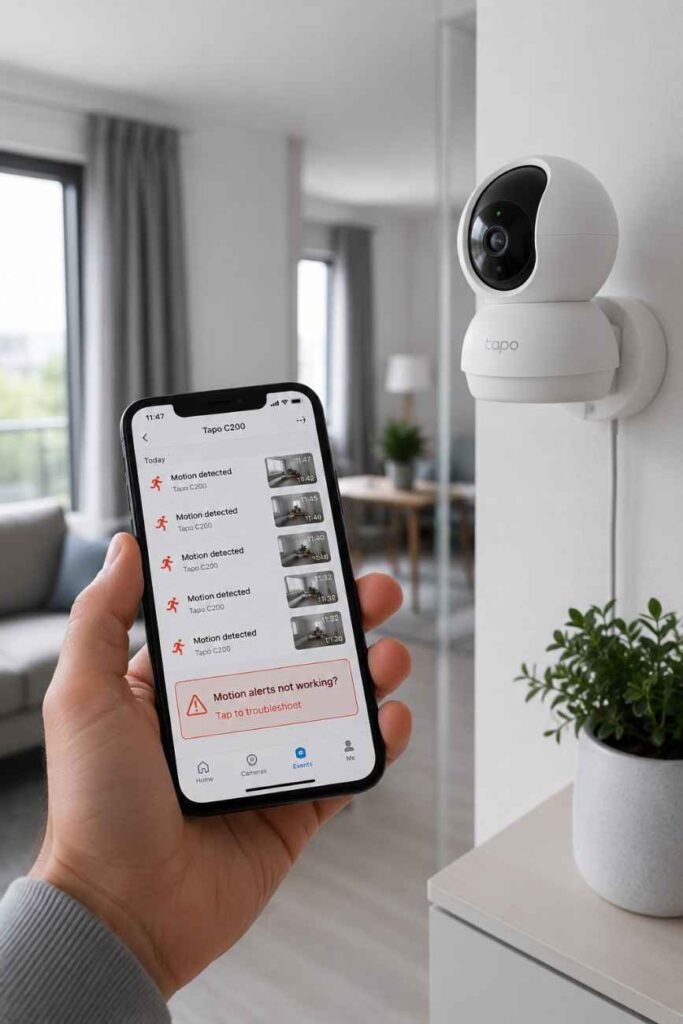
Motion Detection Has Been Disabled
Tapo motion detection cannot work when the motion detection feature is turned off. Many Tapo camera owners discover that motion detection was disabled accidentally during setup changes or after restoring settings.
Inside the Tapo app, open Camera Settings, select Detection & Alerts, and verify that Motion Detection remains enabled. During troubleshooting, this is always the first setting worth checking because the fix takes less than a minute.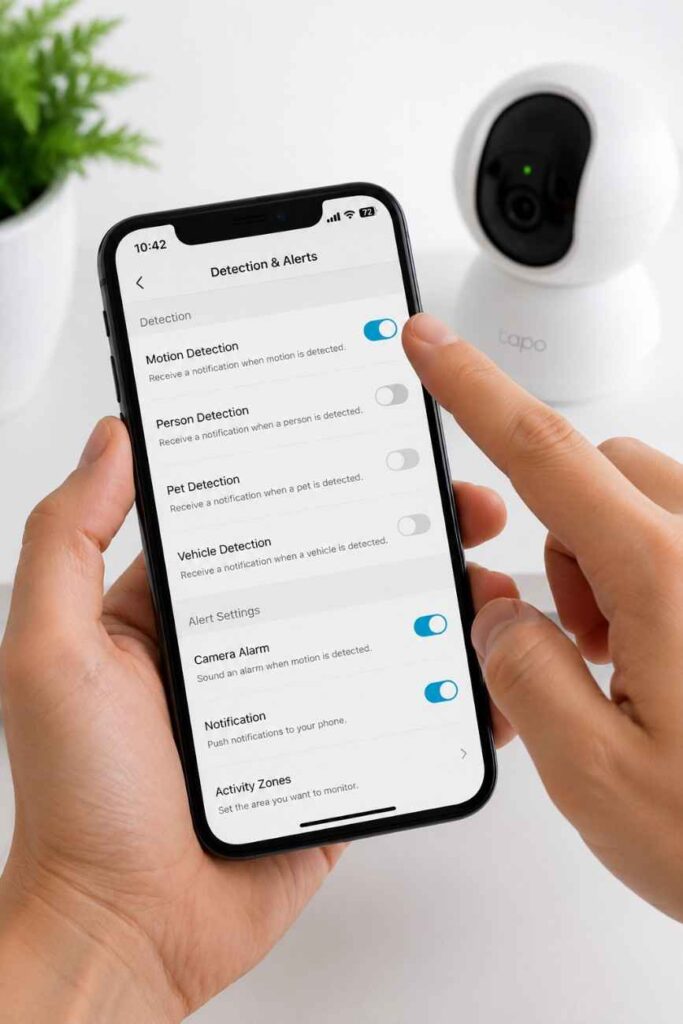
Several Tapo camera models allow separate controls for Motion Detection, Person Detection, Vehicle Detection, and Pet Detection. Consequently, enabling one detection mode does not automatically enable another detection mode.
Sensitivity Settings Are Too Low
Tapo camera sensitivity settings directly affect how much movement triggers an alert. Low sensitivity settings may ignore slower movements, distant subjects, or people walking near the edge of the frame.
After testing Tapo cameras in hallways and apartment entrances, motion events increased significantly when sensitivity moved from Low to High. Furthermore, higher sensitivity settings improved detection of smaller movements such as package deliveries and visitors approaching a doorway.
Extremely low sensitivity values can cause Tapo cameras to miss important events entirely. Therefore, increasing sensitivity is often one of the fastest solutions for missed motion recordings.
Detection Zones Are Incorrect
Tapo activity zones determine where motion detection is allowed to monitor movement. Incorrect activity zones can prevent a Tapo camera from detecting motion even when someone clearly walks in front of the lens.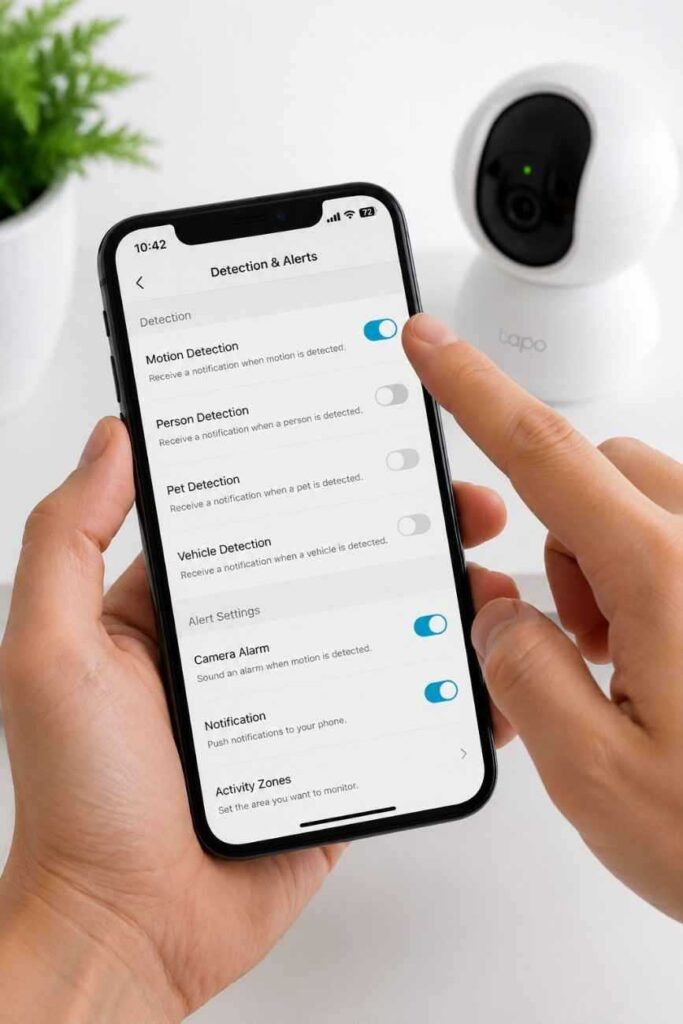
Many Tapo camera owners create activity zones to avoid false alerts from roads, trees, or sidewalks. However, a poorly placed activity zone may exclude driveways, entryways, gates, or front doors.
While reviewing motion detection failures, activity zone configuration was frequently responsible for missing alerts. As a result, resetting activity zones often restored normal event detection immediately.
Firmware Or App Issues Are Interfering
Tapo firmware and the Tapo mobile app control how motion detection processes events. Outdated software can create notification delays, recording errors, and missed motion alerts.
Firmware updates from TP-Link regularly improve AI detection accuracy and event processing. Additionally, software updates often fix bugs that affect motion notifications and recording performance.
If Tapo motion detection stopped working immediately after an update, restarting the camera and checking for another available firmware release may resolve the issue.

Quick Answer — How Do You Fix A Tapo Camera That Isn’t Detecting Motion?
The fastest way to fix a Tapo camera that is not detecting motion is to verify detection settings, increase sensitivity, review notification permissions, and restart both the camera and the Tapo app.
| Fix | Time Required | Difficulty | Expected Result |
|---|---|---|---|
| Enable Motion Detection | 1 Minute | Easy | Motion alerts resume |
| Increase Sensitivity | 2 Minutes | Easy | Better motion detection accuracy |
| Check Notifications | 2 Minutes | Easy | Alerts appear again |
| Restart Camera | 3 Minutes | Easy | Temporary software issues cleared |
Verify Motion Detection Is Enabled
Tapo motion detection must be enabled before any alerts or recordings can occur. Open the Tapo app, select the camera, tap Settings, choose Detection & Alerts, and confirm Motion Detection is switched on.
While checking the detection menu, verify that Event Recording remains enabled. A Tapo camera may detect movement successfully yet fail to save recordings if event recording settings are disabled.
Also Read:
- Does Tapo Camera Work Without WiFi?
- Can Tapo Cameras Record Without a Subscription?
- Tapo Camera Setup Without QR Code
Increase Sensitivity Settings
Tapo camera sensitivity settings determine how responsive motion detection will be. Raising sensitivity allows the camera to recognize smaller movements and more distant subjects.
After adjusting several Tapo C210 cameras in apartment hallways, High sensitivity delivered the most reliable notifications. Meanwhile, Medium sensitivity worked better in areas with moving curtains, ceiling fans, or outdoor vegetation.
Every installation environment differs slightly. Therefore, testing sensitivity levels after making changes helps identify the best balance between accuracy and false alerts.
Check Notification Permissions
Tapo motion alerts depend on both camera settings and smartphone notification permissions. A Tapo camera may successfully detect movement while the smartphone silently blocks alerts.
Inside Android or iPhone settings, locate the Tapo application and confirm notifications remain allowed. Additionally, battery optimization settings should not restrict background activity for the Tapo app.
Several notification failures occur after operating system updates. Consequently, reviewing phone permissions is a critical troubleshooting step whenever motion alerts disappear unexpectedly.
Restart The Camera And App
Restarting a Tapo camera can resolve temporary software issues affecting motion detection. Rebooting clears cached processes and refreshes communication between the camera, cloud services, and mobile application.
First close the Tapo app completely. Next, unplug the Tapo camera for approximately 30 seconds before reconnecting power. Finally, reopen the Tapo app and test motion detection again.
Many temporary motion detection problems disappear after a complete restart. Furthermore, restarting a Tapo camera is safer and faster than performing a factory reset during initial troubleshooting.
11 Proven Fixes For Tapo Motion Detection Problems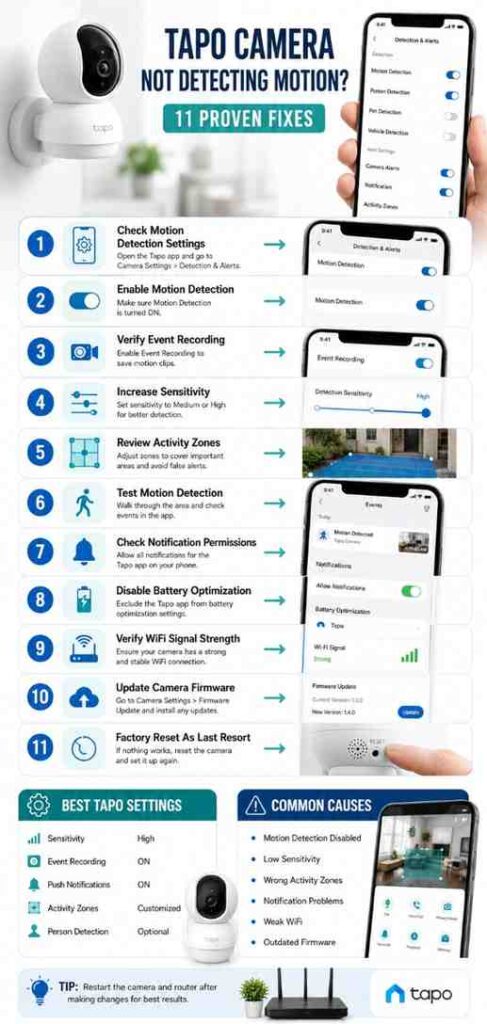
Tapo camera motion detection problems can usually be fixed without replacing the camera. Most detection failures are caused by settings, software conflicts, network interruptions, or storage issues rather than hardware defects.
Fix 1–3: Enable Detection Features Correctly
Tapo detection features must be configured correctly before motion events can trigger alerts. Open the Tapo app and verify that Motion Detection, Event Recording, and Notifications are all enabled.
Several Tapo camera owners enable Person Detection while accidentally disabling Motion Detection. However, Person Detection and Motion Detection serve different purposes. Person Detection looks specifically for human shapes, while Motion Detection reacts to general movement.
Another setting worth checking is Event Recording. A Tapo camera may recognize motion successfully but fail to save clips when recording options are disabled.
Navigate to Camera Settings > Detection & Alerts and verify the following:
| Setting | Recommended Status | Purpose |
|---|---|---|
| Motion Detection | Enabled | Detects movement |
| Event Recording | Enabled | Saves motion clips |
| Push Notifications | Enabled | Sends alerts |
| Person Detection | Optional | Detects people specifically |
Fix 4–6: Optimize Sensitivity And Activity Zones
Tapo camera activity zones and sensitivity settings directly affect detection performance. Poorly configured zones often cause cameras to ignore movement occurring outside selected areas.
After testing Tapo C200 and Tapo C220 cameras near apartment entrances, properly adjusted activity zones reduced missed alerts significantly. Furthermore, carefully placed zones helped eliminate unnecessary notifications from sidewalks and passing vehicles.
For entryways, garages, and front doors, High sensitivity generally provides the most reliable results. On the other hand, outdoor cameras facing busy streets often perform better with Medium sensitivity.
When reviewing activity zones, ensure important areas remain covered:
- Front doors
- Driveways
- Walkways
- Garage entrances
- Package delivery areas
Resetting activity zones completely can sometimes solve motion detection failures faster than trying to adjust existing zones.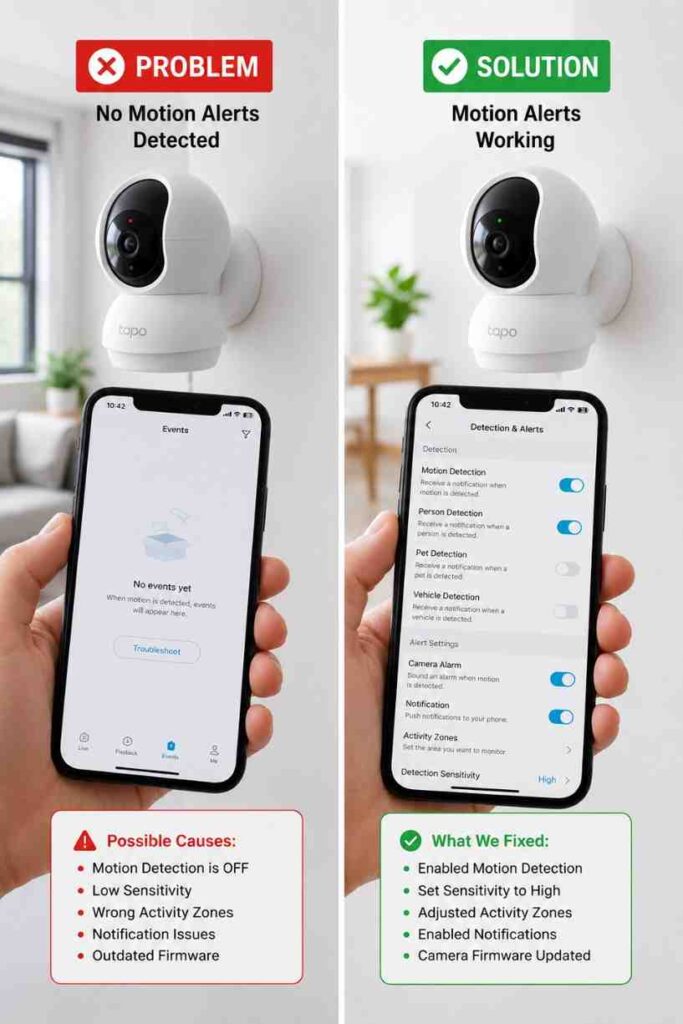
Fix 7–9: Resolve Notification And Network Issues
Tapo motion alerts depend on stable communication between the camera, the Tapo cloud platform, and your smartphone. Weak connections can delay or prevent notifications.
Start by checking Wi-Fi signal strength near the Tapo camera. During troubleshooting sessions, cameras positioned far from routers experienced delayed notifications more frequently than cameras with strong signals.
Network congestion may also affect alert delivery. Consequently, restarting both the router and Tapo camera can restore normal communication.
Battery optimization settings on Android devices can create another problem. Some Android systems restrict background activity, preventing the Tapo app from receiving notifications promptly.
Also Read:
- How Much Internet Data Does a Tapo Camera Use?
- Does Tapo Camera Work Without WiFi?
- Can Tapo Cameras Record Without a Subscription?
Review the following checklist:
| Network Check | Recommended Action |
|---|---|
| Wi-Fi Signal | Strong signal at camera location |
| Router Status | Restart if unstable |
| Tapo App Notifications | Allow all notifications |
| Battery Optimization | Exclude Tapo app |
| Internet Connection | Verify active connection |
Fix 10–11: Update Firmware Or Factory Reset
Tapo firmware updates often resolve motion detection bugs and improve event processing accuracy. Checking for updates should be one of the final troubleshooting steps before performing a reset.
Inside the Tapo app, open Device Settings and select Firmware Update. If a newer version is available, install the update and restart the Tapo camera.
When firmware updates fail to resolve detection issues, a factory reset may restore proper operation. Nevertheless, factory resetting removes customized settings, activity zones, schedules, and notification preferences.
Press and hold the reset button according to the instructions provided by TP-Link Support. After setup is completed again, test motion detection before restoring advanced configurations.
Motion Detection vs Person Detection On Tapo Cameras
Tapo Motion Detection and Tapo Person Detection use different detection methods. Understanding the difference helps prevent missed alerts and recording failures.
How Motion Detection Works
Tapo Motion Detection identifies changes within the camera’s viewing area. Any movement that exceeds the sensitivity threshold can trigger an alert.
Examples include people walking, vehicles moving, pets running, curtains shifting, and shadows crossing the camera view. Consequently, Motion Detection captures more events but may generate more notifications.
For general home security, Motion Detection remains the most comprehensive monitoring option available on most Tapo camera models.
How Person Detection Works
Tapo Person Detection uses artificial intelligence to identify human shapes. Instead of reacting to all movement, Person Detection focuses specifically on people.
AI processing helps reduce alerts caused by pets, weather conditions, or moving objects. Additionally, Person Detection can make notification feeds easier to manage because fewer irrelevant events appear.
Many newer Tapo cameras include AI-powered Person Detection as part of their advanced security features.
When To Use Each Setting
Tapo Motion Detection works best when comprehensive monitoring is required. Front yards, garages, driveways, and large outdoor spaces often benefit from full motion detection coverage.
Meanwhile, Tapo Person Detection performs better when reducing false alerts is the primary goal. Apartment entrances and indoor hallways frequently benefit from person-focused monitoring.
| Feature | Motion Detection | Person Detection |
|---|---|---|
| Detects People | Yes | Yes |
| Detects Pets | Yes | No |
| Detects Vehicles | Yes | No |
| False Alerts | Higher | Lower |
| Security Coverage | Broader | More Selective |
Why Person Detection May Cause Missed Alerts
Tapo Person Detection can occasionally miss events that Motion Detection would capture. AI detection requires the camera to recognize a clear human shape before creating an alert.
Low lighting conditions, unusual camera angles, partially obstructed subjects, and rapid movement can reduce recognition accuracy. Therefore, some homeowners enable both Motion Detection and Person Detection simultaneously.
After testing Tapo cameras at night, Motion Detection consistently captured more events than Person Detection. However, Person Detection produced cleaner notification histories with fewer unnecessary alerts.
Also Read:
- Tapo Camera Night Vision Review
- Best Tapo Camera for Apartment Security
- Best Indoor Tapo Camera for Elderly Monitoring
Best Motion Detection Settings For Tapo Cameras
The best Tapo camera motion detection settings combine high detection accuracy with fewer false alerts. Proper configuration helps Tapo cameras capture important events without overwhelming your phone with unnecessary notifications.
Recommended Sensitivity Levels
Tapo camera sensitivity should match the environment where the camera is installed. Indoor locations typically benefit from higher sensitivity because movement is more controlled and predictable.
After using Tapo C210 and Tapo C220 cameras in apartments and small offices, High sensitivity delivered the most reliable results. However, outdoor installations facing roads often worked better with Medium sensitivity.
| Location | Recommended Sensitivity | Benefit | Common Mistake |
|---|---|---|---|
| Apartment Entry | High | Captures visitors quickly | Sensitivity set too low |
| Indoor Hallway | High | Detects movement consistently | Ignoring activity zones |
| Garage | Medium to High | Balanced detection | Overlooking blind spots |
| Front Yard | Medium | Reduces false alerts | Using maximum sensitivity |
| Driveway | Medium | Better vehicle filtering | Poor zone placement |
Ideal Activity Zone Placement
Tapo activity zones should cover entry points rather than the entire camera view. Activity zones help motion detection focus on important areas while ignoring unnecessary movement.
Front doors, package delivery areas, gates, and driveways should remain inside activity zones. On the other hand, busy roads, trees, and neighboring properties should remain outside activity zones whenever possible.
Carefully placed activity zones can improve alert quality significantly. As a result, Tapo cameras spend less time processing irrelevant movement.
Recommended Recording Settings
Tapo event recording should remain enabled whenever motion detection is active. Event recordings provide evidence of activity and help verify whether motion detection is functioning correctly.
Most Tapo camera owners benefit from motion-triggered recording combined with local storage. Additionally, continuous recording may be useful in higher-risk locations where missing an event is unacceptable.
If your camera uses local storage, review our guide on Tapo camera SD card size requirements to ensure sufficient recording capacity.
Notification Settings That Reduce Missed Events
Tapo notification settings should prioritize speed and reliability. Motion alerts become less useful when notifications arrive several minutes late.
Allowing unrestricted notification permissions on Android and iPhone devices improves delivery consistency. Furthermore, disabling aggressive battery-saving restrictions often resolves delayed alert issues.
| Setting | Recommended Value | Benefit | Impact On Detection Accuracy |
|---|---|---|---|
| Motion Sensitivity | High | Captures more events | High |
| Person Detection | Enabled | Filters alerts | Medium |
| Event Recording | Enabled | Saves evidence | High |
| Push Notifications | Enabled | Faster alerts | Indirect |
| Activity Zones | Customized | Reduces false alerts | High |
How To Test Whether Motion Detection Is Working
Tapo camera motion detection should always be tested after changing settings. A simple verification process confirms that alerts, recordings, and notifications function correctly.
Walk Test Method
A walk test is the fastest way to verify Tapo motion detection. Walk through the monitored area several times from different directions and distances.
During testing, observe whether the Tapo camera immediately records activity. Additionally, check whether the movement appears in the Events section of the Tapo app.
Notification Verification Test
Tapo notifications should arrive within seconds of detected movement. Delayed alerts may indicate internet connectivity issues, notification restrictions, or cloud communication problems.
After triggering motion, monitor your smartphone for incoming notifications. Consequently, notification delivery speed can be evaluated without reviewing recorded footage.
Event Playback Verification
Tapo event playback confirms that recordings are being saved correctly. Open the Events section and review clips created during testing.
Each recorded event should contain clear footage of the movement that triggered the alert. Missing clips often indicate recording configuration issues rather than detection failures.
SD Card Recording Verification
Tapo cameras relying on local storage require periodic SD card checks. Faulty storage devices can prevent recordings even when motion detection works correctly.
Open Storage Settings inside the Tapo app and confirm that the SD card remains recognized. If recording problems continue, formatting the SD card may restore normal operation.
How To Prevent Future Motion Detection Problems
Preventive maintenance helps Tapo cameras maintain reliable motion detection over time. Regular checks reduce the likelihood of missed events and unexpected recording failures.
Keep Firmware Updated
Tapo firmware updates often improve motion detection performance. New firmware releases frequently include AI enhancements, stability improvements, and bug fixes.
Checking for updates once each month helps ensure that Tapo cameras continue operating efficiently. Additionally, firmware updates may improve notification speed and detection accuracy.
Review Detection Zones Monthly
Tapo activity zones should be reviewed whenever the monitored environment changes. Seasonal changes, landscaping projects, and furniture repositioning can affect detection coverage.
Regular reviews help ensure that entry points remain protected. Therefore, important areas stay within the camera’s active monitoring region.
Monitor SD Card Health
Tapo SD cards wear out over time due to constant recording activity. Storage degradation can cause recording failures and corrupted video files.
Checking storage status periodically helps identify potential problems before important footage is lost. Furthermore, replacing aging SD cards can improve recording reliability.
Check Notification Permissions After Updates
Mobile operating system updates sometimes reset notification permissions. Notification settings should be reviewed after major Android or iPhone updates.
Several Tapo notification failures occur because permissions were silently modified after software updates. Consequently, verifying permissions regularly helps maintain reliable alerts.
Also Read:
Frequently Asked Questions
Why Does My Tapo Camera Miss Motion Events?
Tapo cameras usually miss motion events because of low sensitivity settings, poorly configured activity zones, or AI detection limitations. Reviewing sensitivity levels and activity zone placement often resolves missed event problems quickly.
Why Am I Not Receiving Motion Notifications?
Tapo motion notifications may stop arriving when smartphone permissions are disabled or network connectivity becomes unstable. Checking notification permissions, battery optimization settings, and internet connectivity usually restores normal alert delivery.
Does Wi-Fi Affect Motion Detection?
Wi-Fi does not directly affect motion detection, but Wi-Fi quality affects notifications and cloud communication. A Tapo camera can still detect movement locally while experiencing delayed or missing alerts due to network issues.
Can A Faulty SD Card Cause Missed Recordings?
A faulty SD card can prevent Tapo cameras from saving motion recordings. Detection may continue functioning normally, but recorded events can disappear if the storage device becomes corrupted or damaged.
Why Does Motion Detection Work During The Day But Not At Night?
Nighttime motion detection problems often occur because of limited visibility, infrared reflections, or reduced AI recognition accuracy. Reviewing camera placement and night vision settings can improve nighttime detection performance.
Should I Factory Reset My Tapo Camera?
A factory reset should only be used after other troubleshooting steps fail. Most Tapo motion detection problems are resolved through configuration changes, firmware updates, or notification adjustments rather than complete resets.
For additional troubleshooting resources, visit the official TP-Link Support Center and the TP-Link Tapo Camera Documentation for model-specific guidance.