The right laptop charger matches your laptop’s exact model, required voltage and wattage, connector, and charging standard. For USB-C laptops, you also need to verify USB Power Delivery support and cable capability.
This guide shows you exactly what to check before buying a replacement, how to read your existing adapter, how USB-C charging differs from barrel-style adapters, and what to do when a charger fits but does not charge properly.
| What to Check | What to Match | Why It Matters |
|---|---|---|
| Exact laptop model | Full model or product number | Different models from the same brand can require different chargers. |
| Voltage | Manufacturer-required output voltage | The adapter must deliver the electrical output the laptop is designed to accept. |
| Wattage | Required or recommended wattage | Too little power can cause slow charging or reduced performance. |
| Connector | Correct USB-C or barrel connector | A plug that fits physically is not enough to prove compatibility. |
| Polarity | Correct polarity for barrel connectors | Matching polarity is part of electrical compatibility. |
| USB-C charging | USB Power Delivery support | A USB-C port does not automatically mean the laptop accepts charging through it. |
| USB-C cable | Power capability required by the setup | The cable is part of the charging system. |
How to Choose the Right Laptop Charger
 Start with the exact laptop model, then match its required voltage, wattage, connector, and charging standard. That four-part check eliminates most compatibility mistakes before you buy.
- Find the exact laptop model. Use the model or product number on the laptop, original packaging, manual, or manufacturer’s support page.
- Find the required power. Check the laptop specifications or original adapter for voltage, current, and wattage.
- Identify the connector. Confirm whether the laptop uses USB-C, a barrel connector, or a proprietary charging connector.
- Check barrel-plug polarity. For a conventional DC connector, verify the plug dimensions and polarity against the exact laptop specification.
- Check USB Power Delivery. If the laptop charges through USB-C, confirm that the port supports USB Power Delivery and determine the required power level.
- Check the USB-C cable. Use a cable rated for the power your charging setup requires.
- Choose a reputable replacement. Use the original manufacturer adapter when practical or a reputable compatible replacement that meets the exact requirements.
If you already know the model but need to compare costs, a separate charger price guide can be the next step. If you need one adapter for several compatible devices, see the section on universal charger options.
Check Your Laptop’s Required Wattage First
Wattage tells you how much power the charger can deliver, but the correct wattage depends on the laptop model. Calculate wattage by multiplying voltage by current: watts = volts × amps.
For example, an adapter rated at 19V and 6.32A provides 120W. ASUS uses the same calculation when explaining how to read its adapter specifications. ASUS adapter specifications also show where to find the input, output, and connector information. 1
Use the manufacturer’s required or recommended wattage for your exact laptop rather than assuming that every model from a brand uses the same adapter.
Microsoft’s current Surface Laptop specifications demonstrate the difference between models. Several current Surface Laptop models require 39W or 45W minimum, while others require 60W. Surface Laptop Studio 2 configurations require 95W or 120W. Microsoft’s Surface charging requirements provide model-specific wattage figures. 2
What Happens If the Charger Has Too Little Wattage?
An underpowered adapter can charge slowly, stop charging during heavy use, trigger a power warning, or reduce laptop performance.
HP explains that a lower-wattage adapter can cause slower charging and reduced performance, while demanding workloads can cause charging to pause as the laptop prioritizes operating power. 3
That matters most when you run demanding applications, use a powerful processor or graphics system, or connect several power-hungry peripherals.
How Many Watts Does a Laptop Charger Need?
Use the wattage recommended for your exact laptop rather than choosing a generic 45W, 65W, 90W, or 100W charger by assumption.
Some laptops need considerably more power than others. Microsoft’s Surface Laptop Studio 2, for example, requires 95W, while the dGPU configuration requires 120W. 4
Wattage is only one part of compatibility. For a barrel-style adapter, voltage, connector dimensions, and polarity must also match the laptop’s requirements.
Can You Use a Higher-Wattage Charger?
A higher-rated USB-C Power Delivery charger can be compatible when the laptop supports USB-C PD and the system negotiates an appropriate power level; a higher-rated barrel adapter is not automatically interchangeable.
USB Power Delivery is designed to negotiate power between compatible devices. USB-IF describes USB PD as a system in which a powered device can request the power it requires, with USB PD supporting power levels up to 240W. USB Power Delivery provides the standards-based explanation of that negotiation. 5
For compatible USB-C Macs, Apple says a USB-C power adapter can provide higher or lower wattage than the adapter recommended for the Mac. Apple’s USB-C power-adapter guidance explains how to check the power available to a Mac. 6
For a fixed-output barrel adapter, follow the laptop manufacturer’s exact voltage, connector, polarity, and power requirements instead of assuming that a higher wattage makes the adapter universally compatible.
Match the Laptop Charger Voltage
For a conventional DC adapter, the output voltage must match the laptop’s required voltage.
The output side of the adapter tells you what the charger delivers to the laptop. ASUS shows an example of a 19V DC output at 6.32A, producing 120W. 7
Do not choose an adapter simply because its plug fits. Two adapters can have similar-looking connectors while carrying different electrical specifications.


How to Read the Charger Label
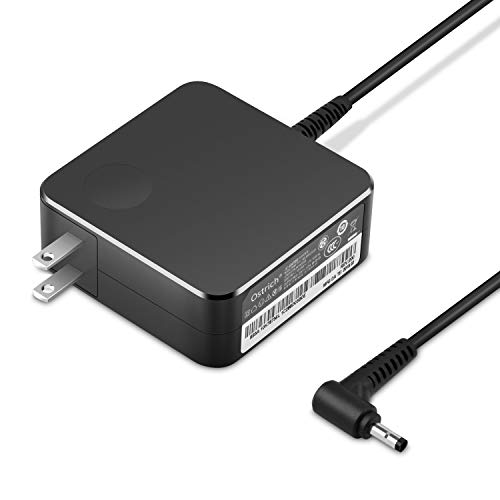
Look at the OUTPUT line to find the voltage and current the adapter delivers to the laptop.
- Input: the electrical supply the adapter accepts from the wall.
- Output: the voltage and current the adapter delivers to the laptop.
- Watts: the output power, calculated from volts × amps when a wattage figure is not printed.
For example, an output of 19V and 3.42A equals about 65W. Compare that figure with the laptop manufacturer’s required adapter rating rather than using the calculation alone as proof of compatibility.
Check the Laptop Charger Connector
The connector must match the laptop physically and electrically. A plug that slides into the port does not prove that the adapter is safe or compatible.
Barrel connectors come in different dimensions, and the exact connector specification varies between laptop models. ASUS identifies several connector sizes across its notebook products, including 4.0 mm, 4.5 mm, 5.5 mm, and 6.0 mm options. 8
Barrel Plug Compatibility
For a barrel-style charger, verify the plug dimensions, voltage, current or wattage, and polarity against the exact laptop requirements.
Do not force a connector into the laptop. If the plug does not fit correctly, stop and verify the model-specific specification.
ASUS also warns against mixing adapters between different products when their specifications differ, even when the DC jack size is the same. 9
Barrel Plug vs USB-C
A barrel plug is a dedicated DC connector, while USB-C is a multipurpose connector that can carry power, data, and other signals.
USB-C does not automatically mean USB Power Delivery. USB-IF treats USB Type-C and USB Power Delivery as separate technologies, so a USB-C port alone does not prove that the laptop accepts charging through that port.
For older or conventional barrel-powered laptops, follow the model-specific adapter specification instead of trying to convert the charger to USB-C simply because the connector looks more convenient.
Is USB-C Good Enough for a Laptop Charger?
USB-C is a suitable laptop charging method when the laptop supports USB Power Delivery and the charger provides the required power.
USB Power Delivery supports negotiated power levels, and USB-IF defines USB-C charging systems capable of delivering up to 240W with compatible equipment. The current USB-IF document library lists USB Power Delivery Specification Revision 3.2 Version 1.2, dated September 14, 2026. 10
The 240W figure is a capability of the USB-PD ecosystem, not a promise that every laptop, charger, or cable can use 240W.
USB-C Charger Wattage Matters
A USB-C charger must provide enough power for the laptop’s charging requirements.
A 30W charger is not a universal laptop charger. Some lightweight laptops can accept lower power, while more demanding models require considerably more.
Microsoft recommends using a USB-C PD charger that provides the recommended wattage for compatible Surface devices. Lower-wattage charging can be slower or unavailable on some models. 11
Don’t Forget the USB-C Cable
The charger, laptop, and USB-C cable all form part of the charging chain, so the cable must support the power level the setup requires.
USB-IF’s current USB-C cable compliance guidance uses 60W and 240W power markings for USB-C-to-USB-C cable categories. USB-IF cable and connector guidance explains the current cable marking requirements. 12
A 240W-marked cable does not turn a lower-power charger into a 240W charger. The laptop and charger still determine the charging capability that the system can negotiate.
How to Find Your Laptop’s Charger Specifications
The safest way to identify the correct charger is to start with the exact laptop model and confirm its adapter requirements through the manufacturer’s support information.
1. Check the Original Charger
Look at the adapter label for the output voltage and current. If the wattage is not printed, multiply volts by amps to calculate the maximum output power.
2. Check the Laptop Label
Some laptops print electrical requirements on the underside. Record the exact model or product number as well because the same product family can contain models with different power requirements.
3. Check the Manufacturer’s Support Page
Search the manufacturer’s support site using the exact model number. ASUS, for example, directs users to the product page and technical specifications to find AC adapter information. 13
If your laptop uses a conventional DC adapter, a dedicated power-adapter guide can help you understand the adapter terminology before comparing replacements.
4. Check the User Manual
The manual can identify the required adapter rating, connector, and supported charging methods.
How to Choose a Replacement Laptop Charger Safely
- Find the exact laptop model. Do not identify the charger by brand alone.
- Record the required voltage. For barrel-style adapters, verify the exact output voltage.
- Record the required wattage. If only volts and amps are printed, multiply them to calculate the adapter’s output power.
- Identify the connector. Confirm the exact barrel dimensions or verify USB-C charging support.
- Verify barrel polarity when applicable. Use the exact model specification rather than guessing from the plug.
- Check USB Power Delivery for USB-C laptops. Confirm that the laptop accepts USB-C PD and determine its required power level.
- Check the cable rating. Use a USB-C cable capable of carrying the required power.
- Choose a reputable replacement. A genuine manufacturer adapter or a reputable compatible replacement reduces compatibility risk.
If you are replacing a Dell charger, for example, use the exact Dell model and adapter specification rather than assuming that another Dell barrel adapter will work. The same rule applies to HP laptop chargers and other brands.
Safety Checks Before Buying
- Do not use a damaged cable or connector. Replace adapters with damaged insulation, exposed conductors, or damaged plugs.
- Do not force a connector. A difficult or loose fit is a reason to stop and verify compatibility.
- Keep the adapter ventilated. Do not cover it with clothing, bedding, or other materials while it operates.
- Use a reputable replacement. HP warns that unsuitable third-party adapters can cause inadequate power delivery, slower charging, unexpected shutdowns, or boot problems. 14
- Follow the laptop manufacturer’s safety guidance. Microsoft recommends genuine or Microsoft-licensed accessories for Surface charging. 15
Common Laptop Charger Mistakes to Avoid
Buying by Brand Name Alone
The brand name is not enough to identify a compatible charger. Different models from the same manufacturer can require different voltage, wattage, connectors, and charging methods.
Identify the exact model before choosing a replacement. If you need a model-specific charger next, a Dell charger guide can help narrow the search for Dell notebooks.
Assuming Every USB-C Port Charges the Laptop
A USB-C port does not automatically mean the laptop accepts charging through USB-C. Confirm USB Power Delivery support and the required wattage for the exact laptop.
Microsoft provides a clear example: some Surface devices charge through USB-C while other Surface models use different charging arrangements. 16
Choosing the Cheapest Adapter With the Right Plug
A matching plug does not prove electrical compatibility or adequate power delivery. Check voltage, wattage, connector specifications, and the laptop’s supported charging standard before buying.
Ignoring Cable Ratings
A USB-C charging setup needs a cable capable of carrying the power required by the laptop and charger. Check the cable’s power marking when high-power USB-C charging is involved.
Mixing Adapters From Different Laptops
Do not assume adapters are interchangeable simply because they come from the same manufacturer. ASUS specifically warns against using different adapters when their specifications do not match. 17
What Laptop Charger Should You Buy?
Buy the charger that matches your exact laptop’s power and connector requirements rather than choosing a generic wattage or plug size.
For a barrel-plug laptop, verify voltage, wattage or current, connector dimensions, and polarity. A genuine manufacturer replacement is the simplest choice when available.
For a USB-C laptop, choose a USB-C Power Delivery charger that meets the laptop’s required power level and use a cable capable of supporting that charging setup.
If portability matters, a compact USB-C PD charger can be useful for a laptop that supports USB-C charging. If you need a model-specific alternative, a Lenovo charger guide or Acer charger guide can be a useful next step.
How Many Watts Does a Laptop Charger Need?
There is no universal laptop-charger wattage; the required power depends on the exact laptop model and configuration.
Microsoft’s current Surface Laptop specifications show minimum requirements from 39W to 60W across several models, while Surface Laptop Studio 2 reaches 120W in its dGPU configuration. 18
Use your manufacturer’s stated requirement rather than assuming that a 45W, 65W, 90W, or 100W charger will work.
Can I Use a Phone Charger to Charge a Laptop?
You can use a phone charger only when the laptop supports its charging standard and the charger provides enough power.
A low-power phone charger can be inadequate for a laptop. Microsoft notes that lower-wattage USB-C charging can be slow or unavailable on some Surface devices. 19
Check the laptop’s minimum charging requirement before using a phone charger as a replacement.
Can I Use a 100W Charger for a Laptop That Came With a 65W Charger?
A 100W USB-C PD charger can be suitable for a 65W USB-C laptop when the laptop supports USB-C Power Delivery and the charger can negotiate the power the laptop requires.
Apple explicitly allows compatible USB-C Macs to use adapters with higher or lower wattage than the recommended adapter. 20
For barrel-style chargers, follow the laptop manufacturer’s exact voltage, connector, polarity, and power requirements instead of applying the USB-C PD rule to a fixed-output adapter.
How Do I Know If a Laptop Charger Is Compatible?
A compatible charger matches the laptop’s exact model requirements for voltage, wattage, connector, and charging standard.
For USB-C charging, also verify USB Power Delivery support and the cable’s power capability. For barrel-style charging, verify the connector dimensions and polarity as well.
If you cannot verify the exact model and electrical requirements, use the laptop manufacturer’s support page or manual before buying a replacement.
What Should I Do If the Laptop Charger Fits but the Laptop Will Not Charge?
Stop treating physical fit as proof of compatibility and check the adapter’s voltage, wattage, connector specification, and charging standard.
- Check whether the adapter supplies the required power.
- Inspect the cable and connector for damage.
- Check whether the laptop supports charging through the port you are using.
- For USB-C, confirm that the charger supports USB Power Delivery.
- For a barrel connector, verify voltage, connector dimensions, and polarity.
- If the laptop still does not charge, use the manufacturer’s troubleshooting and support process.
Can a Laptop Charger Be Too Powerful?
A higher-rated USB-C PD charger can be compatible when the laptop supports USB-C PD and negotiates an appropriate power level, but fixed-output barrel adapters require model-specific compatibility checks.
The key distinction is between a negotiated USB-C Power Delivery system and a fixed-output DC adapter. Do not apply the rules for one charging system to the other.
Does Every USB-C Laptop Support USB-C Charging?
No. A USB-C port alone does not guarantee that the laptop accepts power through USB-C.
Check the exact laptop model’s specifications for USB-C charging and USB Power Delivery support before buying a USB-C charger.
Buying Guide: Choose by Compatibility First
Compatibility should come before convenience, compactness, or charger wattage. Start with the exact laptop model and its required power. That tells you whether you need a conventional DC adapter, USB-C PD charger, or another charging system.
For barrel-powered laptops, prioritize the complete electrical match: voltage, wattage or current, connector dimensions, and polarity. Do not substitute a different adapter simply because the plug looks identical.
For USB-C laptops, look for USB Power Delivery support and enough power for the model. A higher-rated USB-C PD charger can work with a compatible laptop because the charging system negotiates power, but the laptop’s own charging capability still sets the practical limit.
Finally, treat the cable as part of the charging setup. A high-power USB-C charger and a compatible laptop still need a cable capable of carrying the required power. If you need a broader adapter overview, laptop adapter information is a useful next step.
Methodology
This guide evaluates charger compatibility using manufacturer specifications, official support guidance, USB-IF standards information, and current charging requirements. The analysis prioritizes exact model compatibility, voltage, wattage, connector type, USB Power Delivery support, cable capability, and documented safety guidance.
Examples from Microsoft, Apple, ASUS, HP, and USB-IF illustrate model-specific charging requirements and standards. No hands-on charger testing is claimed.
Final Thoughts
The safest way to choose a laptop charger is to identify the exact laptop model first, then verify voltage, wattage, connector, and charging standard. For USB-C laptops, confirm USB Power Delivery support and use a cable rated for the required power.
Do not choose a charger solely because the connector fits or the wattage number looks high enough. When the specifications are unclear, use the laptop manufacturer’s exact model information before buying a replacement.
Sources and References
- Microsoft Support — Surface Laptop minimum and recommended charging wattages.
- Microsoft Support — Surface Laptop Studio charging requirements.
- Microsoft Support — USB-C Power Delivery and Surface charging behavior.
- Microsoft Support — Surface power-supply and safety guidance.
- Apple Support — USB-C Mac power-adapter wattage guidance.
- USB Implementers Forum — USB Power Delivery capabilities and negotiated power delivery.
- USB Implementers Forum — USB-C cable power markings and compliance requirements.
- USB Implementers Forum — current USB Power Delivery Specification Revision 3.2 Version 1.2 record dated September 14, 2026.
- ASUS Support — adapter input/output ratings, wattage calculation, connector types, and compatibility guidance.
- HP Support — underpowered adapter behavior and replacement-adapter guidance.
- HP Support — electrical safety and lower-wattage adapter guidance.
Related Articles

Lenovo Laptop Charger: Fix Issues and Choose the Right!
October 15, 2026
ASUS Laptop Charger: 14 Picks for the Right Fit
October 12, 2026
Laptop Power Adapter: 7 Steps to Choose the Right One
October 7, 2026