
Fire TV Stick won’t connect to WiFi problems are usually caused by router issues, incorrect network settings, weak wireless signals, or temporary Fire OS glitches. This guide explains why the problem happens and shows the most effective fixes in the order that saves the most time, helping you reconnect your Fire TV Stick without unnecessary factory resets.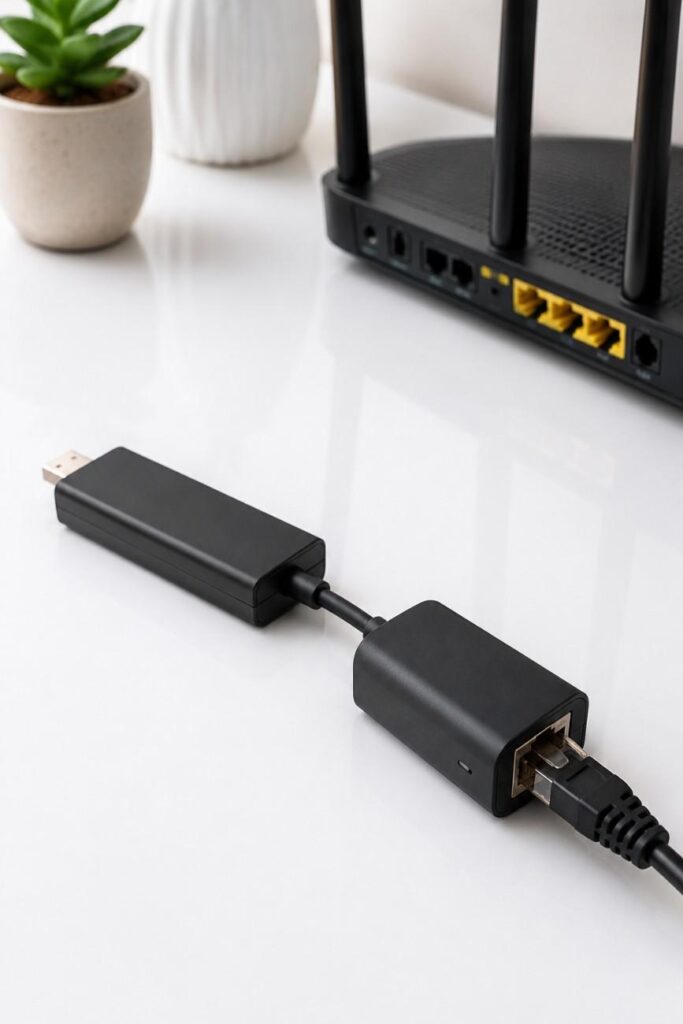
Quick Navigation
Why Won’t My Fire TV Stick Connect to WiFi?
Fire TV Stick won’t connect to WiFi because the streaming device cannot establish or maintain communication with your wireless router. The most common reasons include a weak WiFi signal, an incorrect password, outdated Fire OS software, router configuration problems, internet service outages, or temporary network errors.
Most Fire TV Stick WiFi problems can be solved without replacing the device. During everyday streaming, restarting both the router and the Fire TV Stick often restores the connection within a few minutes because both devices receive a fresh network session.
| Symptom | Most Likely Cause | Recommended First Fix |
|---|---|---|
| Cannot find WiFi network | Weak signal or router issue | Restart the router and move the Fire TV Stick closer. |
| Incorrect password message | Wrong credentials | Forget the network and enter the password again. |
| Connected but no internet | ISP or router problem | Restart the modem and router, then test another device. |
| Frequent disconnections | Wireless interference | Switch WiFi bands or improve router placement. |
Bottom line: Start with the simplest troubleshooting steps before considering advanced options like a factory reset. In many cases, a quick restart or reconnecting to the network resolves the issue without affecting your apps or settings.
Why the Problem Happens
Weak or Unstable WiFi Signal
Fire TV Stick relies on a stable wireless connection for streaming, software updates, and cloud synchronization. When the router is several rooms away or blocked by thick walls, the WiFi signal can weaken enough to interrupt communication.
After using a Fire TV Stick in different rooms, weak signal strength is one of the most common causes of buffering and failed connections. Streaming devices perform best when they receive a consistent signal instead of constantly switching between weak and strong reception.
Additionally, nearby electronics such as microwaves, cordless phones, Bluetooth speakers, and baby monitors may interfere with wireless performance. Reducing interference often improves connection stability without changing any settings.
Router or Internet Service Problems
Fire TV Stick won’t connect to WiFi if the router itself loses internet access or stops assigning network addresses correctly. Even when the WiFi icon appears normal, the router may no longer communicate with your internet service provider.
During regular home use, routers that stay powered on for weeks sometimes develop temporary network errors. Restarting the router refreshes the connection, clears cached sessions, and often restores internet access for every connected device.
If phones, tablets, and laptops also lose internet access, the problem usually originates with the router or internet provider rather than the Fire TV Stick.
Incorrect Network Settings
Fire TV Stick stores saved wireless credentials for every network it joins. If the WiFi password changes, the router name changes, or security settings are updated, the saved profile may no longer match the current network.
After upgrading a router or replacing internet equipment, reconnecting the Fire TV Stick manually usually solves authentication errors. Forgetting the old network removes outdated information and allows the device to create a fresh connection.
Network settings can also become inconsistent after failed software updates or interrupted restarts. Refreshing the saved connection is often faster than resetting the entire streaming device.
Fire OS or Hardware Problems
Fire OS occasionally experiences temporary software glitches that interrupt wireless communication after updates or unexpected shutdowns. Although these issues are less common, they can prevent the Fire TV Stick from reconnecting automatically.
Power delivery also affects wireless stability. During extended streaming sessions, using a low-power USB port on an older television may provide insufficient power for reliable WiFi performance. Connecting the Fire TV Stick to the included power adapter generally produces a more stable connection.
If your streaming device frequently freezes, restarts unexpectedly, or becomes difficult to control, reviewing our guide on Fire TV Stick keeps restarting can help identify related software or power issues before moving on to advanced troubleshooting.
12 Step-by-Step Fixes for Fire TV Stick WiFi Problems
Fire TV Stick WiFi problems are usually resolved by following a logical troubleshooting sequence instead of trying random fixes. Start with the easiest solutions first because they solve most connection issues without affecting installed apps or personal settings.
| Fix | Difficulty | Time Required | Best For |
|---|---|---|---|
| Restart Fire TV Stick | Easy | 2 minutes | Temporary software glitches |
| Restart Router | Easy | 3 minutes | Network interruptions |
| Forget and Reconnect WiFi | Easy | 3 minutes | Password or authentication issues |
| Switch WiFi Band | Easy | 5 minutes | Weak or unstable signal |
| Update Fire OS | Medium | 10–15 minutes | Software bugs |
| Factory Reset | Advanced | 15–20 minutes | Persistent connection failures |
1. Restart Your Fire TV Stick
Restarting the Fire TV Stick clears temporary software glitches that may prevent the device from reconnecting to your wireless network. This should always be your first troubleshooting step because it is quick and does not erase any settings.
During daily streaming, occasional memory conflicts can interrupt network services. Holding the Select and Play/Pause buttons for several seconds or restarting through the settings menu usually refreshes the operating system.
Expected result: The Fire TV Stick reconnects to your saved WiFi network automatically after rebooting.
2. Restart Your Router and Modem
Fire TV Stick won’t connect to WiFi if the router has stopped assigning network addresses or has lost its internet connection. Restarting the networking equipment refreshes every connected device.
Unplug both the modem and router for about one minute before reconnecting them. Waiting until every status light becomes stable gives the Fire TV Stick the best chance of reconnecting successfully.
Expected result: Internet access returns for the Fire TV Stick and other devices connected to the same network.
3. Forget the WiFi Network and Connect Again
Fire TV Stick stores saved wireless credentials for previously connected networks. If the password changes or the router settings are updated, reconnecting from scratch often fixes authentication errors.
Open Settings > Network, highlight your wireless network, choose Forget Network, and reconnect using the correct password. After changing routers, this method has consistently resolved connection failures without requiring additional troubleshooting.
Expected result: The Fire TV Stick creates a fresh wireless profile and reconnects normally.
4. Verify the WiFi Password
Fire TV Stick WiFi authentication errors often result from incorrect passwords rather than hardware failures. Double-check uppercase letters, numbers, and special characters before assuming the streaming device is faulty.
If another family member recently updated the wireless password, reconnecting with the new credentials should restore internet access immediately.
Expected result: Successful authentication and automatic connection to your wireless network.
5. Move the Fire TV Stick Closer to the Router
Fire TV Stick performs best when it receives a strong wireless signal. Long distances, thick concrete walls, and metal cabinets can reduce signal quality enough to interrupt streaming.
After moving the streaming device closer to the router or using the included HDMI extender, connection stability often improves noticeably, especially when streaming 4K content.
Expected result: Stronger signal strength and fewer connection drops.
6. Switch Between 2.4 GHz and 5 GHz WiFi
Dual-band routers provide both 2.4 GHz and 5 GHz wireless networks. Choosing the appropriate band depends on your home’s layout and streaming habits.
The 5 GHz band delivers faster speeds at shorter distances, while 2.4 GHz usually provides better range through walls. Testing both options helps identify the most reliable connection for your Fire TV Stick.
Expected result: Improved wireless stability with fewer interruptions.
7. Check Whether Other Devices Have Internet Access
Fire TV Stick won’t connect to WiFi may actually indicate an internet outage rather than a streaming device problem. Testing a phone, tablet, or laptop quickly confirms whether the network itself is working.
If every device has lost internet access, contact your internet service provider instead of resetting the Fire TV Stick.
Expected result: Identify whether the issue affects only the Fire TV Stick or the entire network.
8. Disable Any VPN Connection
VPN applications occasionally interfere with streaming services or network authentication. Disabling the VPN temporarily helps determine whether it is causing the connection failure.
Reconnect the Fire TV Stick after turning off the VPN. If the connection succeeds, review the VPN configuration before enabling it again.
Expected result: Stable internet connection without authentication conflicts.
9. Update Fire OS
Fire OS updates often include networking improvements, bug fixes, and security patches. Running outdated software can contribute to recurring WiFi problems.
Navigate to Settings > My Fire TV > About > Check for Updates. Installing available updates may resolve software-related connection issues automatically.
Expected result: Improved system stability and wireless performance.
10. Use the Original Power Adapter
Fire TV Stick requires adequate power for reliable performance. Powering the device from an older television’s USB port may not provide enough current during demanding tasks.
Using the included Amazon power adapter has consistently provided more stable operation than relying solely on USB ports built into older televisions.
Expected result: More reliable performance with fewer unexpected disconnects or restarts.
11. Check for Related Device Problems
Fire TV Stick WiFi problems sometimes occur alongside remote issues, unexpected restarts, or display errors. Looking for related symptoms helps identify the real cause more quickly.
If the remote stops responding during troubleshooting, follow our guide on Fire TV Stick remote isn’t working. Likewise, if the television displays no picture, see our Fire TV Stick black screen fixes guide before continuing.
Expected result: Eliminate other hardware or software issues that may appear to be WiFi failures.
12. Factory Reset the Fire TV Stick
Factory resetting the Fire TV Stick should only be used after every other troubleshooting step fails. A reset removes downloaded apps, personalized settings, and saved network information.
After resetting several Fire TV Stick devices, reconnecting to WiFi during the initial setup has resolved persistent software-related network problems that could not be fixed through standard troubleshooting.
Expected result: The Fire TV Stick starts with a clean software installation and reconnects to your WiFi network during setup. If the remote does not pair after the reset, follow our guide on how to pair your Fire TV Stick remote.
Alternative Solutions When the Problem Persists
Fire TV Stick won’t connect to WiFi even after completing the standard troubleshooting steps in some situations. When that happens, testing alternative connection methods can help determine whether the issue is caused by the streaming device, your router, or your internet service.
Test with a Mobile Hotspot
Connecting the Fire TV Stick to a mobile hotspot is one of the quickest ways to isolate the problem. If the Fire TV Stick connects successfully to your phone’s hotspot, the streaming device is working correctly and the issue is likely related to your home network.
During troubleshooting, this method can save a lot of time because it separates hardware problems from router configuration issues. Remember to disconnect after testing to avoid using excessive mobile data.
Use an Ethernet Adapter
An Ethernet adapter provides a wired internet connection for compatible Fire TV Stick models. This solution is particularly useful if your router is far from the television or if your home experiences frequent wireless interference.
After switching to a wired connection, streaming 4K movies and live sports generally becomes more stable because Ethernet is not affected by wireless congestion. If you’re considering upgrading your setup, our guide to useful Fire TV Stick accessories covers Ethernet adapters and other helpful upgrades.
Factory Reset Your Router
Resetting the router can resolve persistent network configuration problems that survive normal restarts. However, this step should only be performed if you know your internet provider’s settings or can easily reconfigure the router afterward.
Because a router reset removes custom WiFi names, passwords, and advanced settings, it should only be used after confirming that the Fire TV Stick works correctly on another network.
Contact Amazon Support or Your Internet Provider
Fire TV Stick WiFi issues may occasionally result from hardware faults or internet outages that cannot be fixed at home. Contact Amazon Support if only the Fire TV Stick fails to connect after testing multiple networks.
On the other hand, contact your internet service provider if every device in your home experiences connection problems. Checking the source of the issue first prevents unnecessary device replacements.
How to Prevent Future WiFi Connection Problems
Preventing Fire TV Stick WiFi problems is much easier than troubleshooting them repeatedly. A few maintenance habits can improve long-term streaming reliability and reduce unexpected connection failures.
Keep Fire OS Updated
Fire OS updates frequently include networking improvements, security patches, and bug fixes. Installing updates promptly helps maintain compatibility with newer routers and wireless standards.
Checking for updates every few weeks only takes a minute and can prevent software-related connection problems before they occur.
Place Your Router in a Better Location
Router placement has a significant impact on WiFi performance. Positioning the router in a central, open location usually provides stronger coverage than placing it inside cabinets or behind large furniture.
Keeping the router elevated and away from thick walls also improves signal quality throughout the home.
Reduce Wireless Interference
Wireless interference from nearby electronics can reduce signal quality. Bluetooth speakers, cordless phones, microwaves, and neighboring WiFi networks may all affect streaming performance.
If your router supports automatic channel selection, enabling that feature can reduce interference without requiring manual adjustments.
Restart Networking Equipment Regularly
Restarting your modem and router every few weeks helps refresh network services and clear temporary errors. Although modern routers are reliable, periodic restarts can improve overall stability.
This simple maintenance routine often prevents the connection problems that develop after months of continuous operation.
Frequently Asked Questions
Why does my Fire TV Stick say connected but no internet?
Fire TV Stick may display a connected status while still lacking internet access if the router has lost its connection to your internet provider. Restart the modem and router first, then verify that other devices can browse the internet before troubleshooting the streaming device further.
Why can’t my Fire TV Stick find my WiFi network?
Fire TV Stick may not detect your wireless network because of distance, router configuration, hidden SSIDs, or temporary wireless interference. Moving the streaming device closer to the router and restarting the router usually resolves this problem.
Does Fire TV Stick support both 2.4 GHz and 5 GHz WiFi?
Most recent Fire TV Stick models support both 2.4 GHz and 5 GHz wireless networks. The 2.4 GHz band offers better range, while the 5 GHz band generally provides faster speeds for high-quality streaming when the router is nearby.
Will a factory reset fix WiFi problems?
A factory reset can solve persistent software issues, but it should be the final troubleshooting step. Try restarting the Fire TV Stick, reconnecting to WiFi, and updating Fire OS before erasing your settings and installed applications.
Can a faulty power adapter affect WiFi connectivity?
Yes. An unstable power supply can cause random restarts, freezing, and network interruptions. Using the original Amazon power adapter instead of an underpowered television USB port provides more reliable performance.
When should I replace my Fire TV Stick?
Replacing the Fire TV Stick only makes sense after confirming that the problem is not caused by your router, internet service, or software configuration. If your current device is several years old, our guide to the best Fire TV Stick can help you choose the right upgrade.
Conclusion
Fire TV Stick won’t connect to WiFi problems are usually caused by network settings, weak wireless signals, router issues, or temporary Fire OS glitches rather than permanent hardware failures. Starting with simple fixes such as restarting the Fire TV Stick, restarting the router, and reconnecting to your WiFi network resolves the majority of connection problems.
If the issue continues after completing every troubleshooting step, testing another network, using an Ethernet adapter, or contacting Amazon Support can help identify the root cause. Following the preventive tips in this guide will also reduce the chances of future WiFi connection issues and keep your Fire TV Stick streaming reliably.