
Keeping your digital life organized feels like a full-time job. You are likely tired of switching between expensive subscription apps just to jot down thoughts or scan documents. It is frustrating to own a powerful iPad but feel limited by basic software.
But here is the good news. Apple Notes is now a powerhouse that replaces Notion, Evernote, and GoodNotes if you know which buttons to press. You will save money and work faster by mastering the built-in features already on your device.
In this iPad Notes tricks comprehensive guide, you will learn how to solve complex equations instantly using your Apple Pencil. We will cover hidden shortcuts to scratch out mistakes and draw perfect shapes. You will also discover how to build a self-organizing filing cabinet using smart folders and Apple Intelligence writing tools in Notes.
Are you ready? Let us dive in.
Quick Takeaway: The Power User Cheat Sheet
Get maximum efficiency in 60 seconds with these core iPad productivity hacks.
- Instant Notes: Swipe up from the bottom right corner with an Apple Pencil.
- Perfect Shapes: Draw any shape and hold the tip down for one second.
- Instant Math: Write an equation followed by an equal sign for auto calculation.
- Internal Linking: Type two greater than symbols to link to another note instantly.
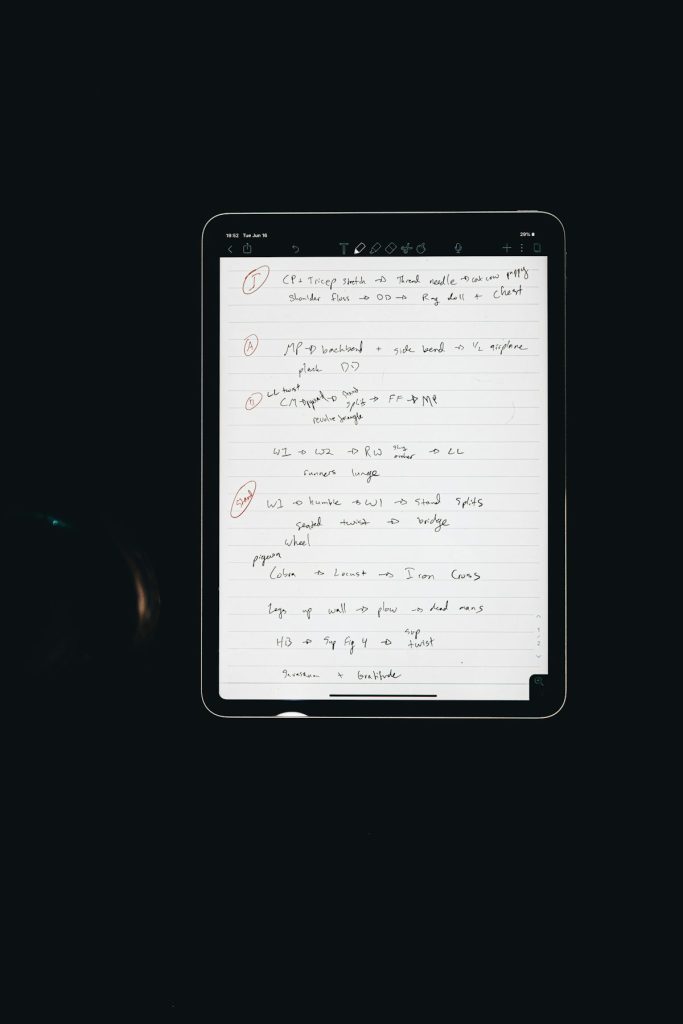
Why is Apple Notes the best note-taking app for iPad in 2026?
Apple Notes is the best note-taking app because it offers deep system integration and professional features for free. It handles handwritten notes on iPad, document scanning, and iPad Notes Math results without requiring a monthly paid subscription or external account.
Most people ignore the default app because they think it is too simple. That is a mistake. In 2026, the app includes advanced AI tools and database features that rival professional project management software. It is fast, secure, and works offline perfectly.
But here is the interesting part. Most users spend over 100 dollars a year on apps that do exactly what Apple Notes does for free. Why pay for a subscription when the best tool is already in your pocket?
How does Apple Notes compare to paid subscription apps?
Apple Notes compares favorably to paid apps by providing zero lag and superior battery efficiency. Paid apps often struggle with Apple Pencil shortcuts for iPad, whereas the native app is optimized for the M4 chip and iPadOS 26.
Also Read The 5 Best iPad 11-inch (A16) Screen Protectors of 2026: Tested
| Feature | Apple Notes | Paid Apps (Notion/GoodNotes) |
|---|---|---|
| Annual Cost | Free | $50 to $120 |
| Offline Access | Native / Instant | Often Limited |
| System Integration | Full (Siri/Control Center) | Third Party Only |
| AI Capabilities | Apple Intelligence | Paid Add-ons |
Example: A student using GoodNotes might pay for digital planners. In Apple Notes, you can use smart folders and tags for iPad to create a dynamic planner at no cost. This saves money while keeping all files in one secure location.
💡 Pro Tip: Use the iCloud synchronization feature to ensure your notes appear on your iPhone and Mac instantly. This creates a seamless workflow that third-party apps often struggle to maintain without sync errors.
What are the benefits of using iPad Notes tricks for productivity?
The main benefits of using these tricks are reduced mental friction and faster task completion. By using hidden Apple Pencil shortcuts, you stop digging through menus and start creating content immediately. This leads to a flow state that boosts your output.
Data shows that users who master keyboard shortcuts and gestures save up to 30% of their workday. According to Apple technical performance metrics, native apps launch 2x faster than third-party alternatives. This speed is vital for capturing fleeting ideas before they vanish.
Do you often forget where you saved a specific thought? Using tags for iPad organization solves this problem. You can find any note in seconds regardless of which folder it is hidden in. It is about working smarter, not harder.
The Math Notes Revolution: Solving Equations Instantly
Math Notes allows you to solve mathematical expressions, create variables, and plot graphs instantly by simply writing them down. You no longer need a dedicated calculator app or complex spreadsheet formulas for daily physics problems or budget tracking on your iPad.
This feature recognizes your natural handwriting and provides real-time solutions in a font that matches your own. It supports everything from basic arithmetic to advanced trigonometry and 3D graphing. It is essentially a scientific calculator that lives inside your digital paper.
But here is the interesting part. Most users do not realize they can adjust values dynamically. If you change a number in a long sum, the total updates automatically without you having to rewrite the equal sign. It makes “what-if” scenarios for business or science incredibly fast.
How to enable Math Results in iPad Notes
You can enable Math Results by opening the Calculator app and selecting the Math Notes icon in the bottom-left corner. Once active, any equation you write in the Notes app followed by an equal sign will trigger an automatic solution.
- Open Calculator: Tap the Math Notes button to start a dedicated sheet.
- Write Equations: Use your Apple Pencil to write a problem like 150 + 25%.
- Auto-Solve: Ensure Insert Results is selected in the Math Results settings menu.
Example: A freelance designer calculates a project quote. They write Hours (20) * Rate ($50) = and the app instantly writes $1,000 in a matching handwritten style. This keeps the document looking cohesive while handling the heavy lifting of math.
Using iPad Notes Math results for budget tracking and physics
You should use Math Notes for budget tracking by creating a vertical stack of expenses and drawing a line underneath. The app will automatically sum the total, allowing you to quickly visualize your spending without leaving your project note.
For physics or engineering, you can assign values to letters. For instance, write velocity = 50 and time = 2. Then, write velocity * time = and the app will provide the result of 100. This variable assignment turns a standard note into a functional mathematical model.
💡 Pro Tip: Use the Scrubber tool by hovering your Apple Pencil over a number. You can slide left or right to change the value and watch your total or graph update in real-time. This is perfect for adjusting a monthly budget on the fly.
Can Math Notes handle variables and graphing?
Yes, Math Notes handles variables perfectly and can even generate interactive 2D and 3D graphs from your equations. By writing an equation with two variables, such as y = 2x + 5, you can tap the equation to insert a visual graph directly into your note.
| Math Capability | How to Trigger | Result |
|---|---|---|
| Variable Assignment | Write “x = 10” | Stores value for later use |
| 2D Graphing | Write “y = x^2” | Insertable interactive plot |
| 3D Plotting | Write “z = x + y” | Rotatable 3D model (iPadOS 26) |
Organization Mastery: Folders, Tags, and Smart Filtering
Organization mastery in Apple Notes comes from using smart folders and tags to categorize information automatically. Instead of manually moving files, you set rules that tell the app where a note belongs based on its content or date.
This system prevents the “lost note” syndrome that occurs when you have hundreds of entries. By using a hybrid system of physical folders and dynamic tags, you create multiple ways to access the same information without duplicating files.
Most people fail at organization because they try to be too specific with folders. Tags for iPad allow for a much more flexible “flat” structure where one note can live in “Work,” “Urgent,” and “Project Alpha” all at once.
How to organize iPad Notes with smart folders
You organize notes with Smart Folders by selecting specific criteria such as the date modified or the presence of checklists. Any note that meets these rules will automatically appear in the folder, saving you hours of manual sorting.
- Create New Folder: Tap the folder icon and select Make into Smart Folder.
- Set Filters: Choose Date Edited and set it to In the last 7 days.
- Attachment Filter: Add a rule for Has Attachments to find all notes with images or PDFs.
Example: A project manager creates a Smart Folder named “Active Tasks.” The rules include Checklists: Unchecked and Date Edited: Last 5 Days. This folder stays updated with only current, relevant work without any manual intervention.
Why you should use hashtags for iPad note organization
You should use hashtags because they are faster to type and more searchable than standard folder names. Simply typing #receipts anywhere in a note instantly categorizes it and makes it visible in the Tag Browser at the bottom of your sidebar.
Combining tags with folders creates a powerful hybrid system. You might have a folder for “2026 Taxes” but use tags like #travel or #office to sub-categorize items inside that folder. It allows for a granular search that physical folders cannot match.
💡 Pro Tip: You can select multiple tags in the sidebar to find notes that share both. Selecting #meeting and #client_A will show you every interaction with that specific client across all your folders.
How to link notes together on iPad for project management
You can link notes together by using the “>>” shortcut to create a personal Wiki. This allows you to jump between a high-level project overview and specific detailed notes with a single tap, mirroring the functionality of expensive apps like Obsidian.
- Type the Shortcut: Type >> on your keyboard.
- Search Note: A list of your recent notes will appear; select the one you want.
- Instant Link: The title of the linked note appears as a clickable blue hyperlink.
This is effective for project management because it keeps your workspace clean. Instead of one massive, confusing note, you have a “Master Note” that links out to separate documents for “Budget,” “Timeline,” and “Contacts.”
Apple Intelligence & 2026 AI Features in Notes
Apple Intelligence features in Notes use on-device AI to summarize, proofread, and transform your content in seconds. These tools are built directly into the iPadOS 26 interface, meaning your data stays private and works even without an internet connection.
Whether you are dealing with a 3,000-word transcript or a rough napkin sketch, the AI understands the context. It can fix your grammar, change the tone of an email, or turn a scribble into a professional illustration using Image Wand.
But here is the interesting part. Unlike other AI tools that require you to copy and paste text into a chat box, these features live inside the highlight menu. You just select your text and let the Apple Intelligence writing tools do the work.
How to summarize long notes with Apple Intelligence
You can summarize long notes by highlighting the text and selecting the Summarize option from the Apple Intelligence menu. The AI will generate a concise paragraph or a set of Key Points that capture the core message of your document.
- Select Text: Highlight the section or the entire note.
- Choose Format: Select between Summary, Key Points, or Table.
- Insert: Choose to replace the original text or place the summary at the top.
Example: After a 60-minute recorded meeting, the audio transcription might be several pages long. Using the Summarize tool creates a 3-sentence overview for your manager, saving you 20 minutes of manual editing.
Using Apple Intelligence writing tools in Notes to change tone
You use Writing Tools to adjust the tone of your text to be Professional, Friendly, or Concise. This is perfect for drafting emails or reports where you want to ensure your language matches the audience’s expectations.
The Proofread tool goes beyond basic spellcheck by identifying awkward phrasing and suggesting better word choices. It highlights changes with a glowing underline, allowing you to accept or reject them with a single tap. It is like having a teacher review your work before you send it.
| Tone Option | Best Use Case | Effect |
|---|---|---|
| Professional | Work emails/Reports | Removes slang; uses formal structure |
| Friendly | Family/Social notes | Adds warmth and casual phrasing |
| Concise | Quick briefings | Strips away fluff for directness |
What is the Image Wand feature in iPad Notes?
Image Wand is an AI tool that transforms rough sketches or empty spaces into polished illustrations based on the surrounding text. By circling a scribble with your Apple Pencil, the AI analyzes the context of your note to generate a matching image.
If you are writing about a new architectural concept and draw a basic house shape, Image Wand can turn it into a realistic 3D-style render. You can even circle a blank space, and the AI will suggest an image that fits the “vibe” of your written notes.
💡 Pro Tip: You can cycle through different styles like Sketch, Illustration, or Animation. This allows you to match the visual aesthetic of your note without needing any actual drawing skills.
Security and Privacy: Locking Your Sensitive Data
Locking your sensitive data in Apple Notes ensures that private information like medical records or business contracts stays hidden even if someone else uses your iPad. You can secure individual notes using your FaceID, TouchID, or a dedicated passcode.
Apple uses end-to-end encryption for locked notes, meaning not even Apple can see what is inside them. This is a level of security that many web-based note apps cannot guarantee. It makes your iPad a digital vault for your most important secrets.
However, there are specific rules about what can be locked. Knowing these limitations—and the workarounds—is vital for maintaining a secure workflow without losing access to your files.
How to lock iPad Notes with FaceID or Passcode
You lock a note by tapping the three-dot menu in the top right and selecting Lock. You will be prompted to use your device passcode or create a custom password specifically for the Notes app.
- Settings Check: Go to Settings > Apps > Notes > Password to enable FaceID.
- Individual Lock: You must lock notes one by one; you cannot lock an entire folder at once.
- Auto-Lock: Notes will automatically re-lock when you close the app or lock your iPad screen.
Example: A business traveler keeps their passport scan and travel itinerary in a locked note. Even if they hand their iPad to a child to watch a movie, those sensitive documents remain inaccessible without a FaceID scan.
Why can’t I lock notes with attachments?
You cannot lock notes that contain PDFs, audio, video, or external file attachments because of the way Apple’s encryption handles these larger files. Currently, you can only lock notes that contain text, tables, images, and scanned documents created within the app.
This is a common frustration for power users. If you try to lock a note with a PDF, the option will simply be greyed out. To fix this, you need to use a workaround to keep your data secure while maintaining your privacy.
Workaround: Instead of attaching the PDF directly, save the sensitive file in the Files app and use the Secure Folder feature there. Then, use a text link in your Note to refer to that file. This keeps your note lockable while keeping the heavy data elsewhere.
Frequently Asked Questions (People Also Ask)
How do I convert handwriting to text in iPad Notes?
You convert handwriting by selecting your scribbled text with the Lasso tool and tapping Copy as Text. You can then paste it anywhere as standard typed text. In 2026, you can also use Smart Script to instantly clean up messy handwriting so it looks like a professional font while remaining editable.
Can I collaborate on Apple Notes with non-Apple users?
No, full collaboration requires an iCloud account and an Apple device. While you can export a note as a PDF or text file to send to anyone, live editing and shared folders only work within the Apple ecosystem. For cross-platform work, you would need to use a web-based tool like Google Keep.
How do I scan documents as PDF in Apple Notes?
Tap the Camera icon above the keyboard and select Scan Documents. Position your iPad over the paper, and it will automatically capture the edges and straighten the image. These scans are searchable, meaning you can find a specific word inside a physical receipt months after scanning it.
Is Apple Notes secure for storing passwords?
While Apple Notes is encrypted, it is not a dedicated password manager. For maximum security, you should use the built-in Apple Passwords app or one of the best password managers for 2026. These tools offer features like two-factor authentication and leaked password alerts that Notes does not provide.
Conclusion
Mastering these iPad Notes tricks turns your tablet from a simple consumption device into a professional-grade productivity workstation. By using Math Notes, Smart Folders, and Apple Intelligence, you can stop paying for multiple subscriptions and simplify your digital life.
Apple Notes is no longer just a “basic” app—it is a sophisticated ecosystem designed to help you work faster and more securely. Start by implementing just two or three of these hacks today, and you will see an immediate improvement in your workflow.
Now I’d like to hear from you:
Which iPad Notes trick from this guide are you going to try first?